
How to customize the offer design
Overview
The Appearance step controls how the offer looks. The template you picked sets the starting values. Offers use your theme's font.
Steps
1. Open the Appearance step
Open Offers, click the offer name, then click Appearance. Click Reset to default to undo your changes.
2. Set the layout and content (Product Page Upsell)
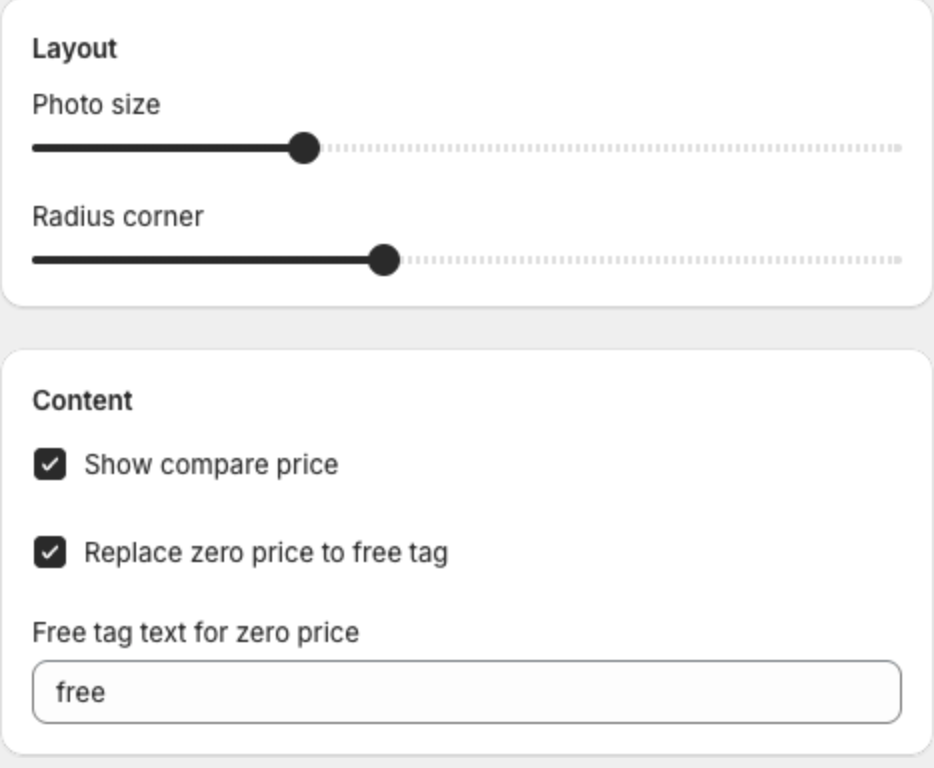
- Layout — Photo size and Radius corner. Carousel templates also have carousel options.
- Content — Show compare price, Replace zero price to free tag and Free tag text for zero price (for example "free").
3. Set text sizes and colors
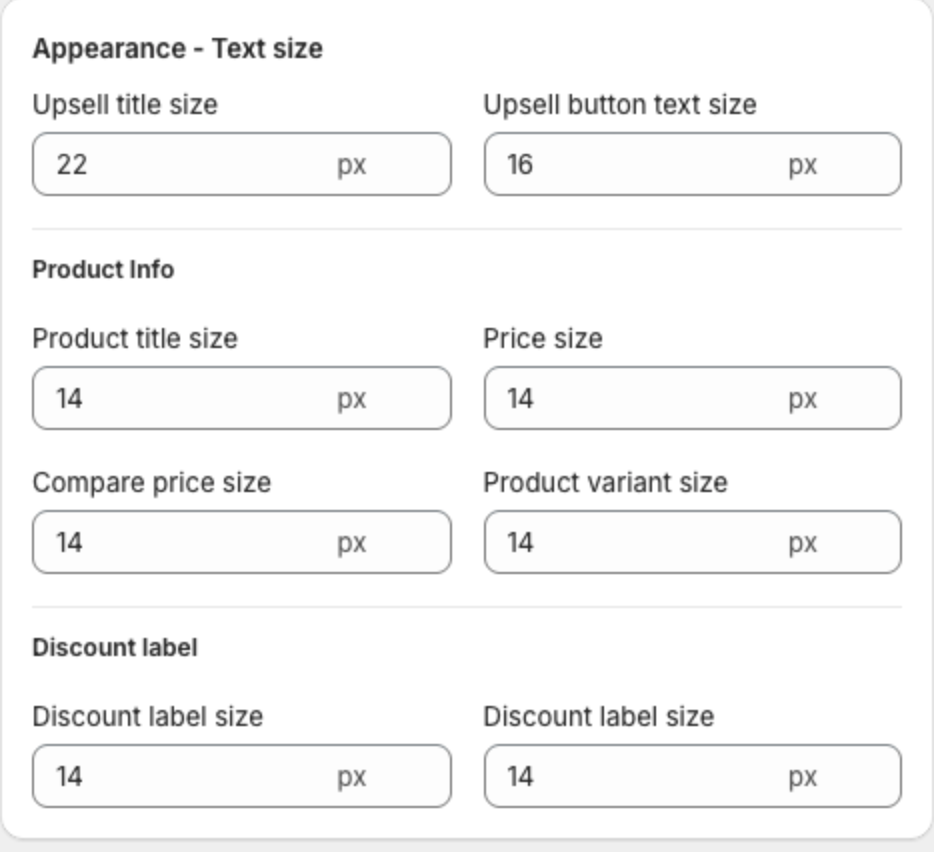
- Appearance - Text size — Upsell title size, Upsell button text size, product title, price, compare price, variant and discount label sizes.
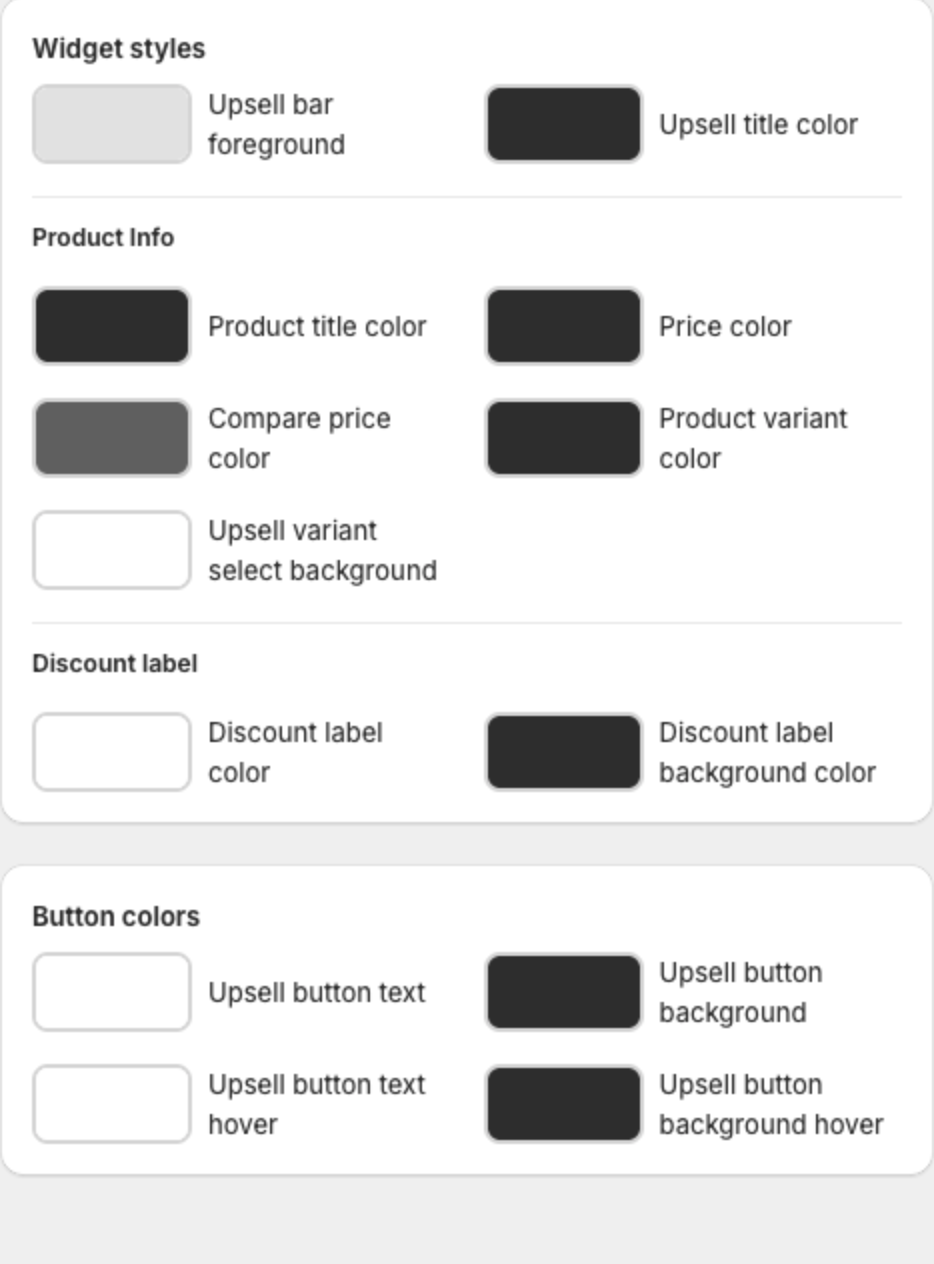
- Widget styles — upsell bar and title colors, product info colors, discount label colors and Button colors.
4. Make the offer smaller
- Lower Photo size and the sizes under Appearance - Text size.
- Lower Number of shown offer products in the Offer step.
- For Product Add-Ons, choose Small in Photo size and lower Space percentage.
5. Change the font
Product Add-Ons have a Custom CSS field in Appearance. Paste CSS like this in CSS Code and replace the font name:
.xb_checkbox_upsell_title,
.xb_checkbox_upsell_products_item_title,
.xb_checkbox_upsell_products_item_price {
  font-family: Georgia, serif;
}
Product Page Upsell has no Custom CSS field. Add the CSS to your theme instead (for example in the theme editor's Theme settings > Custom CSS, if your theme has it):
#xb-product-upsell-root,
#xb-product-upsell-root * {
  font-family: Georgia, serif;
}
Use a font that is already available on your store.
6. Save or publish
Click Save in the bar at the top of the page, or Publish if the offer is still a draft.