Display Xboost Star Rating Review
Collections pages
To display the Rating Widget on your collection pages:
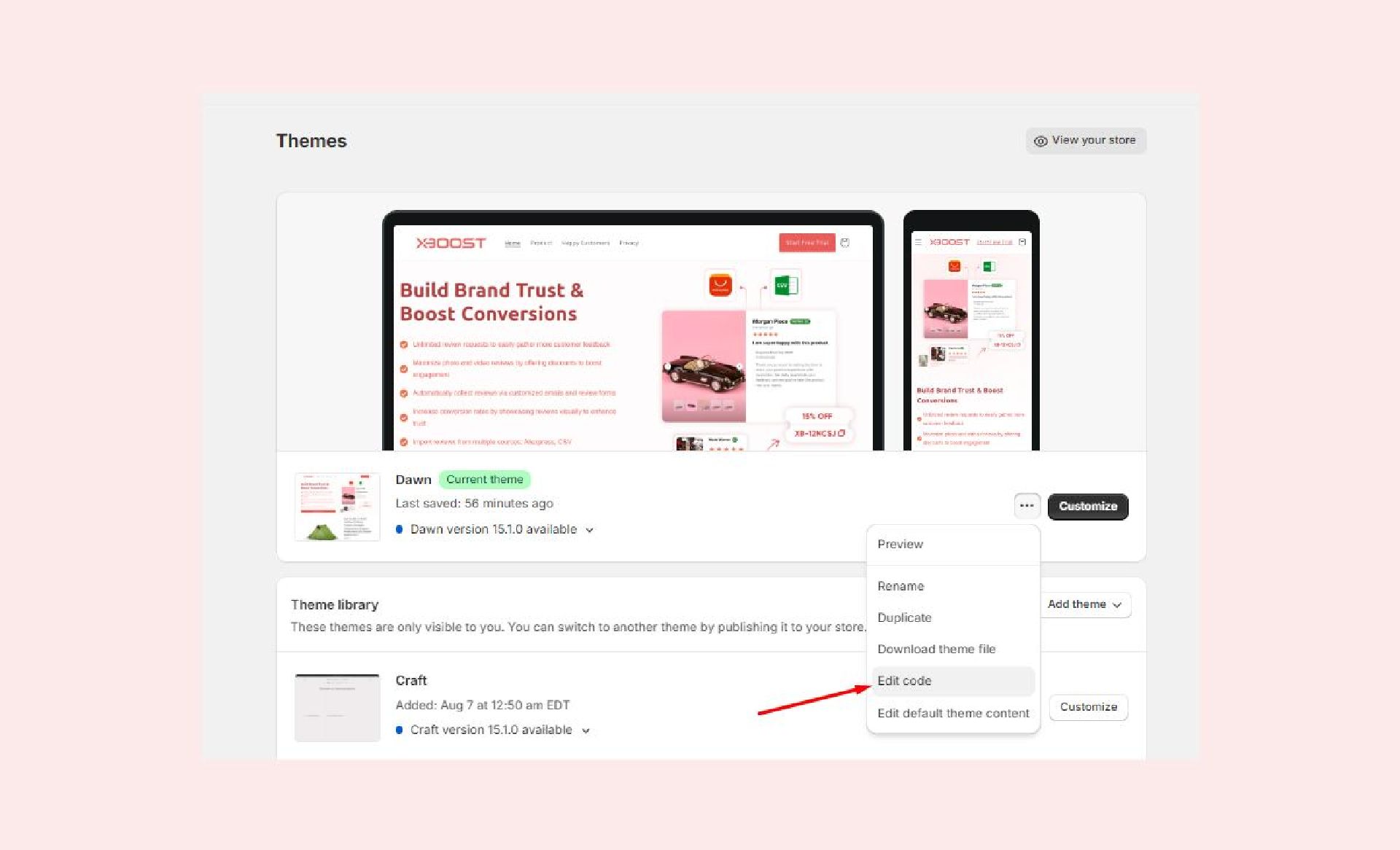
- Inside the Shopify Themes menu, click the ... button, and select Edit code:
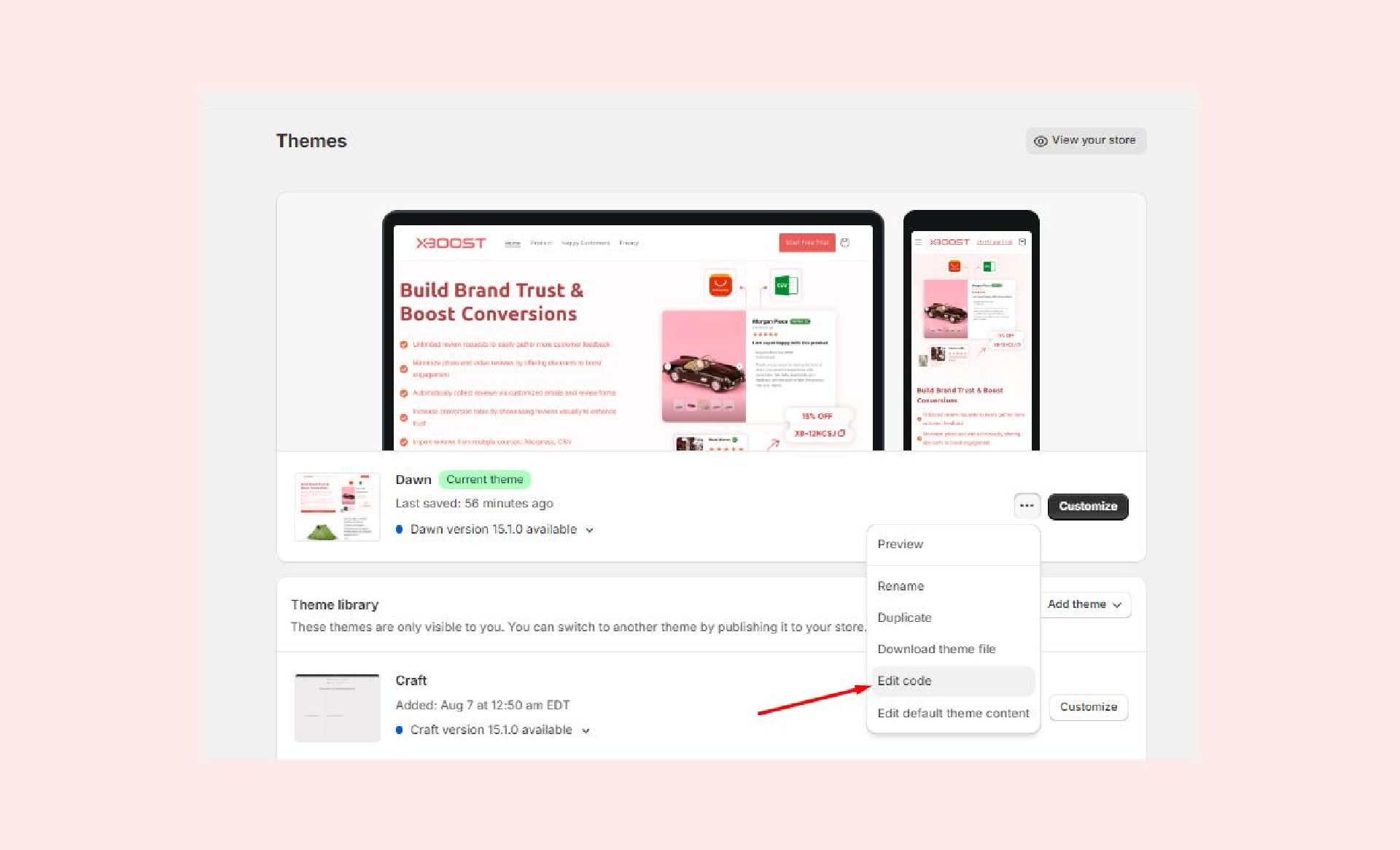
- Open the template or section you use for the product in your collections (under snippets, product-grid-item.liquid / product-loop.liquid / product-info.liquid / product-card-grid.liquid / card-product.liquid but some themes work differently).
- Copy the code below:
<div class="xboost-rating" data-review-rate="{{ card_product.metafields.xboost.avg_rating.value }}" data-review-count="{{ card_product.metafields.xboost.num_reviews.value }}" data-product-id="{{ card_product.id }}"></div>
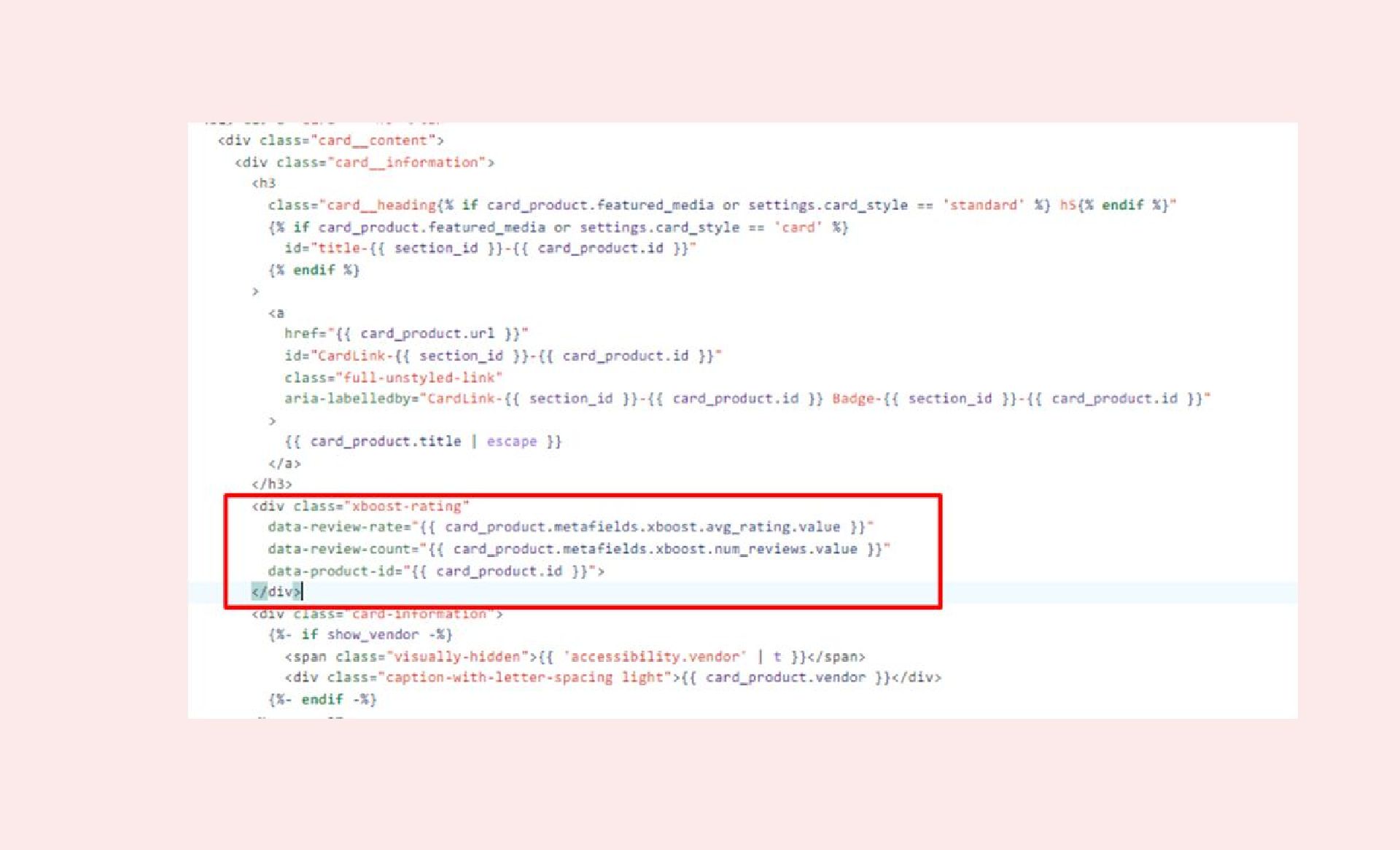
Ensure the card_product object matches your theme’s product object (e.g., product_card, product). 4. Paste it where you want the rating icons to appear on your collection listing (we recommend below the product's title), and save your file.
For example (Dawn theme):
Homepage featured product
To display the Rating Widget on your homepage featured product section:
- Inside the Shopify Themes menu, click the ... button and select Edit code:
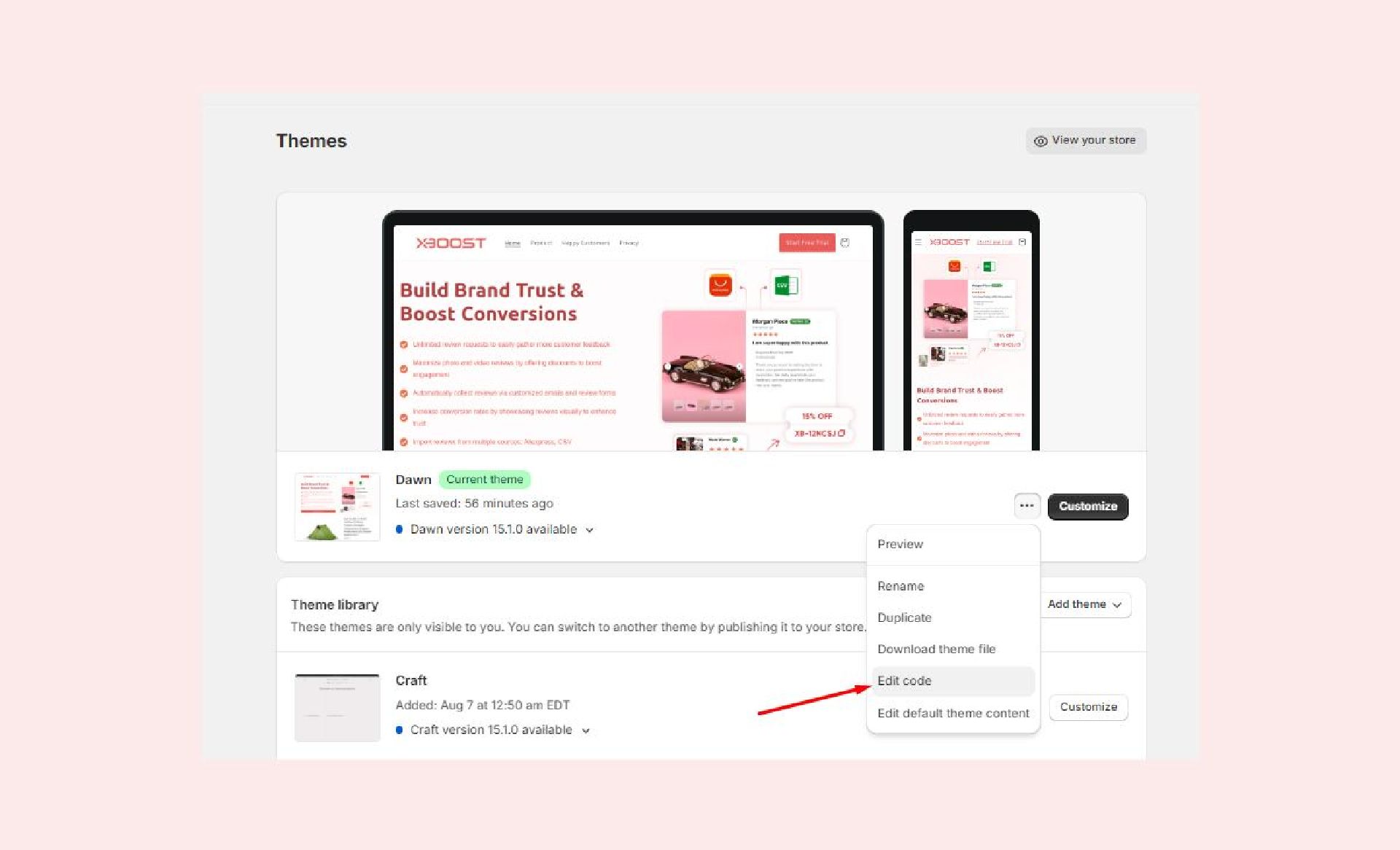
- Open the template or section you use for the homepage featured product (usually called featured-product.liquid or homepage-product.liquid, but each theme varies).
- Copy the code below:
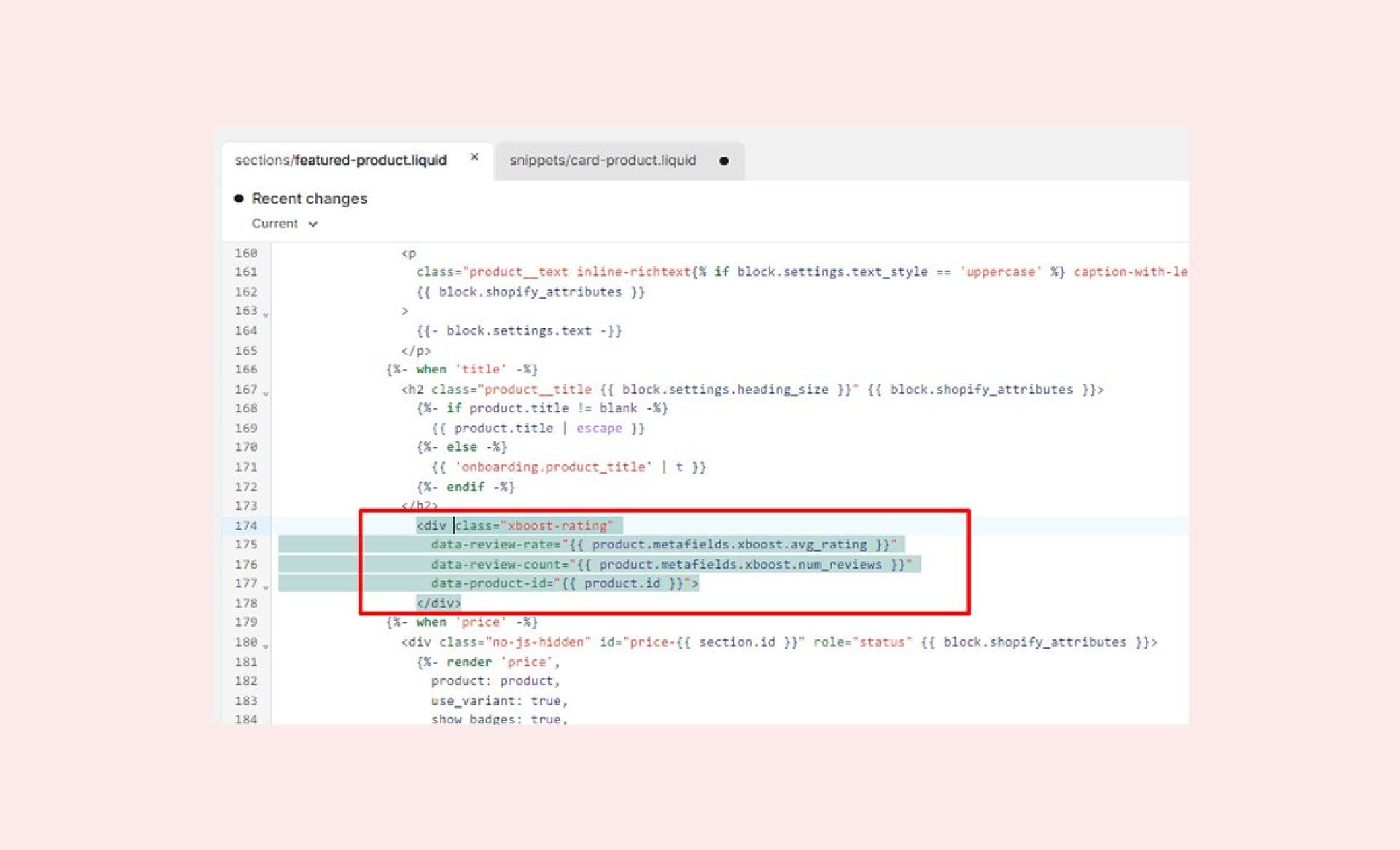
<div class="xboost-rating" data-review-rate="{{ product.metafields.xboost.avg_rating }}" data-review-count="{{ product.metafields.xboost.num_reviews }}" data-product-id="{{ product.id }}"></div>
- Paste it where you want the rating icons to appear (we recommend below the product's title), and save your file.
For example (Dawn theme):
To display the Rating Widget on your Cart page:
- Inside the Shopify Themes menu, click the ... button and then select Edit code:
- Open the template or section you use for cart pages (usually called cart.liquid or cart-template.liquid, cart-drawer.liquid but themes by vary)
- Copy the code below:
<div class="xboost-rating" data-review-rate="{{item.product.metafields.xboost.avg_rating}}" data-review-count="{{item.product.metafields.xboost.num_reviews }}" data-product-id="{{ item.product.id }}"></div>
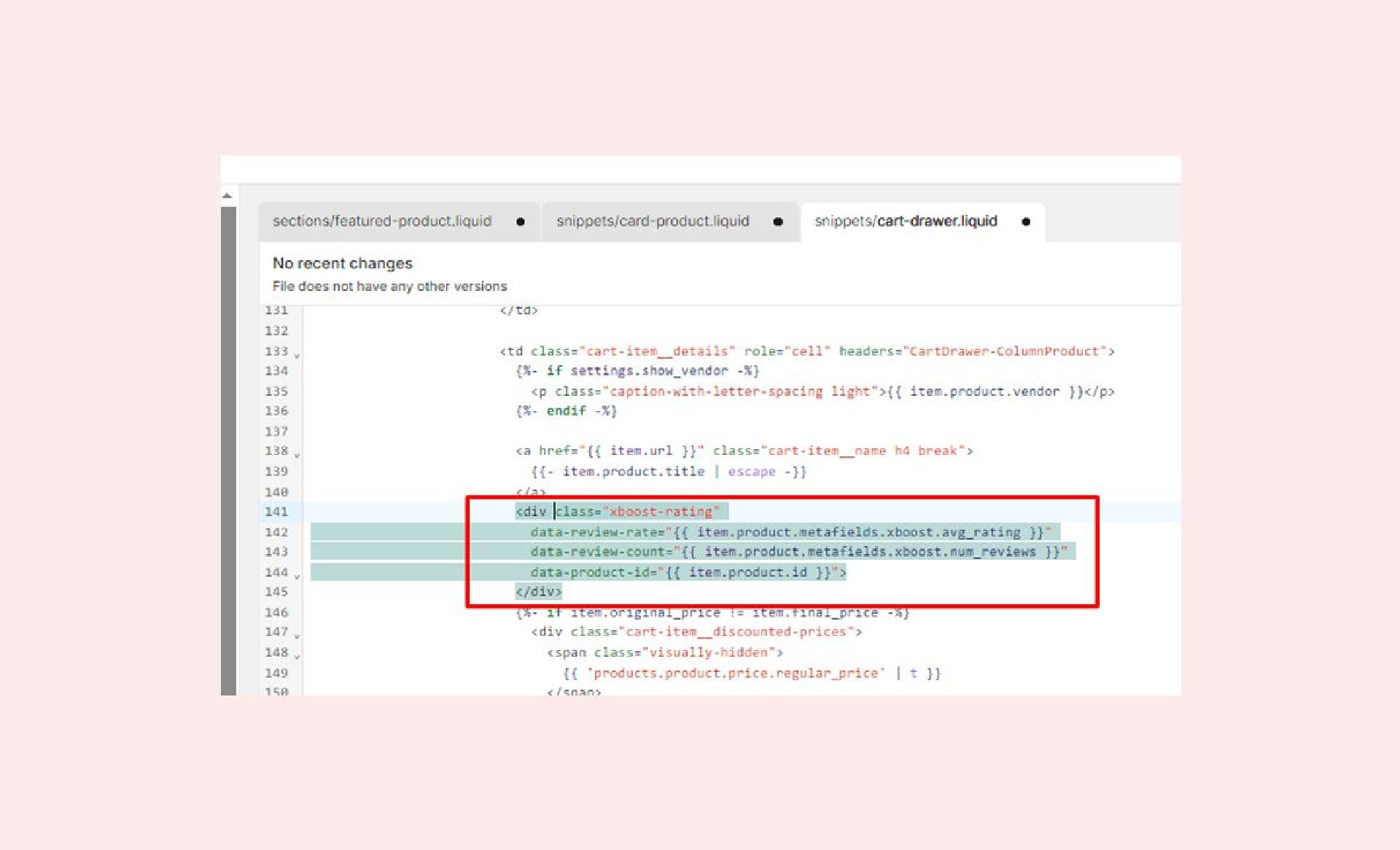
- Paste it where you want the rating icons to appear on the cart page, and save your file.
For example (Dawn theme):