
Customizing the Review Request Email
Customize the subject lines and content of the review request emails sent to your customers. While default subject lines and email bodies are provided, you have the flexibility to tailor them to better fit your brand.
You can customize Review request email through the settings pages located in the Email Settings section of your Xboost Reviews Settings.
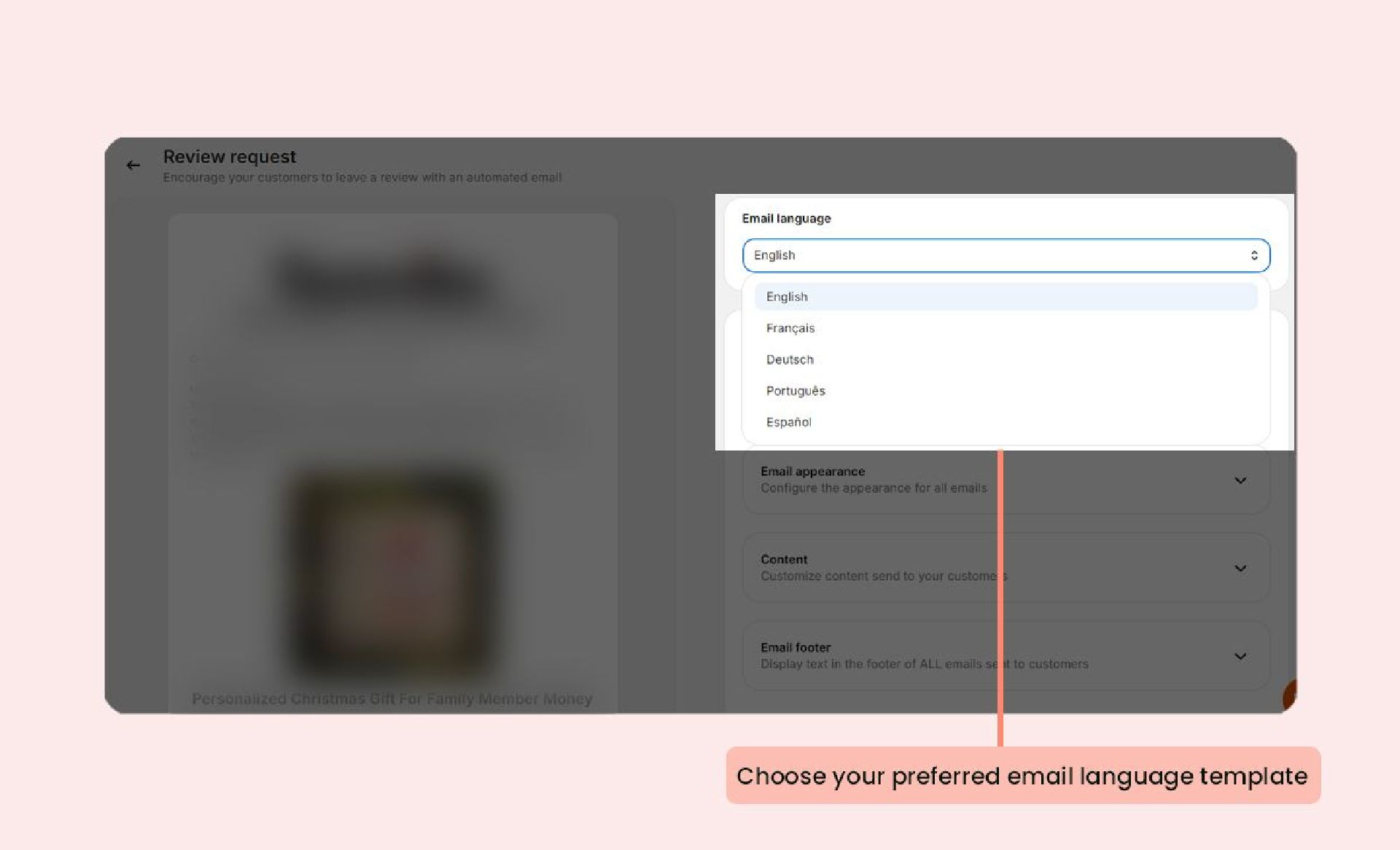
Choosing your email language template
In the Email language section, choose the email language used throughout the form from the menu.
Uploading your brand’s logo to your emails
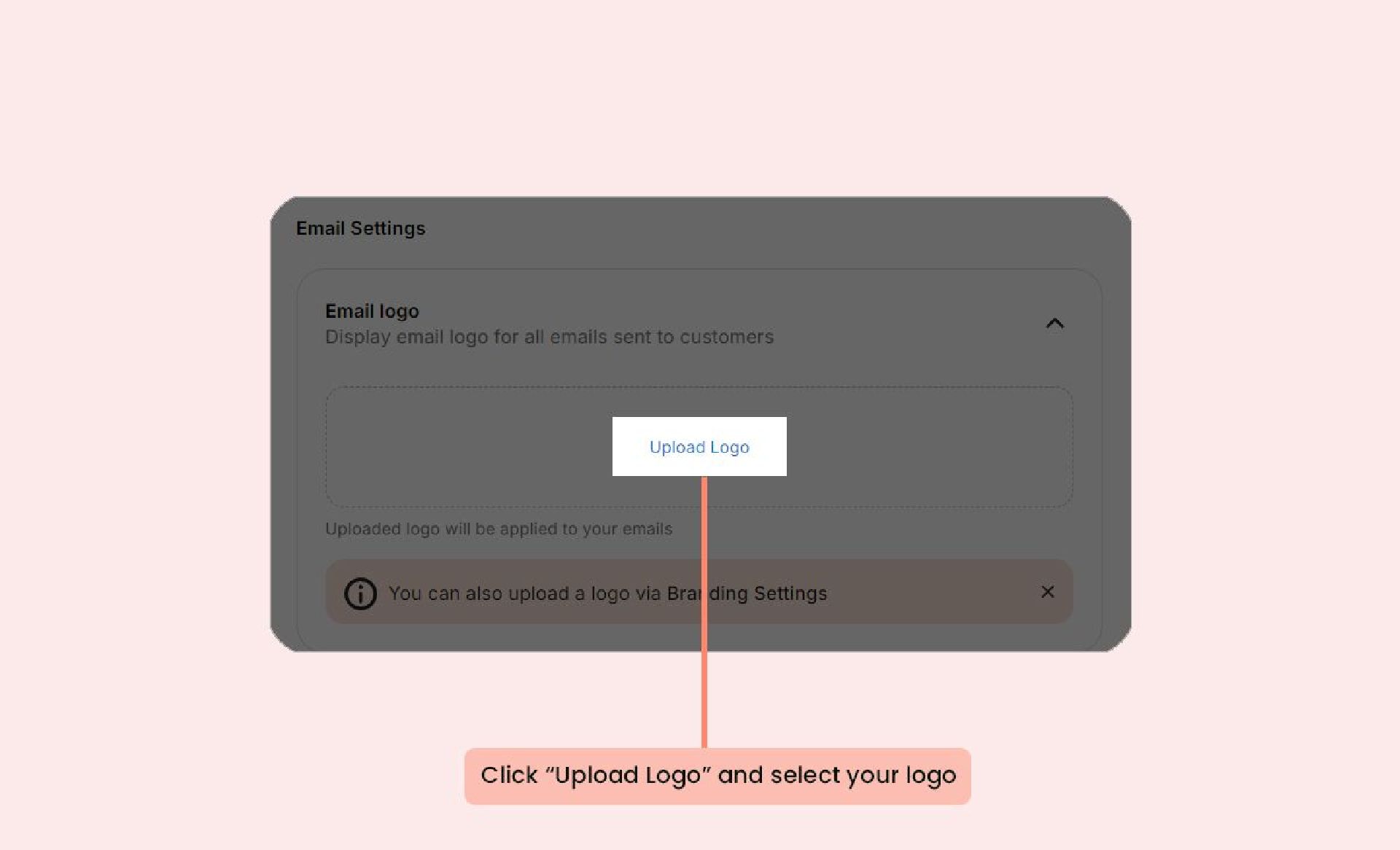
To add your store’s logo:
- Go to the Email Settings section and select the Email logo.
- Click the Upload Logo button and select your logo.
Customizing Your Email Appearance
Adding a banner image
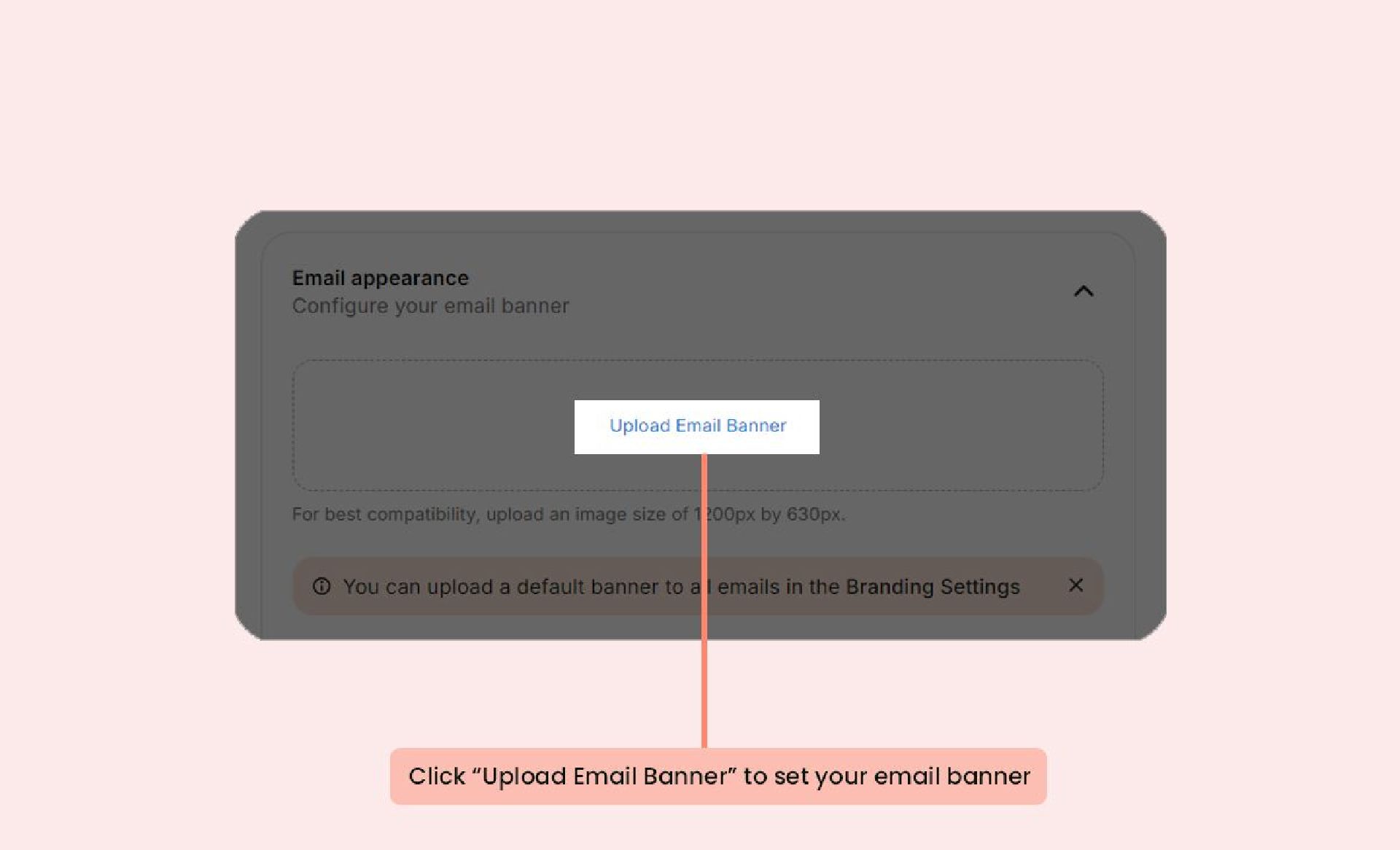
To add a specific email's banner:
- Navigate to the Email Settings section, go to the Email appearance.
- Click the Upload Email Banner button and select your banner image.For best results, use an image, upload an image size of 1200px by 630px.
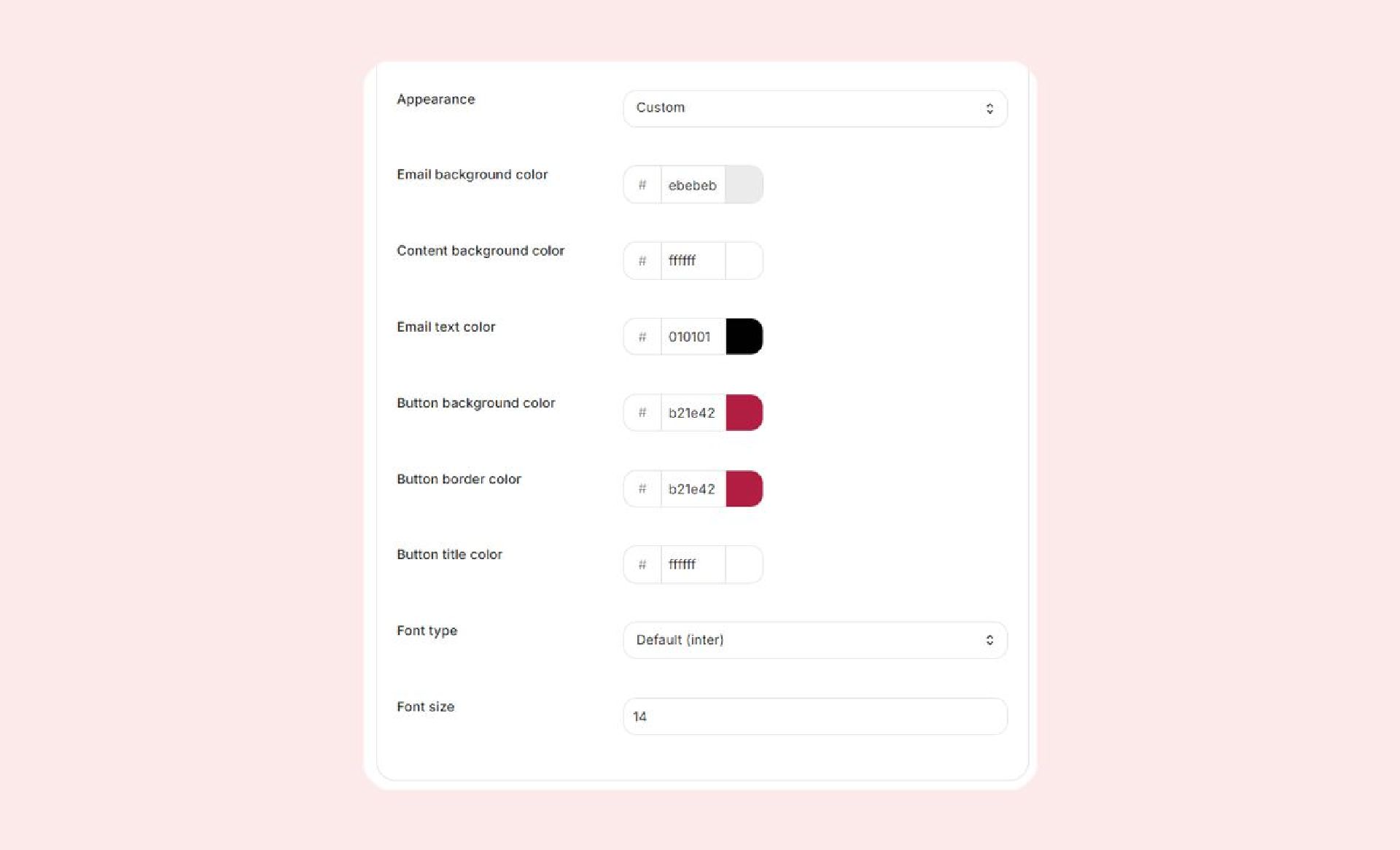
Customize each email element, including:
- Appearance: Custom - Fully customizable.
- Email background color
- Content background color
- Email text color
- Button background color
- Button border color
- Button title color
- Font type
- Font size
To customize:
- Go to the Email Settings, then to the Email appearance.
- Open the Appearance dropdown menu and select Custom.
- Use the color selector or input a hex code to adjust each element.
Note: These customizations apply to all Xboost Review emails, including Review Request, Reminder, and more.
Editing your email content
Email subject lines
You can personalize each email’s subject line in its settings page under the Email Settings section, navigate Content
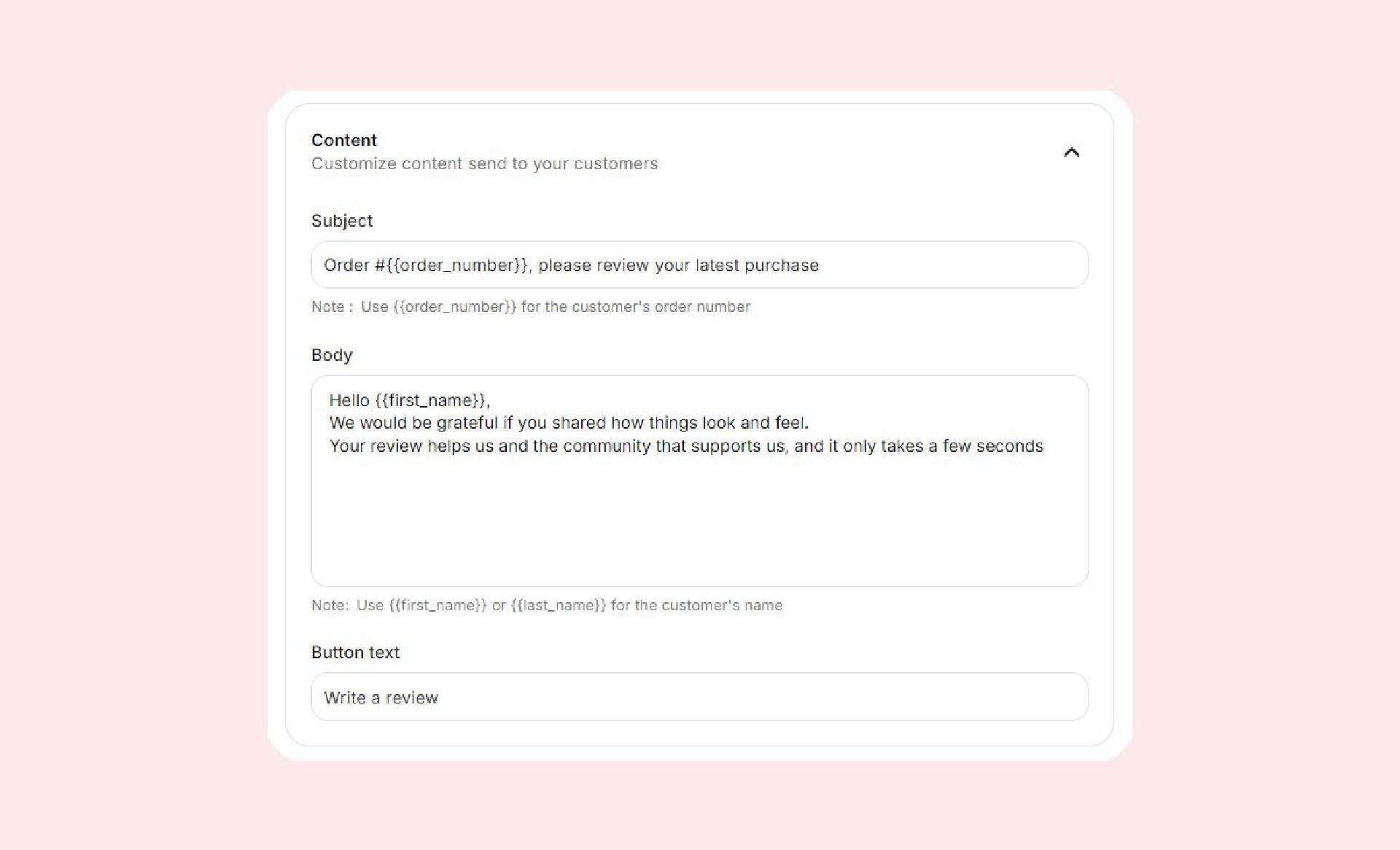
The default subject line is:
"Order #{{order_number}} please review your latest purchase!"
You can use the following placeholders to include customer-specific information:
- {{order_number}} Inserts the customer's order number.
- {{ first_name }} {{ name }} {{ last_name }} for the customer’s name.
For example:
- "Order #{{order_number}}, please review your latest purchase!" becomes "Order #1234, please review your latest purchase!"
- "{{name}}, please review your purchase!" becomes "David, please review your purchase!"
Write a Review Button
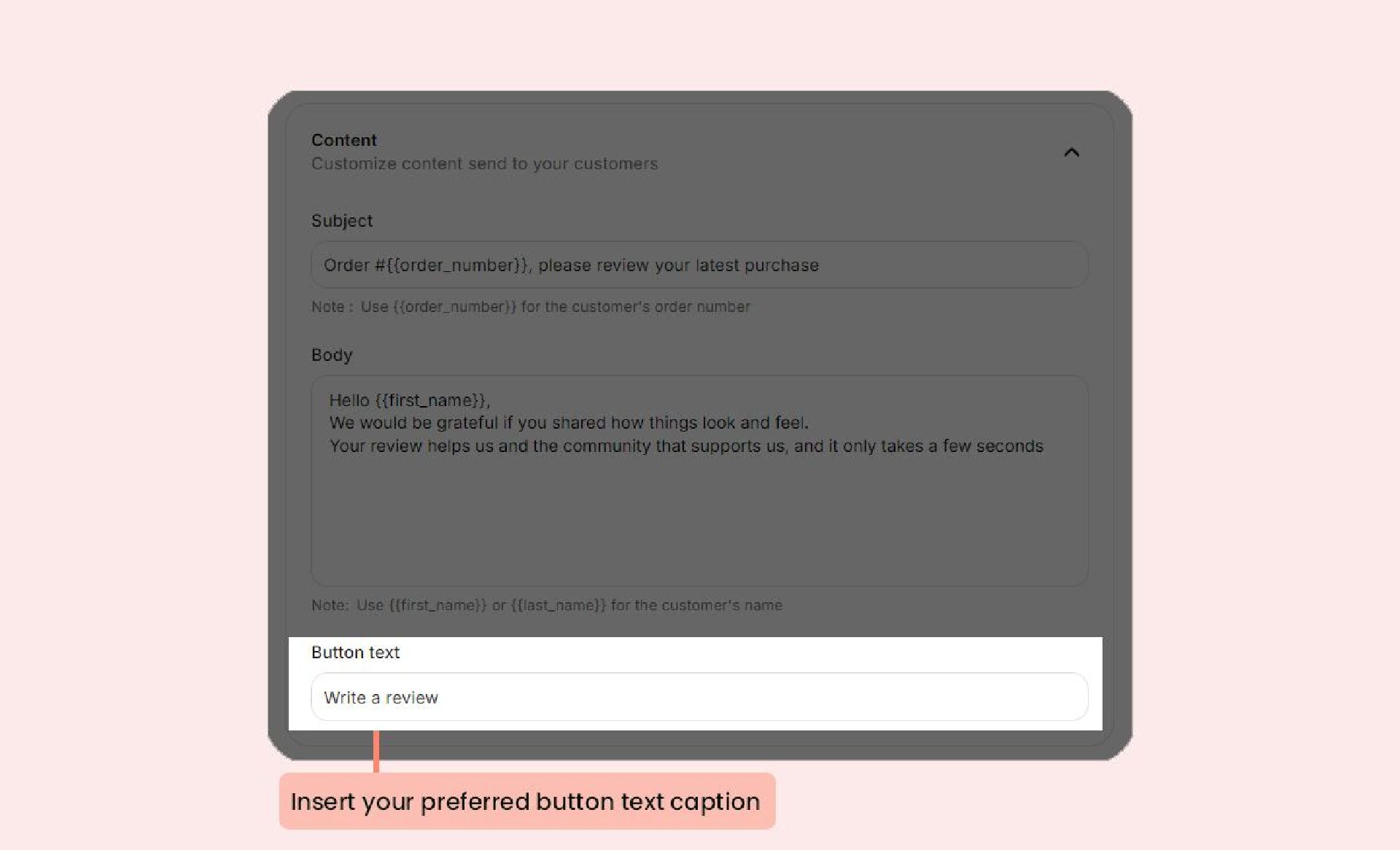
A rectangular button labeled "Write a Review" prompts customers to submit feedback.
To customize the text on the "Write a Review "button: Under Button text, enter your preferred caption.
Adding an Email Footer
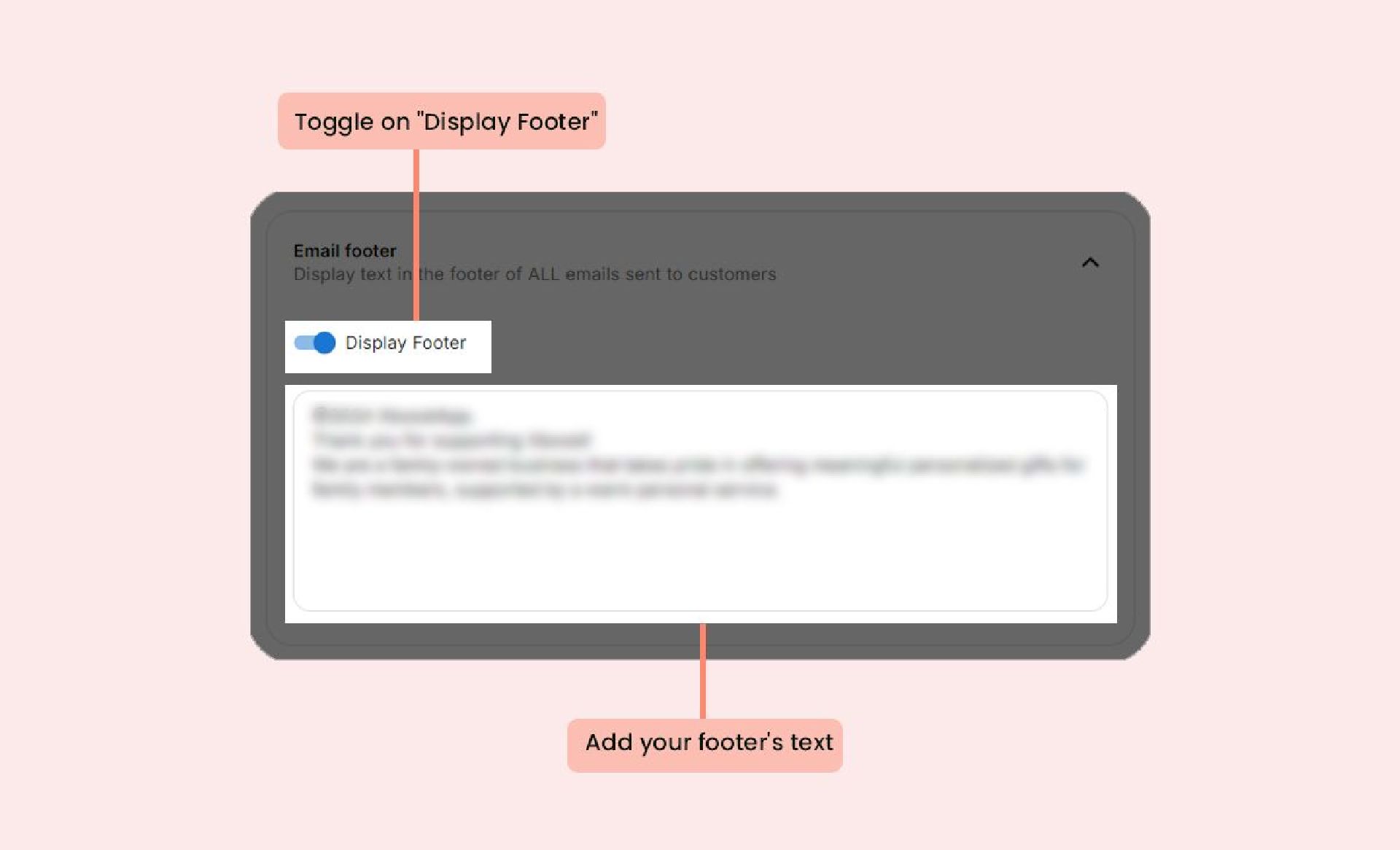
To add a footer to your Review Request email:
- Go to the Email Settings page and select Email Footer.
- Toggle on Display Footer and add your desired text.
Viewing a test email of Review request
To view a test of your customized email:
Under the email preview section, click Send me a test email
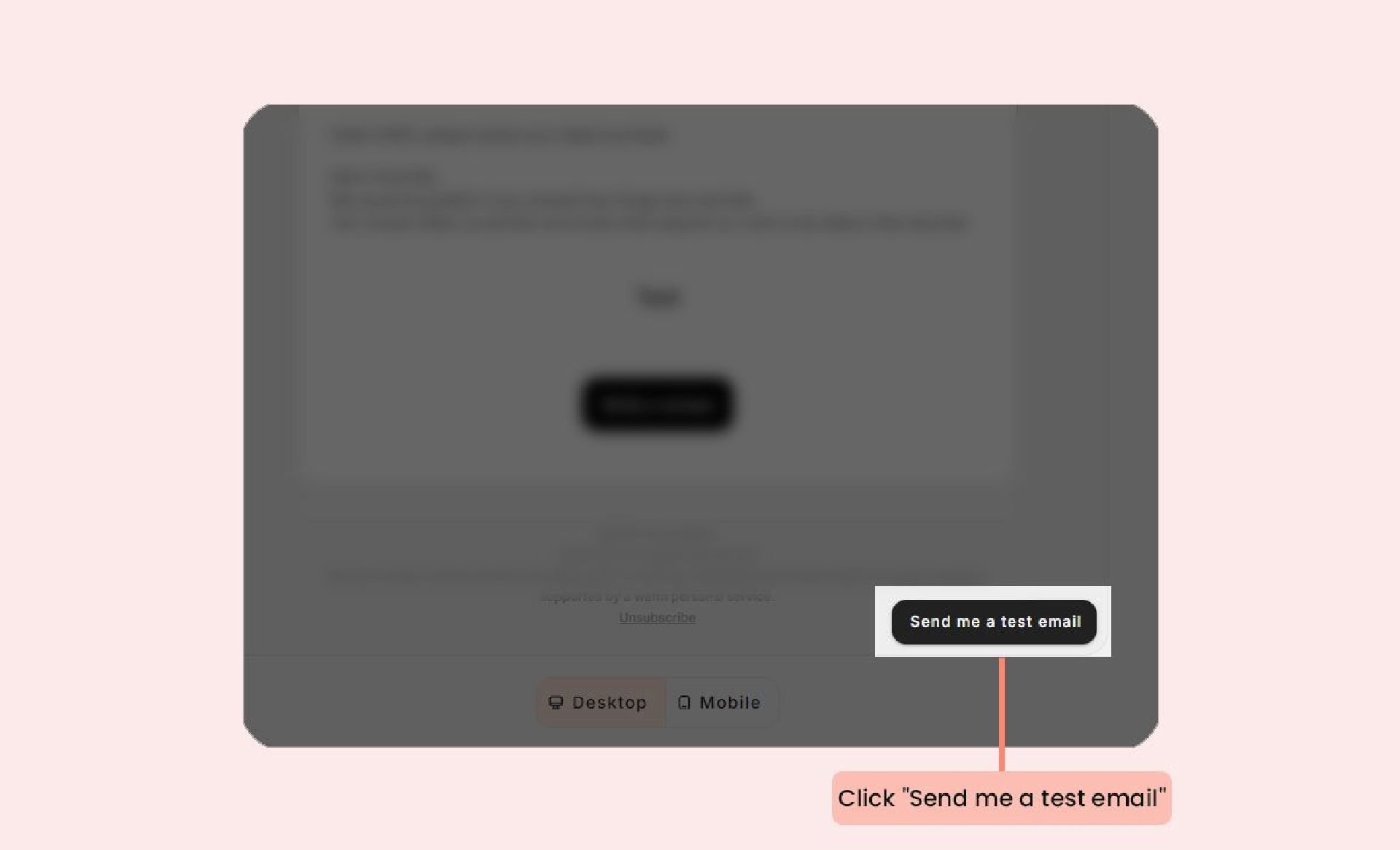
The sample email will be sent to the email address linked to your Shopify account.