
How to choose which orders show the offer
Overview
The Trigger step decides after which orders the post-purchase offer shows. You pick the products in the order, and you can add conditions on the product, the customer, the cart and the shipping country.
Steps
1. Pick the products
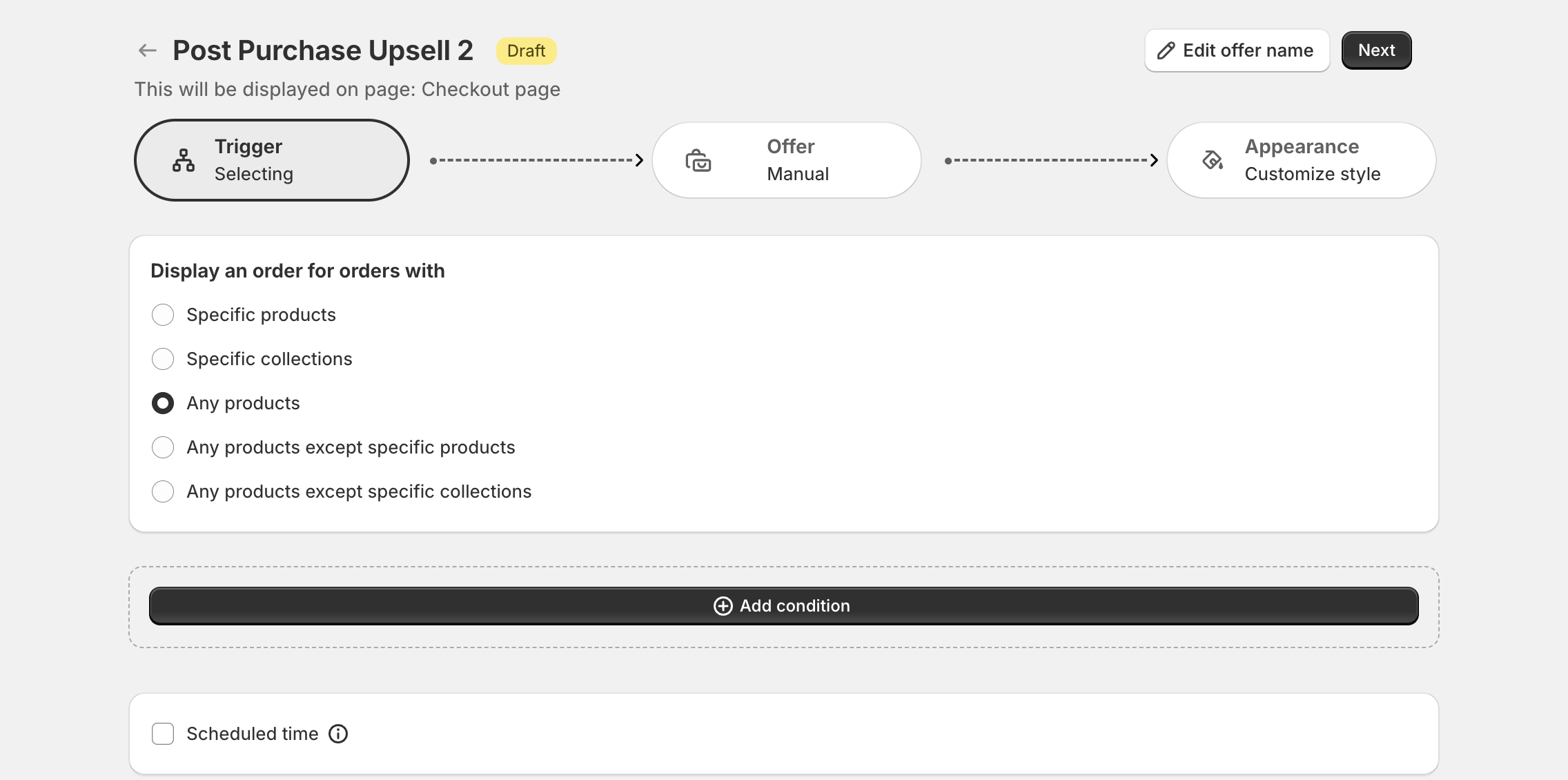
Open the offer and click Trigger. Under Display an order for orders with, pick one:
- Specific products: orders that contain the products you select.
- Specific collections: orders with products from the collections you select.
- Any products: every order.
- Any products except specific products.
- Any products except specific collections.
2. Add conditions (optional)
Click Add condition and pick one. The offer shows only when all conditions match.
| Group | Condition | What it checks |
|---|---|---|
| Product based triggers | Order has product with quantity | The number of matching products in the order. |
| Order has product tag | A tag of the products in the order. | |
| Order has product variant | A variant of the products in the order. | |
| Customer based triggers | Customer tag | A tag of the customer. |
| Customer order count | Total orders completed by the customer. | |
| Cart based triggers | Cart line item price | The price of each line item. |
| Cart order sub total | The subtotal, without tax and shipping. | |
| Cart order total | The total, with tax and shipping. | |
| Cart order quantity | The total quantity across all items. | |
| Purchase details triggers | Shipping country | The shipping country of the order. |
Number conditions compare with a value (more than, less than, equal to or not equal to). Tag, variant and country conditions include or exclude the values you pick.
Shipping country uses the country of the order's shipping address, not the customer's location.
3. Schedule the offer (optional)
Tick Scheduled time and set the start and end date.
4. Save
Click Next to continue, or Publish on the last step.