
How to turn on the post-purchase page
Overview
XB: Post Purchase Upsell shows a one-click offer right after the customer pays, before the order status page. The customer can add the offered product to the order they just paid for, without entering their payment details again.
The offer appears on Shopify's post-purchase page. Only one app can use this page, so you select XB: Post Purchase Upsell in your checkout settings.
Before you start
- Install XB: Post Purchase Upsell from the Shopify App Store.
Steps
1. Open the app dashboard
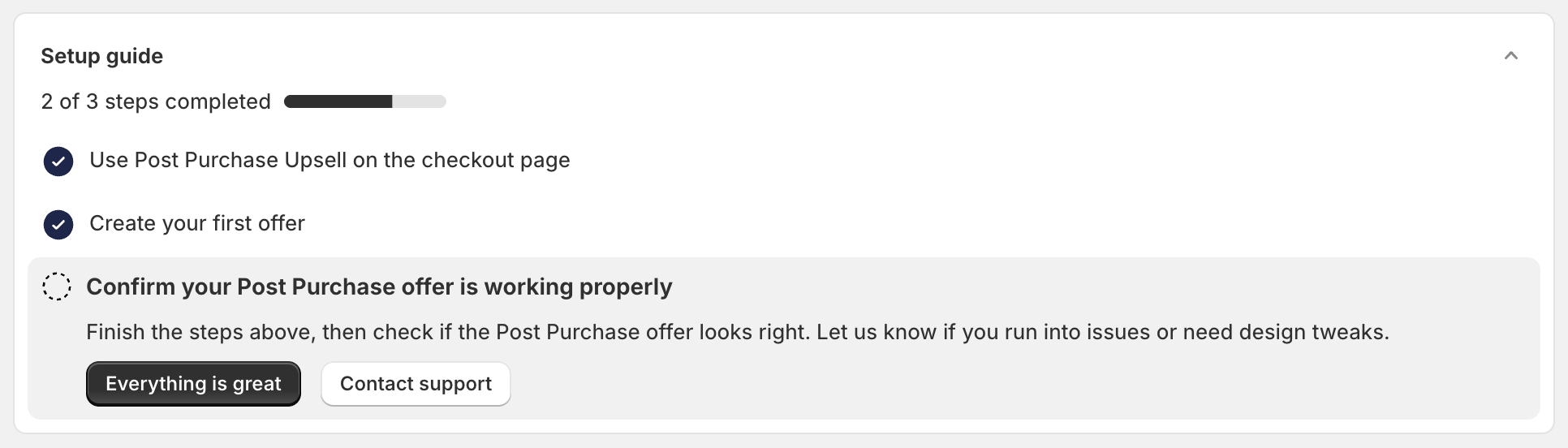
In your Shopify admin, go to Apps and open XB: Post Purchase Upsell. The Setup guide lists three steps:
- Use Post Purchase Upsell on the checkout page.
- Create your first offer.
- Confirm your Post Purchase offer is working properly.
2. Check the App Status card
- Active with "Xboost app added features at checkout after payment." means the app is selected for the post-purchase page. Go to step 4.
- Otherwise, click Go to checkout settings. Your checkout settings open in a new tab.

3. Select the app in checkout settings
- In your Shopify admin, go to Settings > Checkout.
- Find Use an app to add features at checkout after payment.
- Select XB: Post Purchase Upsell.
- Click Save.

If another app is selected there, its post-purchase offers stop showing when you switch.
4. Create your first offer
See How to create your first post-purchase offer.