How to create your first post-purchase offer
Overview
A post-purchase offer has three steps: Trigger (which orders show the offer), Offer (the products, discount and shipping) and Appearance (the look of the page). This guide creates a simple offer. Each step has its own guide for all options.
Before you start
- Select the app for the post-purchase page. See How to turn on the post-purchase page.
Steps
1. Start a new offer
- In XB: Post Purchase Upsell, click Offers in the app menu, then click Create offer.
- On Select offer type, click Create an offer on the Post Purchase Upsell card. The other cards open other XBoost apps.
The offer opens as a Draft with a name like "Post Purchase Upsell 2". Click Edit offer name to rename it. Customers do not see this name.
2. Choose the orders (Trigger)
Under Display an order for orders with, keep Any products to show the offer after every order, or pick other products. Click Next.
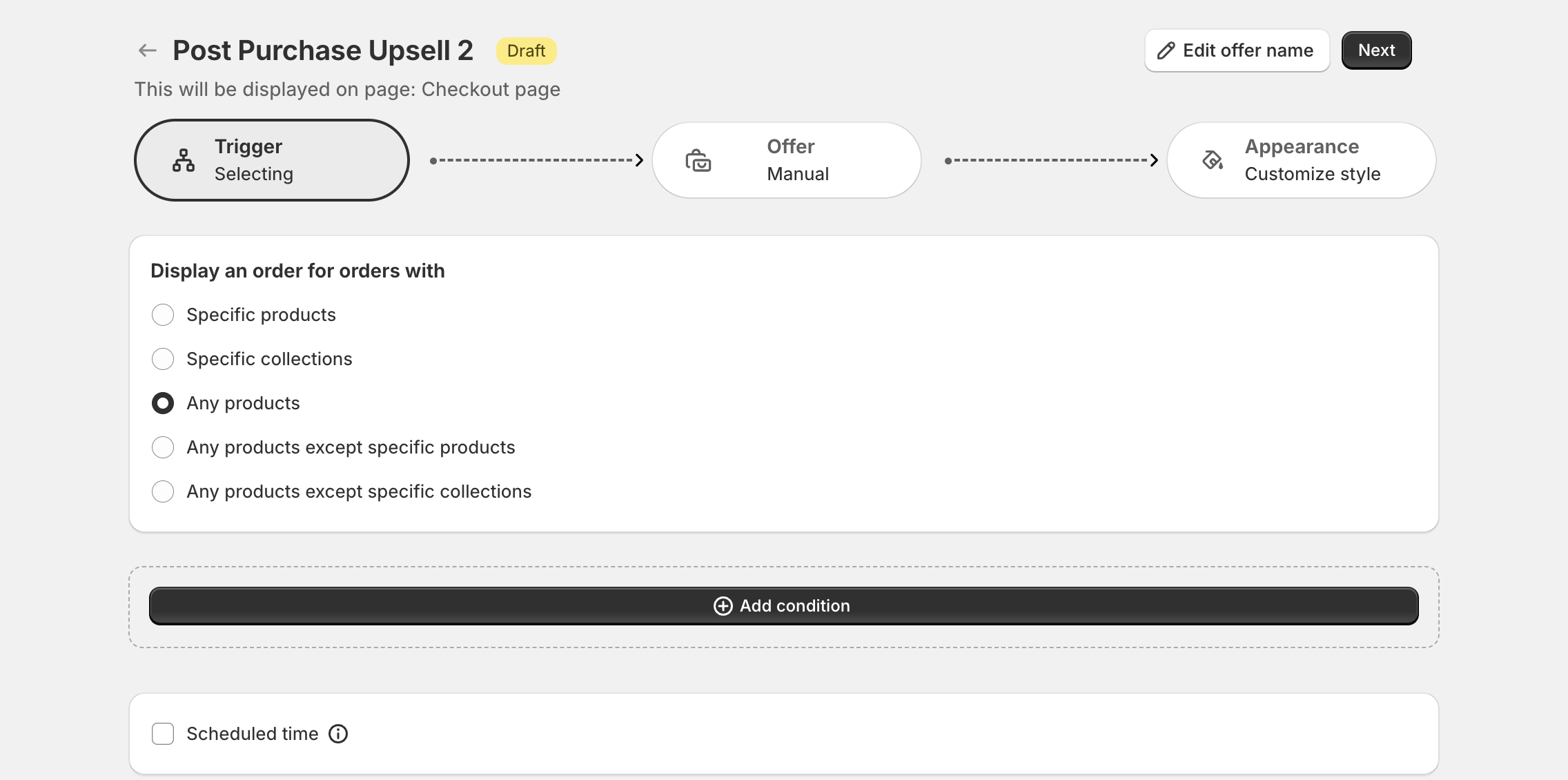
For conditions and scheduling, see How to choose which orders show the offer.
3. Add the offer product (Offer)
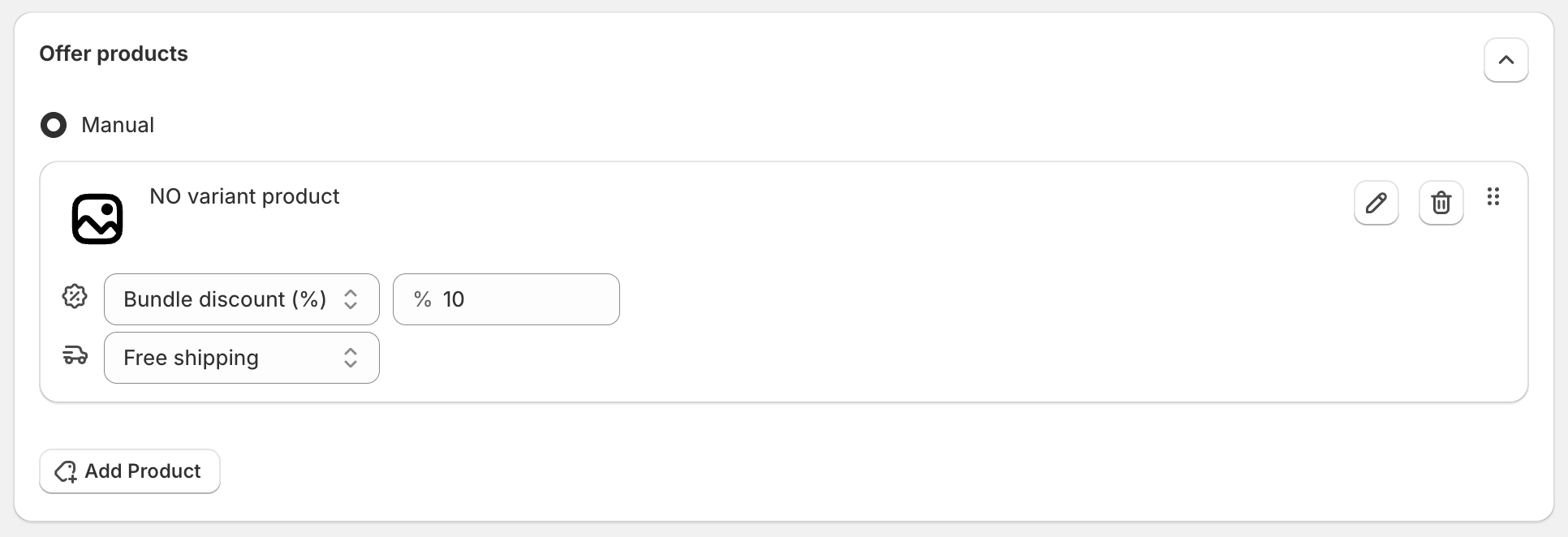
- Under Offer products, click Add Product and pick a product or variant.
- Set the discount, for example Bundle discount (%) 10, and the shipping, for example Free shipping.
- Click Next.
You can also add follow-up offers when the customer accepts or declines. See How to set offer products, discounts and the upsell funnel.
4. Adjust the look (Appearance)
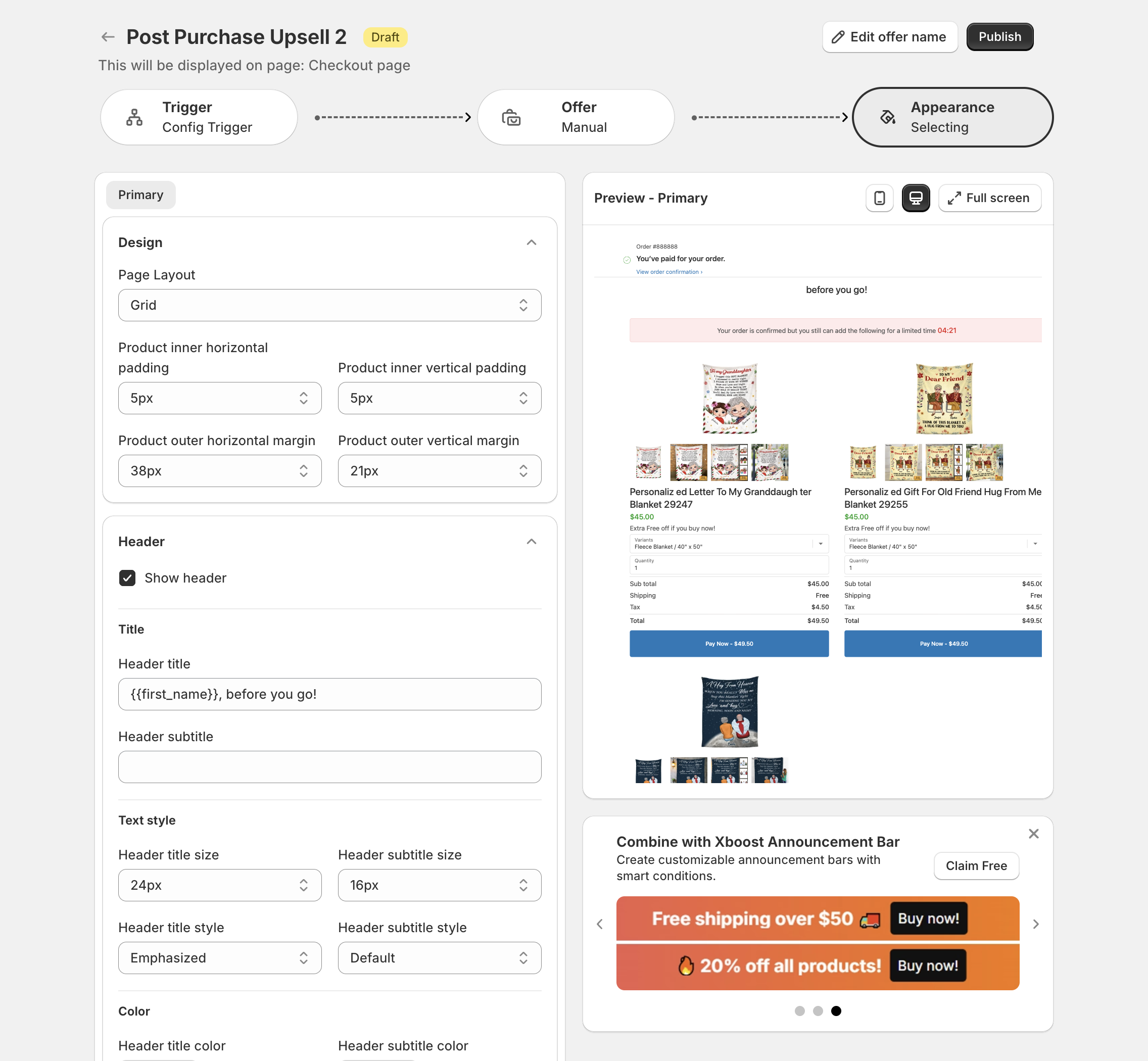
Change the header, banner, timer and product layout if you want. The preview on the right shows the page. See How to customize the post-purchase page.
5. Publish
Click Publish at the top right. The offer shows on the post-purchase page of orders that match the trigger.
On the dashboard, click Everything is great in the Setup guide when the offer looks right, or Contact support if you need help.
6. What customers see
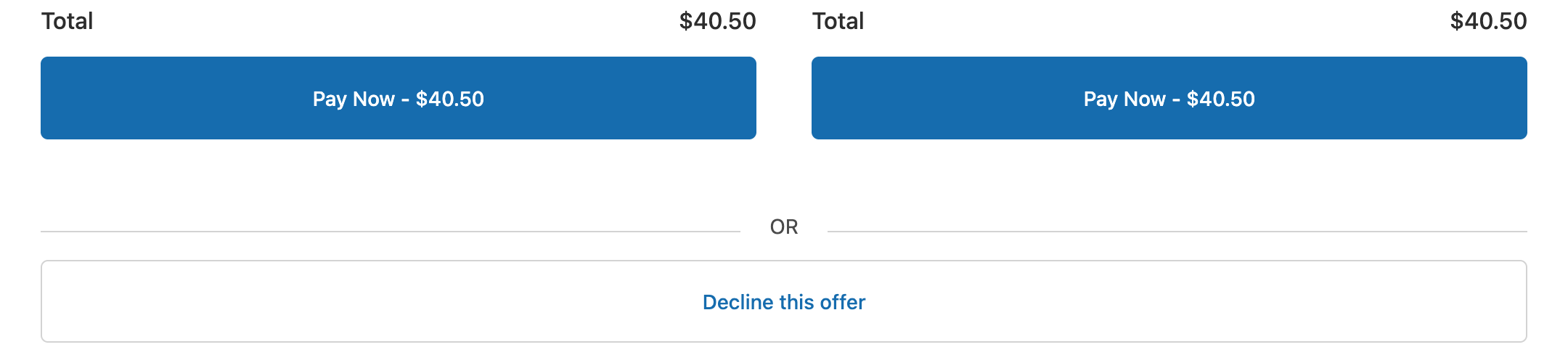
After payment, customers who match the trigger see the offer before the order status page. The page confirms the payment ("You've paid for your order."), then shows your header, banner with the countdown, and the offer products. Each product has its own Pay Now button with the total.
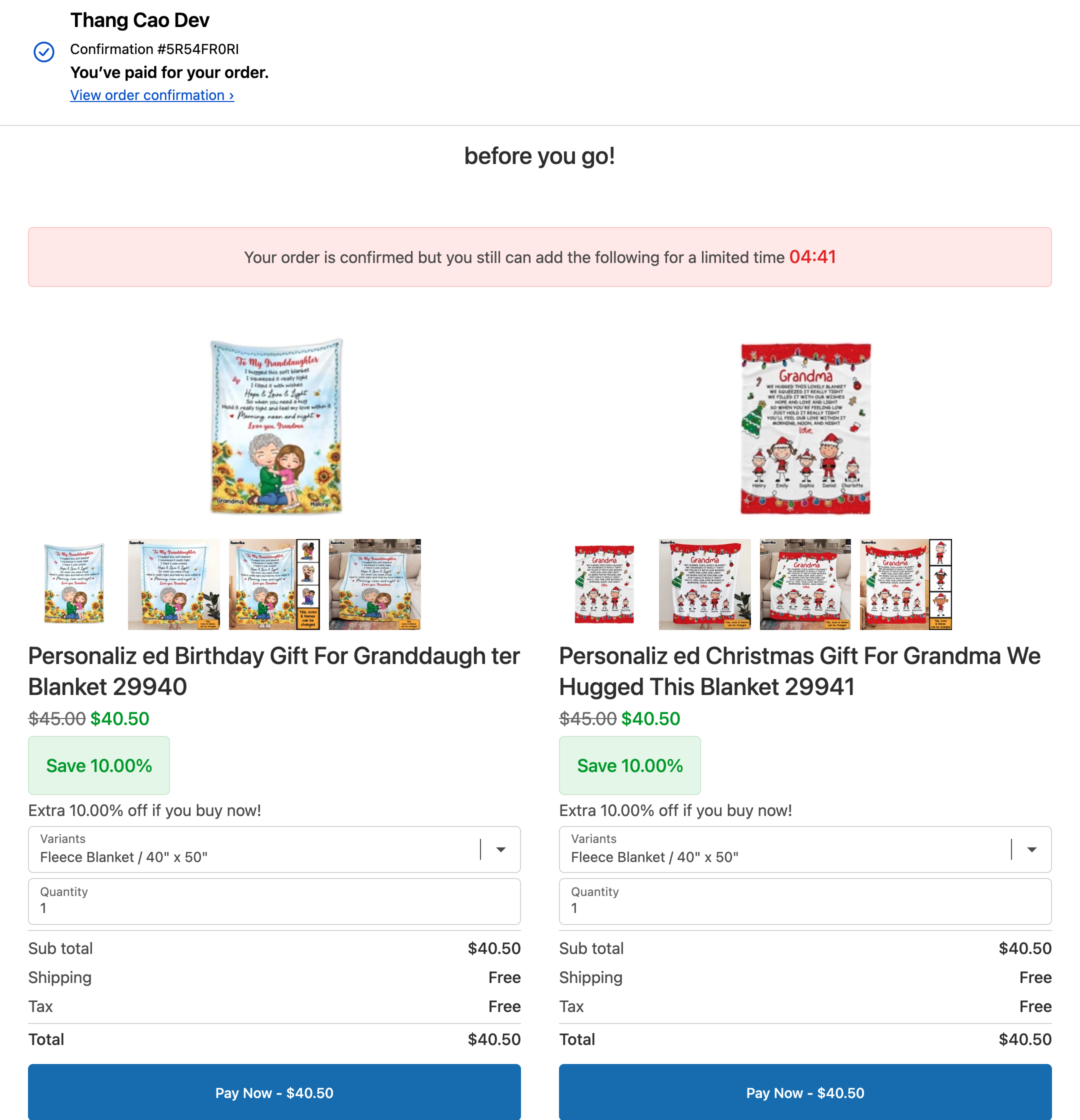
At the bottom, Decline this offer skips the offer. Without a downsell page, the customer goes to the order status page ("Thank you").