
How to customize the post-purchase page
Overview
The Appearance step sets the look of the post-purchase page: layout, header, banner, countdown timer, product cards, price breakdown and buttons. If you turned on upsell or downsell pages, each page has its own tab at the top, for example Primary.
Steps
1. Open Appearance
Open the offer and click Appearance. Pick the page tab you want to change. The preview on the right (Preview - Primary) updates as you change settings. Use the icons above it to switch between mobile and desktop, or click Full screen.
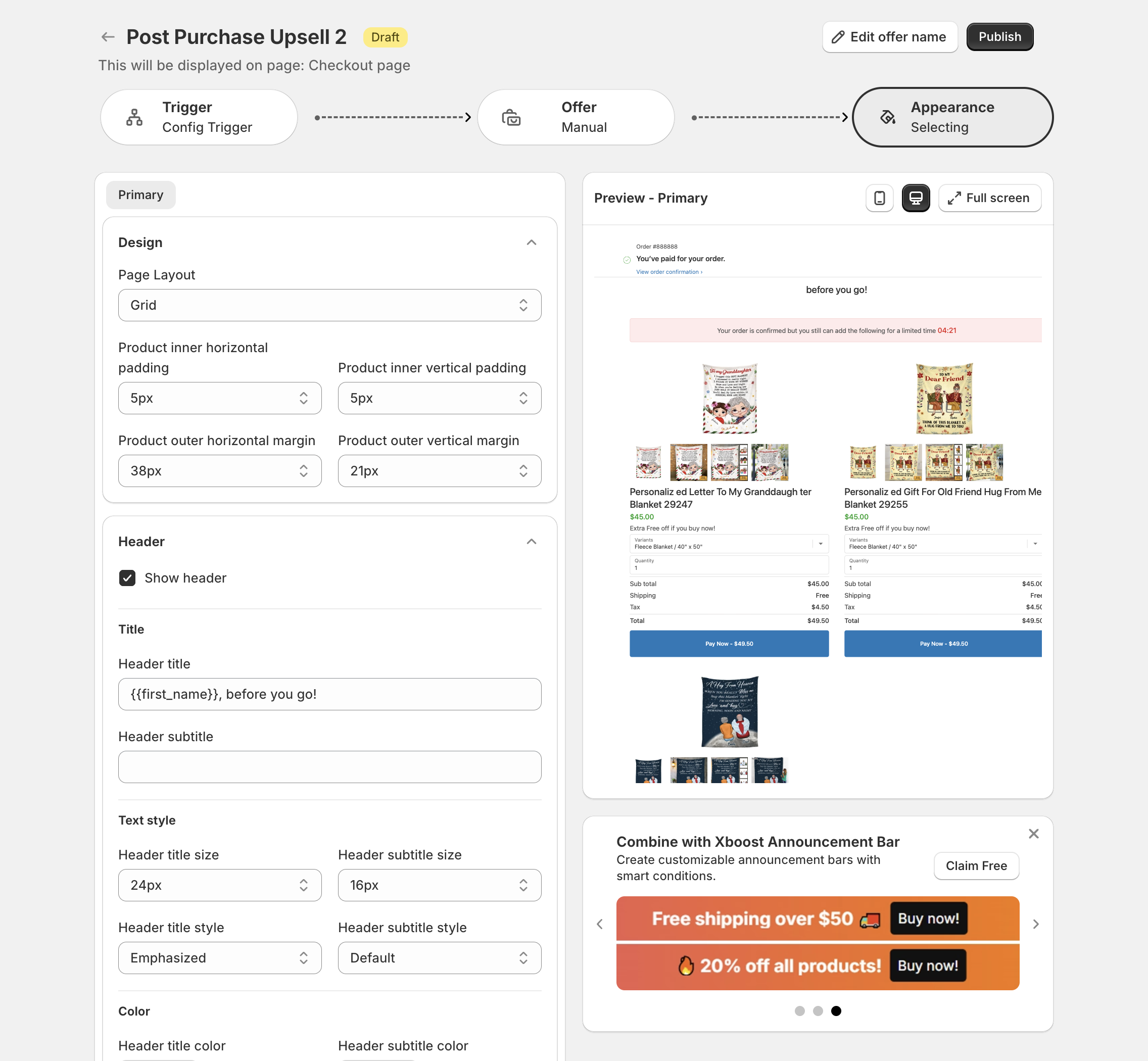
2. Design
- Page Layout: Grid, Spotlight or List.
- Product inner horizontal padding and Product inner vertical padding: space inside each product card.
- Product outer horizontal margin and Product outer vertical margin: space around the cards.
3. Header and banner
- Header: Show header, Header title (default "{{first_name}}, before you go!", where
{{first_name}}is the customer's first name) and Header subtitle, with text size, style and color. - Banner: Show banner, Banner title and Banner subtitle, with text size, style, color and Banner background.
4. Timer
Set the Timer (hh:mm:ss), Timer size and color. Put {{timer}} in the header or banner text to show the countdown. When it reaches zero, the page moves on as if the customer declined: to the downsell page if you set one, otherwise to the order status page.
5. Upsell products
- Product layout: Horizontal, Horizontal 02 or Vertical.
- Photo size and Show product photo list.
- Product title, Compare Price (Use compare price, Show strikethrough price), Price, Discount message (Show discount message) and Discount tag (Show primary discount tag), each with size, style and color.
- Product options: Enable quantity select box and Combined variant option.
6. Price breakdown, total and buttons
- Price breakdown: show or hide the subtotal, shipping and tax labels, and change their text.
- Total price: Show total price and Total price label.
- Buttons: Decline button location (Bellow pay now button, Beside pay now button or Under upsell products) and Decline button style (Link or Secondary).
7. Publish
Click Publish at the top right to save the offer.
Make the offer shorter
Lower the paddings and margins under Design, pick a smaller Photo size, turn off Show banner or Show header, and hide labels you do not need under Price breakdown. See How to make the post-purchase offer shorter.
Change the font
The post-purchase page is drawn by Shopify checkout, so it uses your checkout's style. The app has no font setting or custom CSS. See How to change the post-purchase page font.