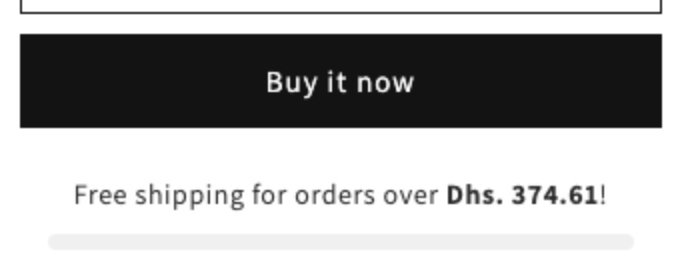
How to create your first free shipping bar
Overview
A free shipping bar tells shoppers how much more they need to spend to get free shipping, for example "You're only $40.00 away from free shipping!". A progress bar fills up as the cart grows, and the bar can suggest products to add. This guide walks you through your first bar: you pick a template, then set Placement, Content and Design.
Before you start
- Turn on the app embed. See How to enable the app embed.
- Set up free shipping in Shopify. The app shows the bar but does not change your shipping rates. See Does the app give my customers free shipping?
Steps
1. Start a new bar
- Open XB: Free Shipping Upsell from Apps in your Shopify admin.
- Click Create Free Shipping Bar Upsell on the dashboard or on the Free Shipping Bar Upsell page.
- On Select Free Shipping Bar Upsell Type, click Create an offer on the Free Shipping Bar card.
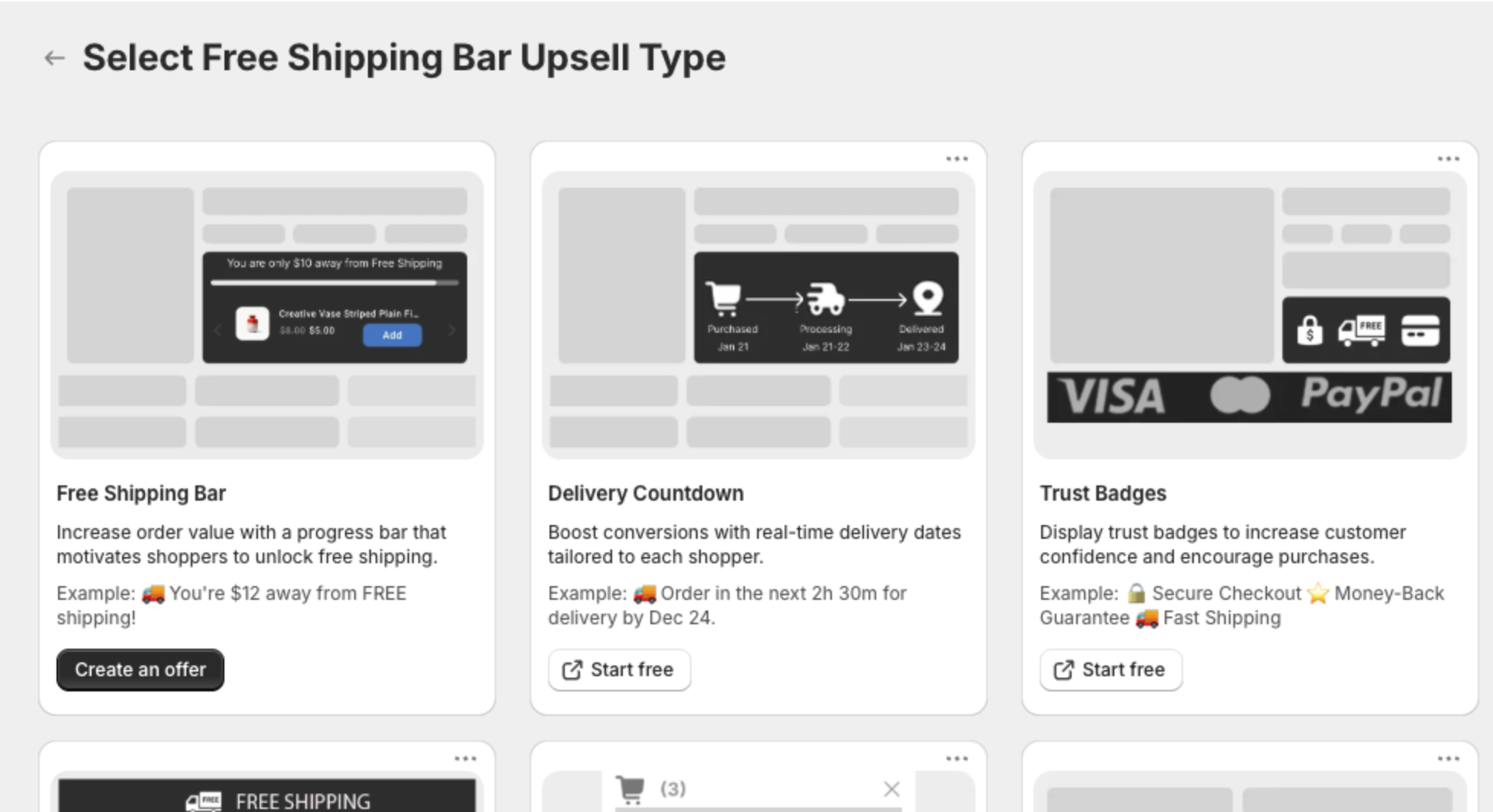
The other cards belong to other XBoost apps. Their Start free buttons open those apps on the Shopify App Store.
2. Pick a template
- Optional: pick a Color theme at the top right.
- Click the template you like. Some templates show only the progress bar; others add one or more products with an Add to cart button.
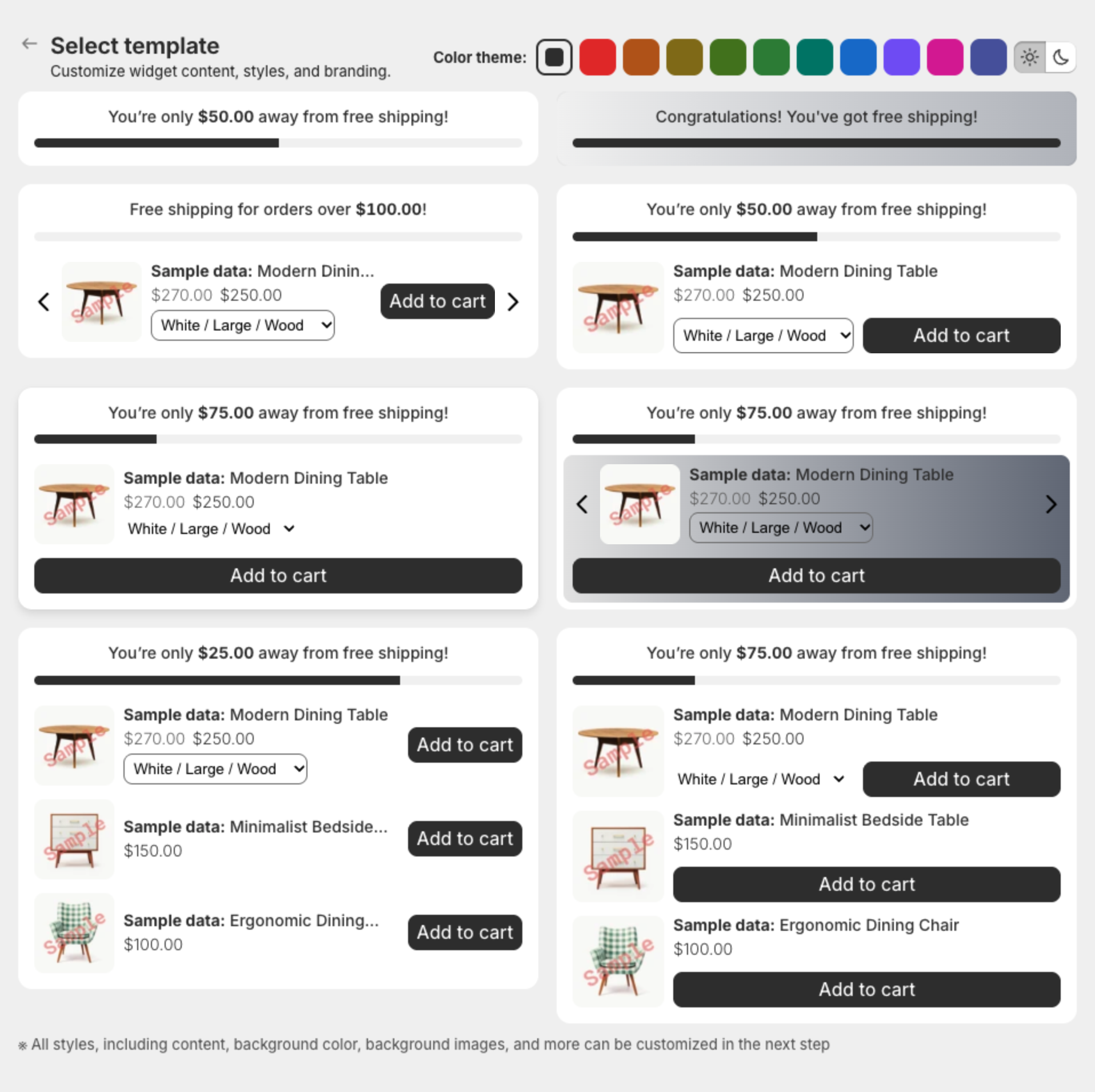
The bar opens in the editor as a Draft. Click Edit offer name to give it a name (up to 30 characters). Shoppers do not see this name.
3. Choose where the bar shows (Placement)
For a first bar, keep the defaults: Product Page, Below buy button, All products, All countries, and both Desktop and Mobile. Click Next.
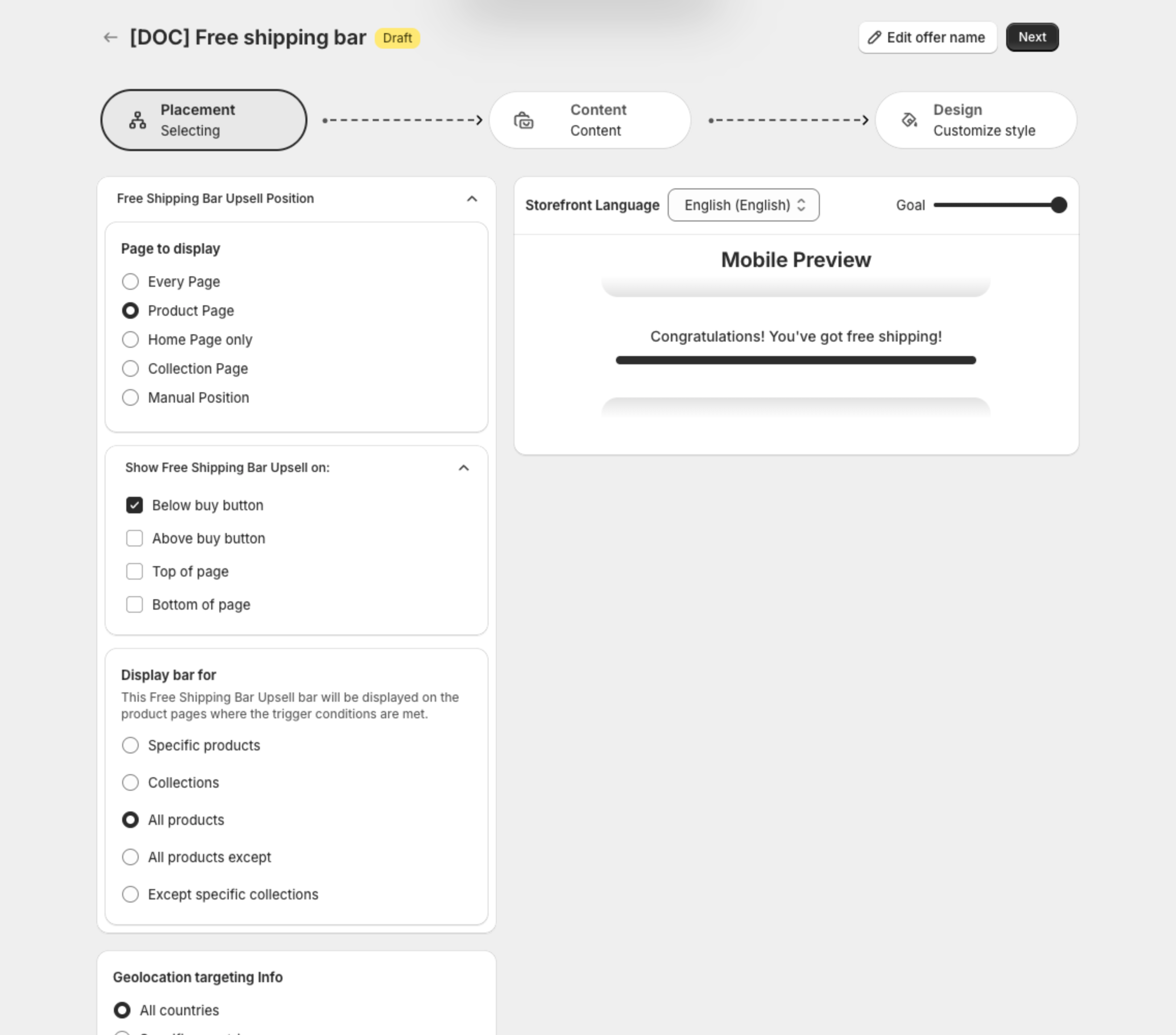
See How to choose where the free shipping bar shows.
4. Set the goal and messages (Content)
- Under Goal setup, keep Goal basis at Cart amount and enter your free shipping minimum in Goal value, for example 100.
- Check the three messages. They already contain variables such as
{goal}and{remain}. - Under Upsell products, keep Enable upsell product on to suggest products, or turn it off.
- Click Next.
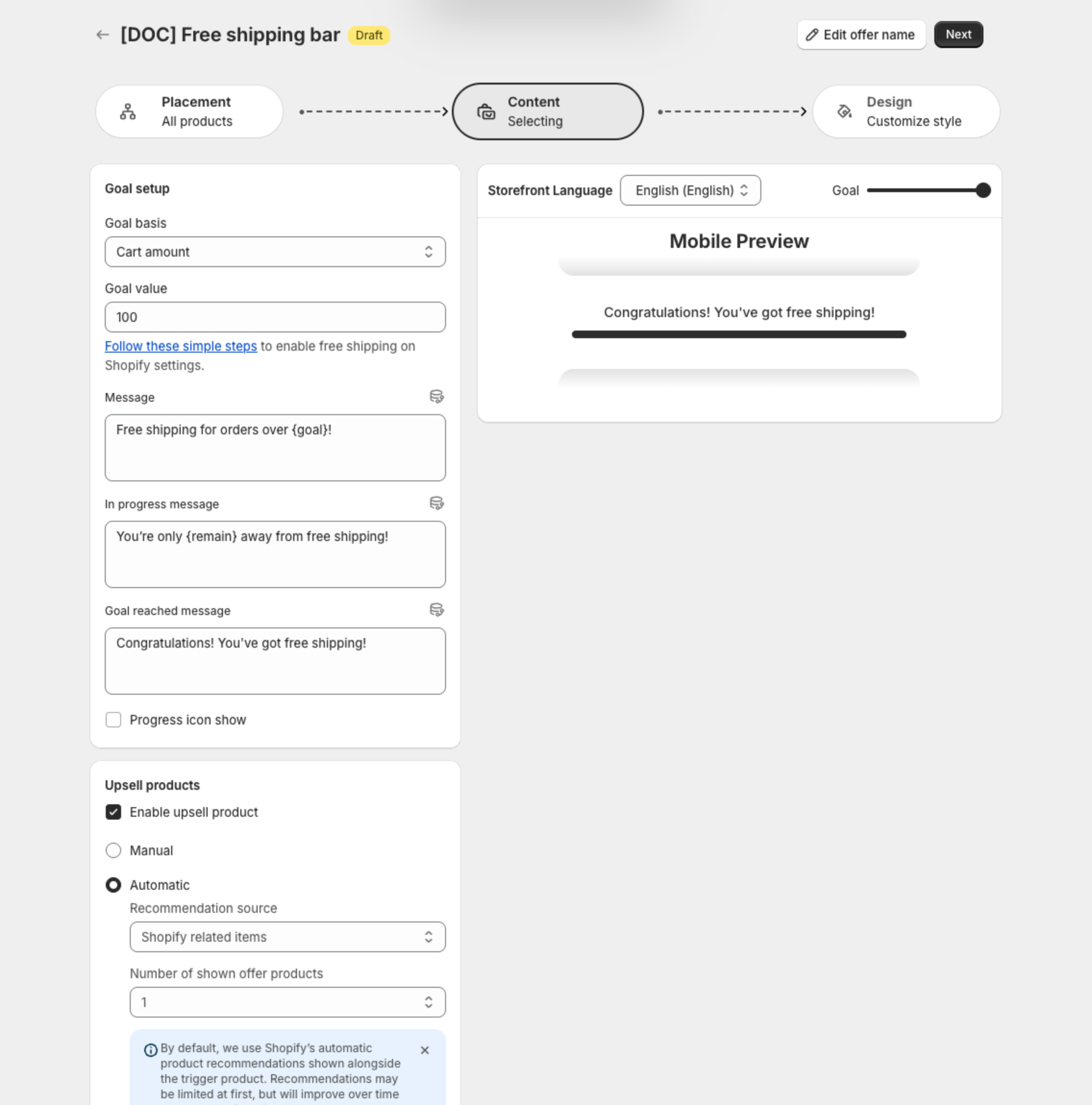
See How to set the goal and messages and How to show upsell products.
5. Adjust the look (Design)
Change layout, sizes, background and colors if you want. See How to customize the free shipping bar design.
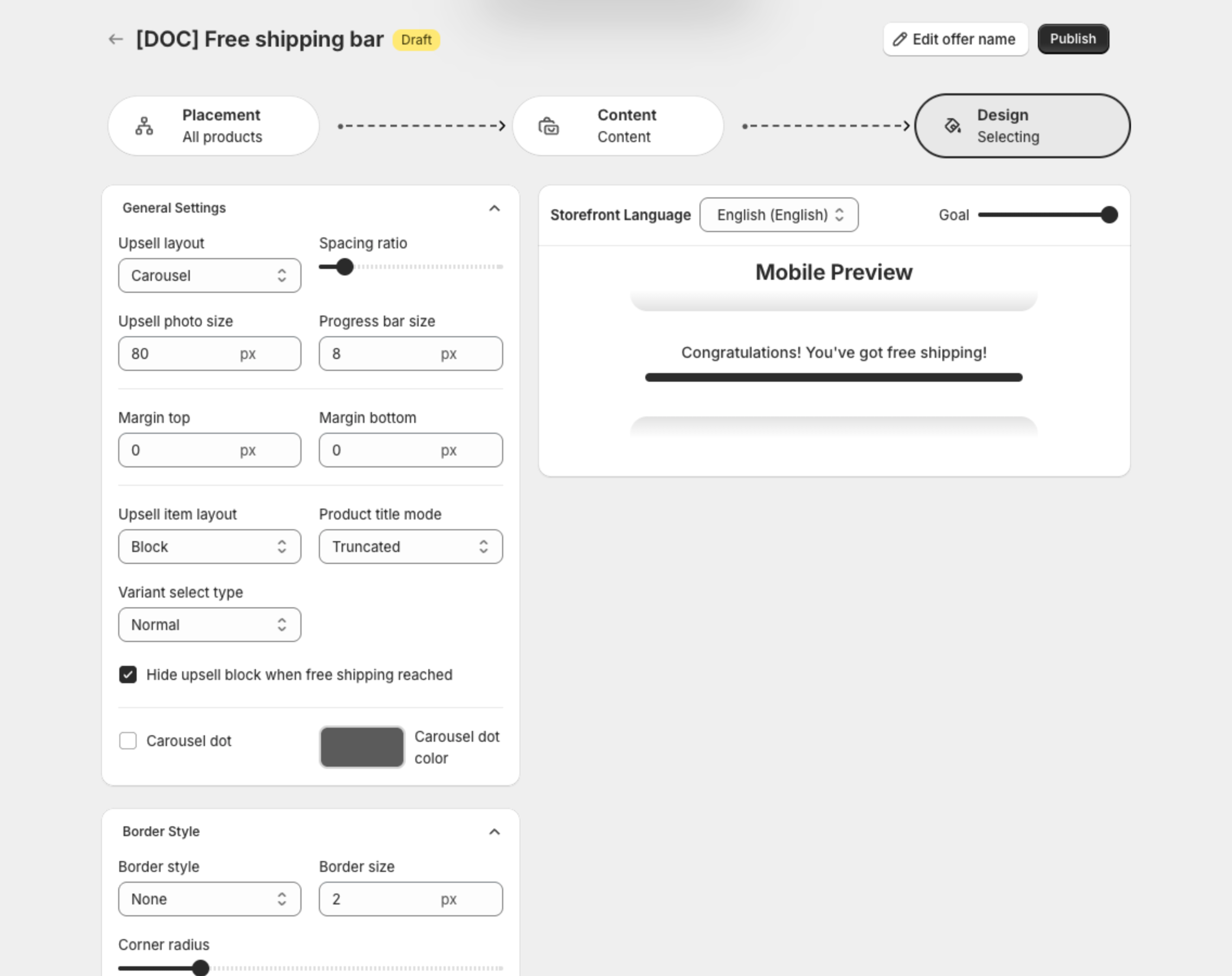
6. Publish
Click Publish. The status changes from Draft to Active. To keep working without publishing, click Save in the bar at the top of the page.
7. Check your store
Open a product page. The bar shows below the buy buttons, with the goal in the shopper's currency.