
How to show upsell products
Overview
The bar can suggest products with an Add to cart button, so shoppers can reach the free shipping goal faster.
Steps
1. Turn on upsell products
- Open Free Shipping Bar Upsell, click the bar name, then click Content.
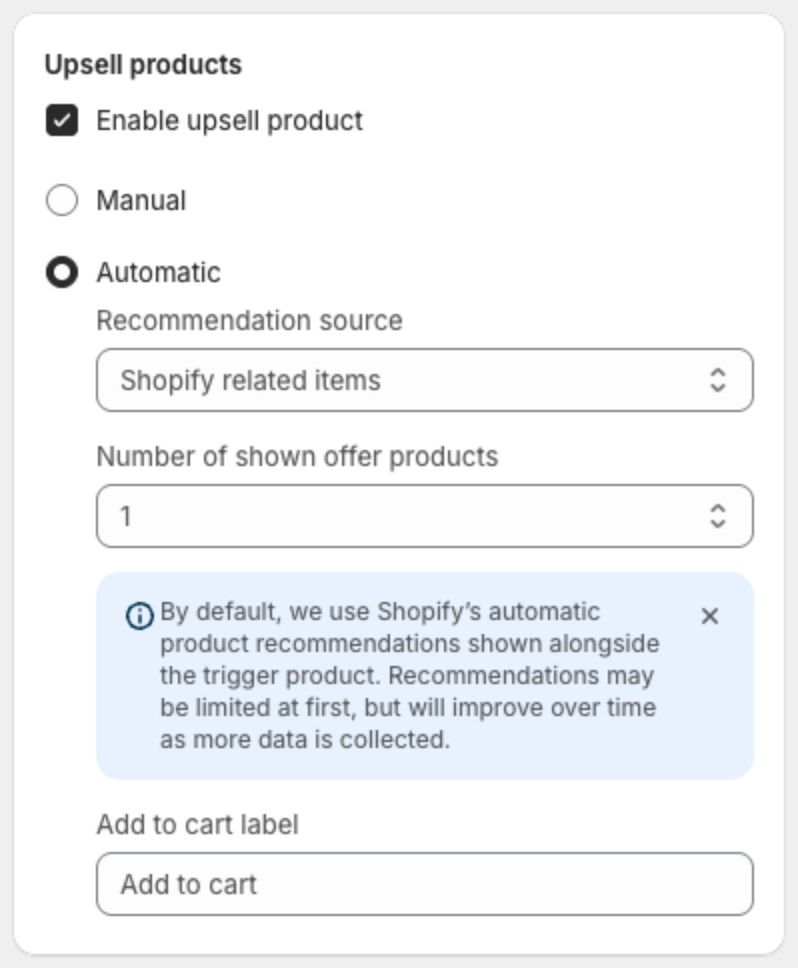
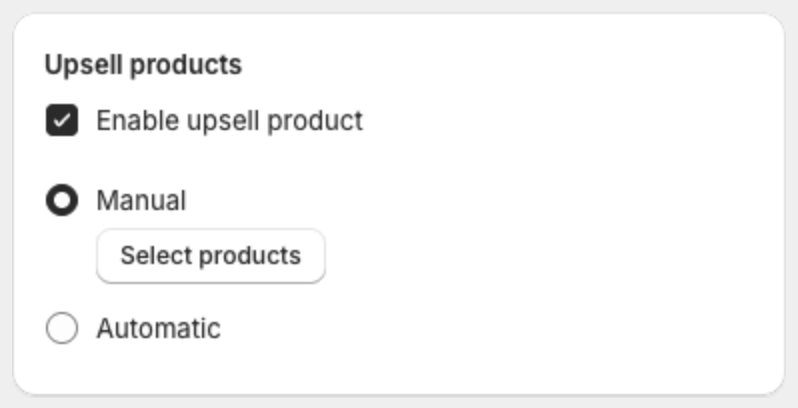
- Under Upsell products, select Enable upsell product.
2. Choose the products
- Automatic — the app shows Shopify's product recommendations for the product the shopper is viewing (Recommendation source: Shopify related items). Choose how many with Number of shown offer products (1 to 10). Shopify's recommendations may be limited at first and improve as your store collects more data.
- Manual — click Select products and pick the products to suggest.
3. Set the button text
Optional: type your own text in Add to cart label. Leave it empty to keep the default.
4. Choose how products look
In the Design step, under General Settings:
- Upsell layout — Carousel (one product at a time with arrows) or Block (products listed).
- Upsell item layout — Inline, Block or Fixed Atc.
- Upsell photo size — image size in pixels.
- Product title mode — Full or Truncated.
- Variant select type — None, Minimal or Normal.
- Hide upsell block when free shipping reached — hides the products once the goal is reached. On by default.
5. Save
Click Save in the bar at the top of the page.