
How to set the goal and messages
Overview
The goal is the amount (or number of items) a shopper needs for free shipping. The bar shows one of three messages depending on how close the cart is to the goal, and fills the progress bar.
Steps
1. Open the Content step
Open Free Shipping Bar Upsell, click the bar name, then click Content at the top of the editor.
2. Set the goal
Under Goal setup:
- Goal basis — Cart amount (the cart total) or Product quantity (the number of items in the cart).
- Goal value — the amount or number of items needed. For Cart amount, enter it in your store's default currency. The bar converts it to the currency the shopper uses, so a goal of 100 can show as another amount in another currency.
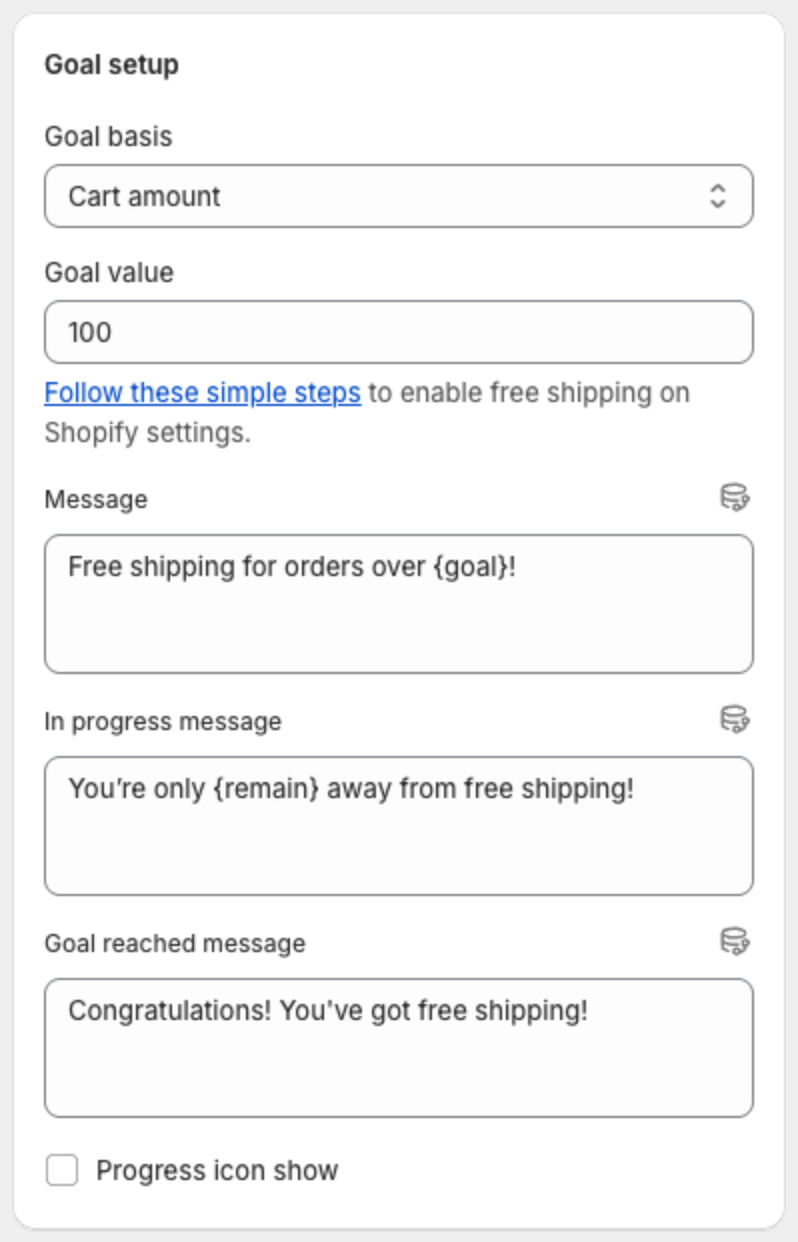
The goal does not create free shipping. Set up a matching free shipping rate or discount in Shopify. Click Follow these simple steps under the goal for Shopify's guide.
3. Write the messages
| Message | When it shows |
|---|---|
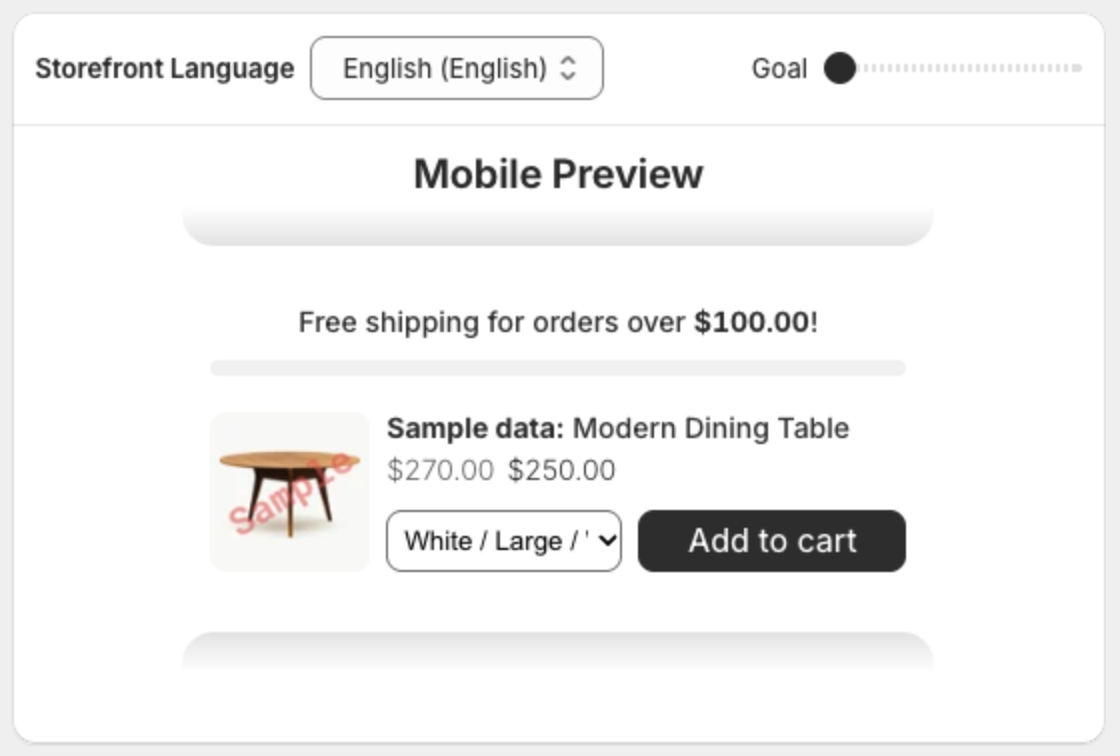
| Message | The cart is empty or has nothing that counts toward the goal. |
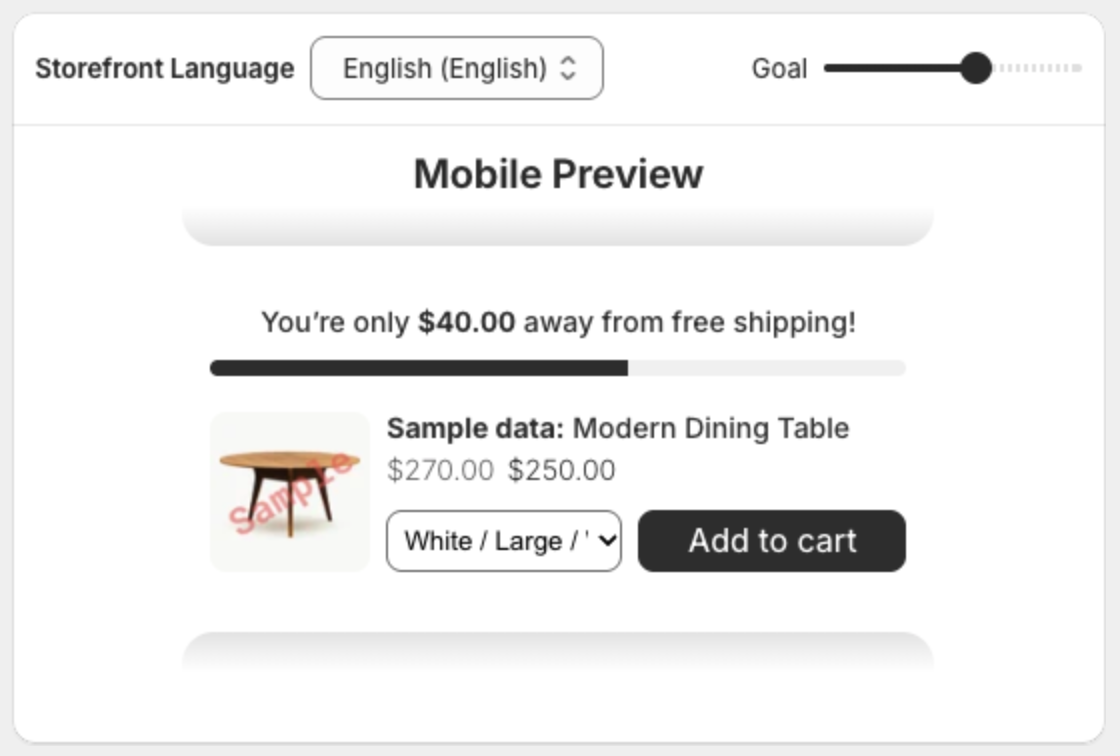
| In progress message | The cart is part of the way to the goal. |
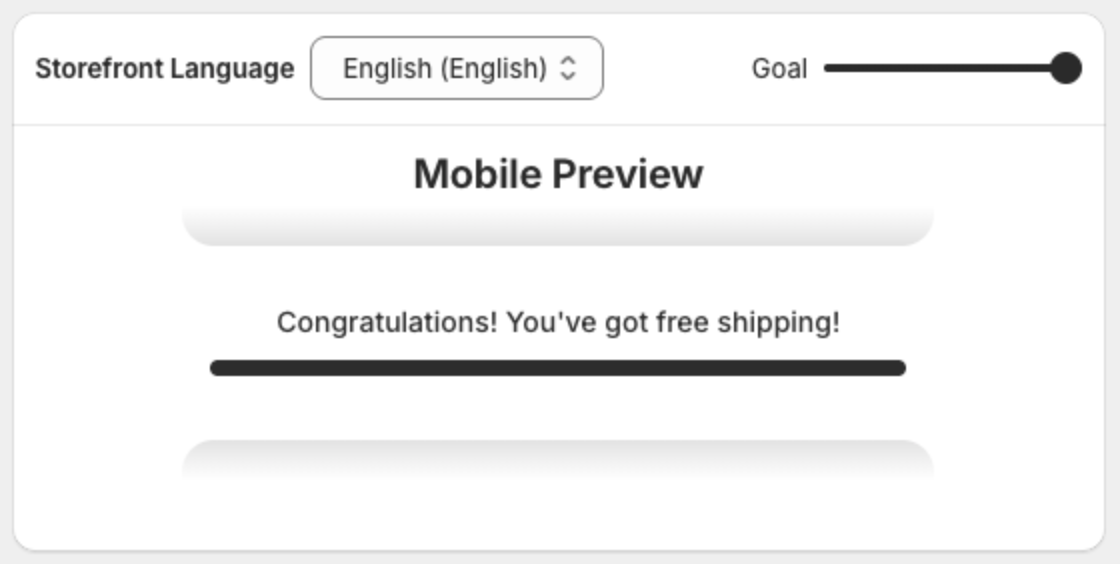
| Goal reached message | The cart reached the goal. |
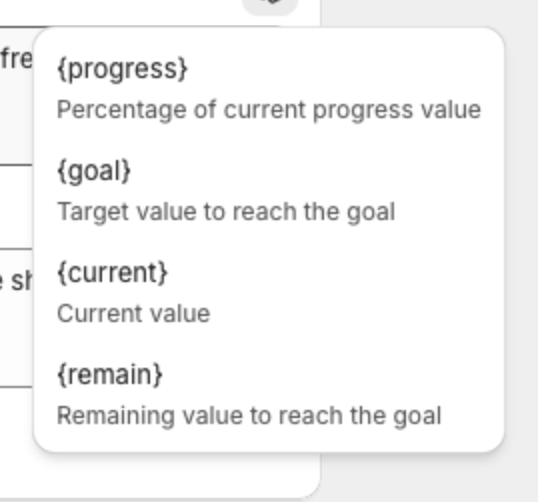
To insert a value that changes with the cart, click the variable icon next to a message and pick one:
| Variable | Shows |
|---|---|
{goal} | The goal value, for example $100.00 |
{remain} | What is still missing, for example $40.00 |
{current} | The current cart value |
{progress} | The progress as a percentage, for example 60% |
Select Progress icon show to show an icon on the progress bar.
4. Check each message in the preview
Drag the Goal slider above the preview to see the bar at different stages.
5. Save
Click Save in the bar at the top of the page.