
How to manage your free shipping bars
Overview
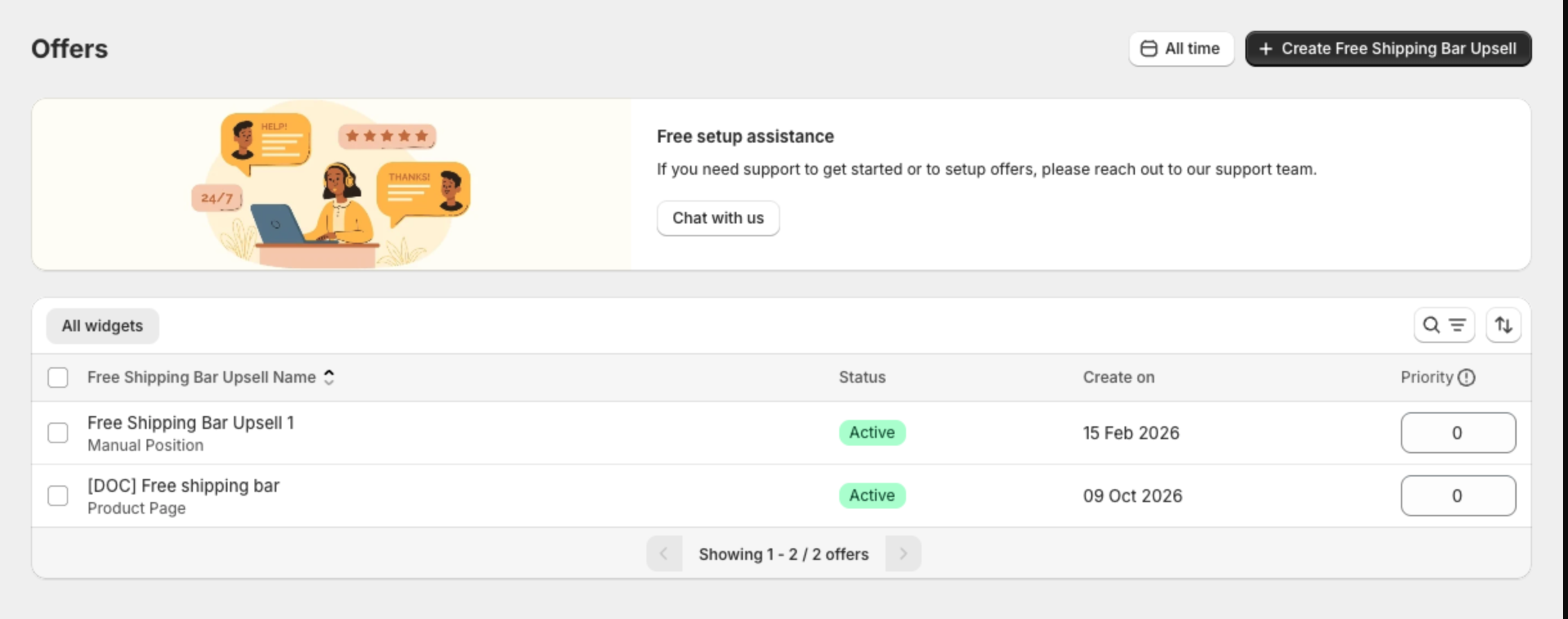
The Free Shipping Bar Upsell page lists all your bars. From here you edit, activate, deactivate, copy or delete them, and set which bar shows first. The dashboard shows how they perform.
Steps
1. Open the list
In the app menu, click Free Shipping Bar Upsell. The page lists every bar with its name, the pages it shows on, Status, Create on date and Priority.
2. Edit, activate or deactivate
- Click a bar name to edit it, then click Save in the bar at the top of the page.
- Select one or more bars and click Activate or Deactivate, then confirm.
- Click ... for Clone (copy) and Delete offers.
3. Set the priority
When several bars show in the same place, Priority sets their order. Type a number in the Priority box and click outside it. The change saves automatically.
4. Check performance
The Analytics card on the dashboard shows Impressions, Total clicks and App-Generated Revenue for the selected period, for example Last 7 days.
