
Why is the free shipping bar not showing in my cart drawer?
Overview
The bar shows on your pages, but not in your theme's cart drawer (the cart that slides in from the side). This is expected. The positions in Placement, such as Below buy button or Top of page, are places on the page. None of them is inside the cart drawer.
To show the bar in the cart drawer, use Manual Position and paste the bar's code snippet into the code of your theme's cart drawer.
Before you start
- Turn on the app embed. See How to enable the app embed.
- Save the bar at least once. Its ID appears only after the first save.
- You or your developer must edit theme code. Duplicate your theme first (Online Store > Themes > ... > Duplicate) and test on the copy.
Steps
1. Select Manual Position
- Open Free Shipping Bar Upsell, click the bar name, then click Placement.
- Under Page to display, select Manual Position.
- Copy the code snippet.
- Click Save.
The snippet looks like this, with your bar ID in data-id:
<div class="xbfsbu-block" data-id="YOUR-FREE-SHIPPING-BAR-ID"></div>
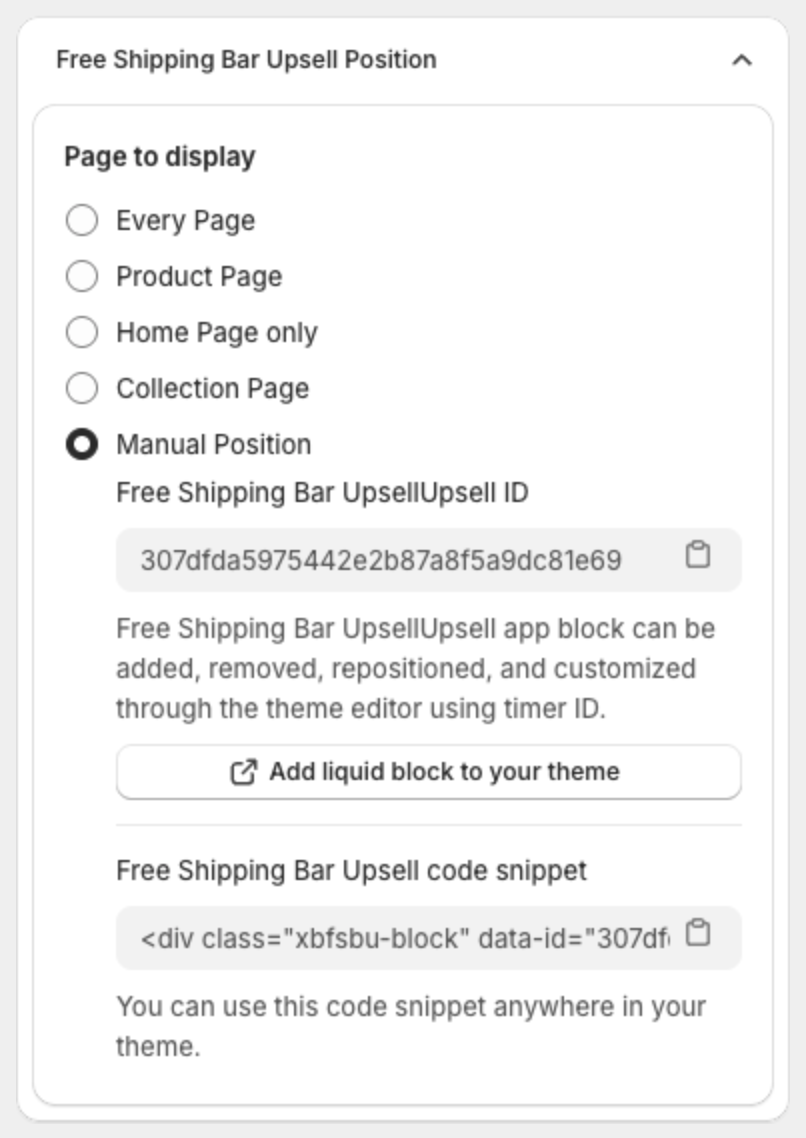
With Manual Position, the bar shows only where you paste the snippet or add the XB: Free shipping block. To also show a bar on your product pages, create a second bar for them.
2. Paste the snippet in the cart drawer code
- In your Shopify admin, go to Online Store > Themes. On the theme copy, click ... > Edit code.
- Open the file of the cart drawer. Its name depends on the theme, for example
snippets/cart-drawer.liquidorsections/cart-drawer.liquid. - Paste the snippet where you want the bar. Choose a place that stays when the cart drawer updates. See Choose the right place.
- Click Save.
3. Test the cart drawer
- Preview the theme copy and add a product to the cart. The cart drawer opens with the bar.
- In the cart drawer, change the quantity, then remove a product.
- Check that the bar is still there after each change, and that its message and progress update.
When the bar stays through all changes, publish the theme copy.
Choose the right place
Each time the cart changes, the theme updates the cart drawer. Many themes do this by loading the new cart drawer content and replacing the old content. The bar updates its progress by itself. It only needs the snippet to still be in the cart drawer.
- The snippet stays after the update. The bar shows again with the new cart total.
- The update removes the snippet. For example, the theme rebuilds the cart items or the footer with JavaScript, and that new content does not include your snippet. The bar cannot show until the page reloads.
So do not paste the snippet inside a part that the theme rebuilds without it. If the bar disappears in step 3, move the snippet to another part of the cart drawer, for example its header, or just above the checkout button, and test again. If you are not sure which part your theme rebuilds, ask your theme developer.