
How to customize the free shipping bar design
Overview
The Design step controls how the bar and its upsell products look. The template you picked sets the starting values.
The bar uses your theme's font. There is no font setting; to use another font, add custom CSS (step 7).
Steps
1. Open the Design step
Open Free Shipping Bar Upsell, click the bar name, then click Design. Use the Goal slider above the preview to check the bar at each stage.
2. Set the general layout
Under General Settings:
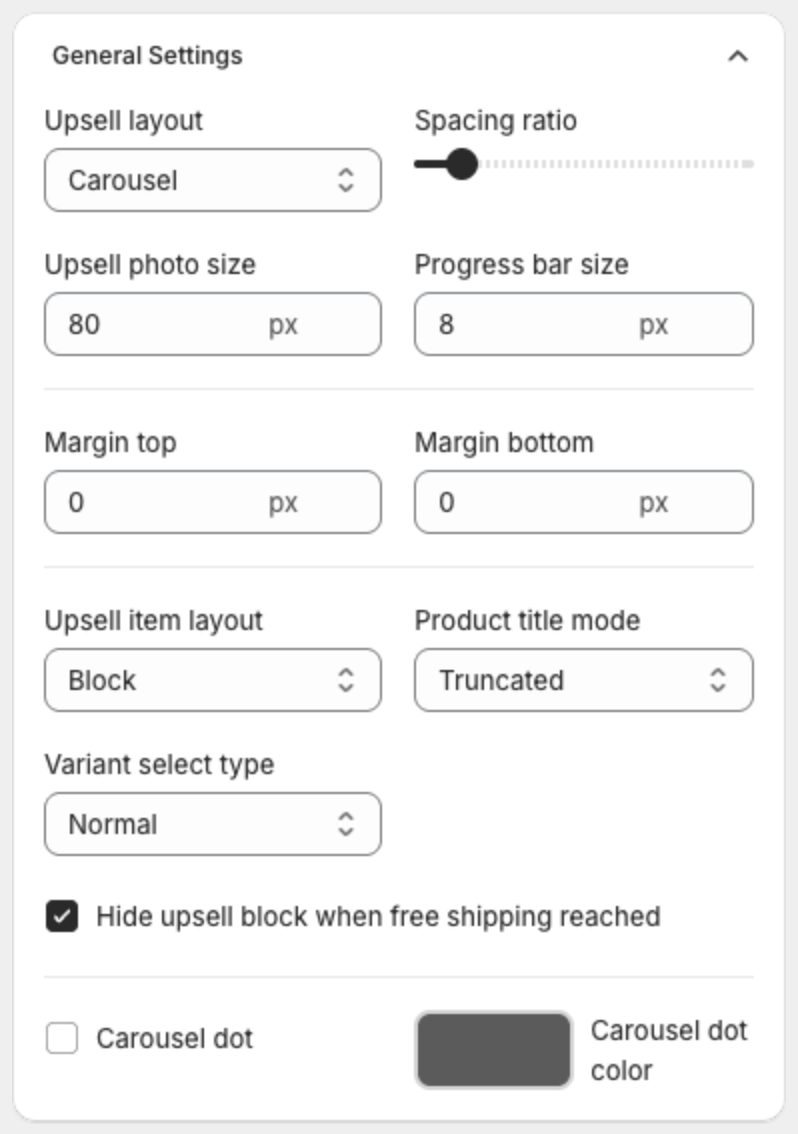
| Setting | What it does |
|---|---|
| Upsell layout | Carousel or Block for the suggested products. |
| Spacing ratio | Scales the space inside the bar (around the message, the progress bar and the products). |
| Upsell photo size | Product image size in pixels. |
| Progress bar size | Thickness of the progress bar in pixels. |
| Margin top / Margin bottom | Space above and below the whole bar, in pixels. 0 by default. |
| Upsell item layout, Product title mode, Variant select type | How each suggested product is laid out. |
| Hide upsell block when free shipping reached | Hides the products once the goal is reached. |
| Carousel dot / Carousel dot color | Dots under the carousel. |
3. Make the bar shorter
- Lower Spacing ratio to reduce the space inside the bar.
- Lower Progress bar size, and set Margin top and Margin bottom to 0.
- If the bar shows products, lower Upsell photo size, or select Hide upsell block when free shipping reached.
- Lower the text sizes under Text Size.
4. Set borders and corners
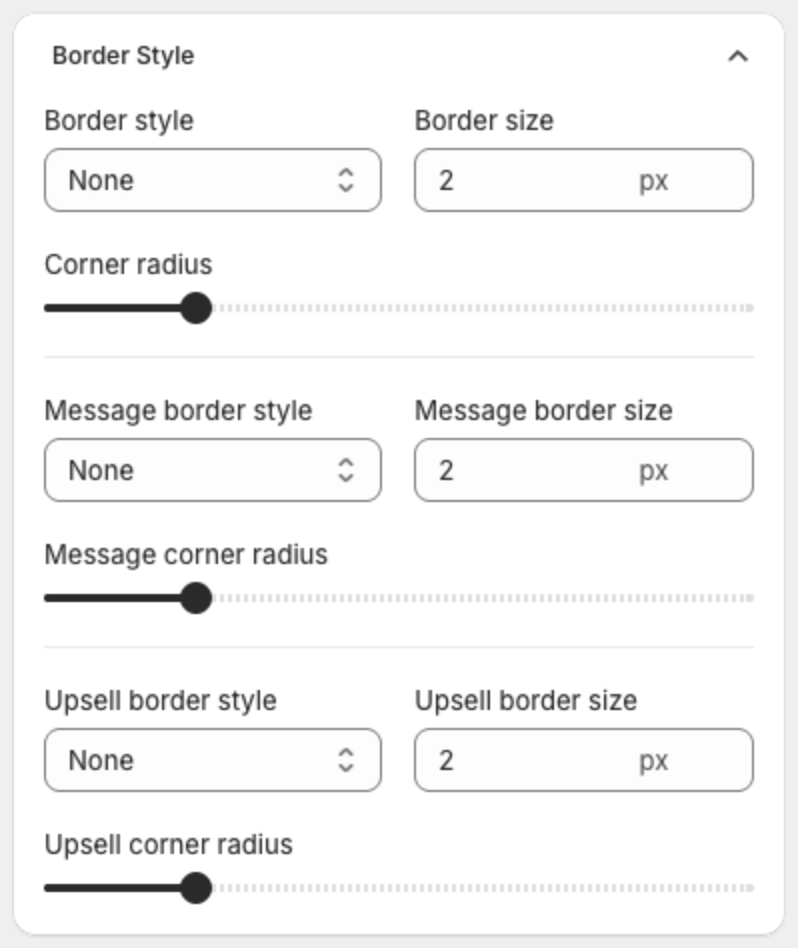
Under Border Style, set the Border style, Border size and Corner radius of the whole bar, of the message (Message border style, Message border size, Message corner radius) and of the products (Upsell border style, Upsell border size, Upsell corner radius).
5. Set text sizes
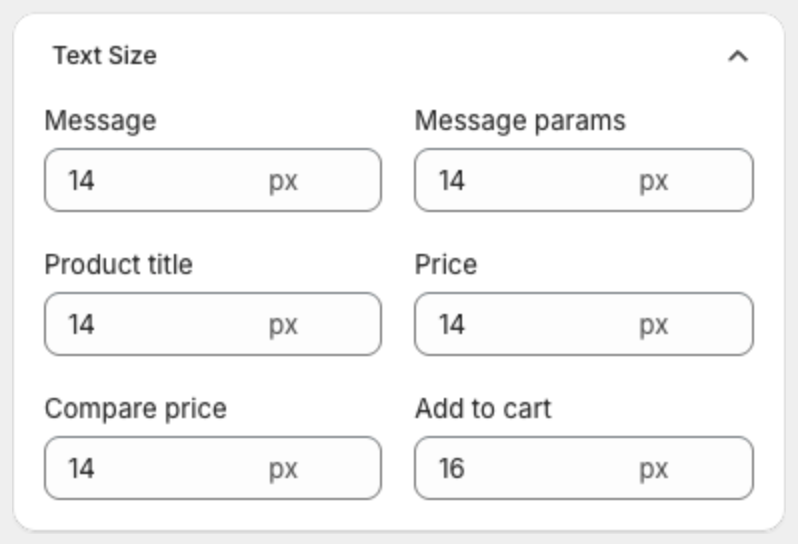
Under Text Size, set the size of the Message, the variables (Message params), Product title, Price, Compare price and Add to cart.
6. Set backgrounds and colors
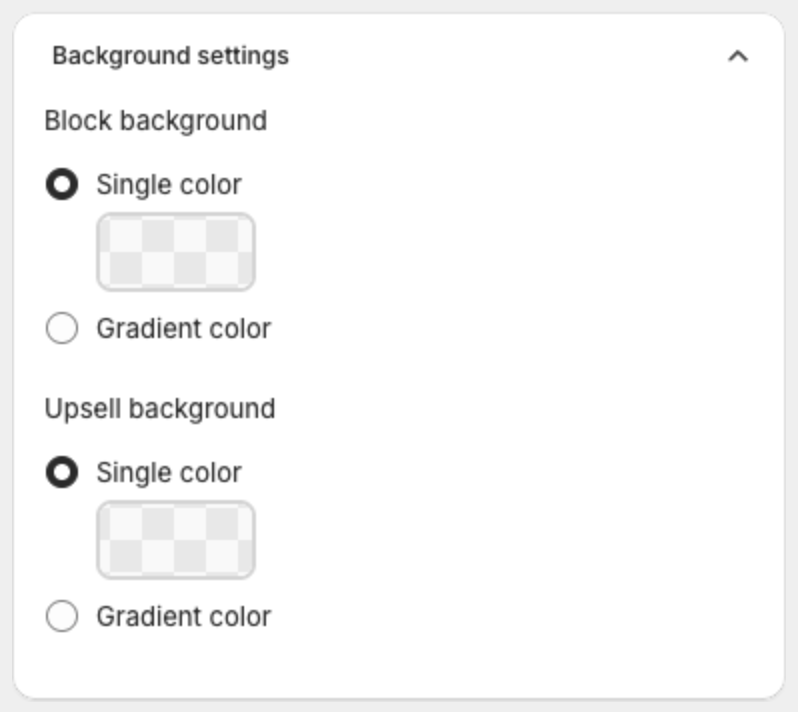
- Background settings — Block background and Upsell background: Single color or Gradient color.
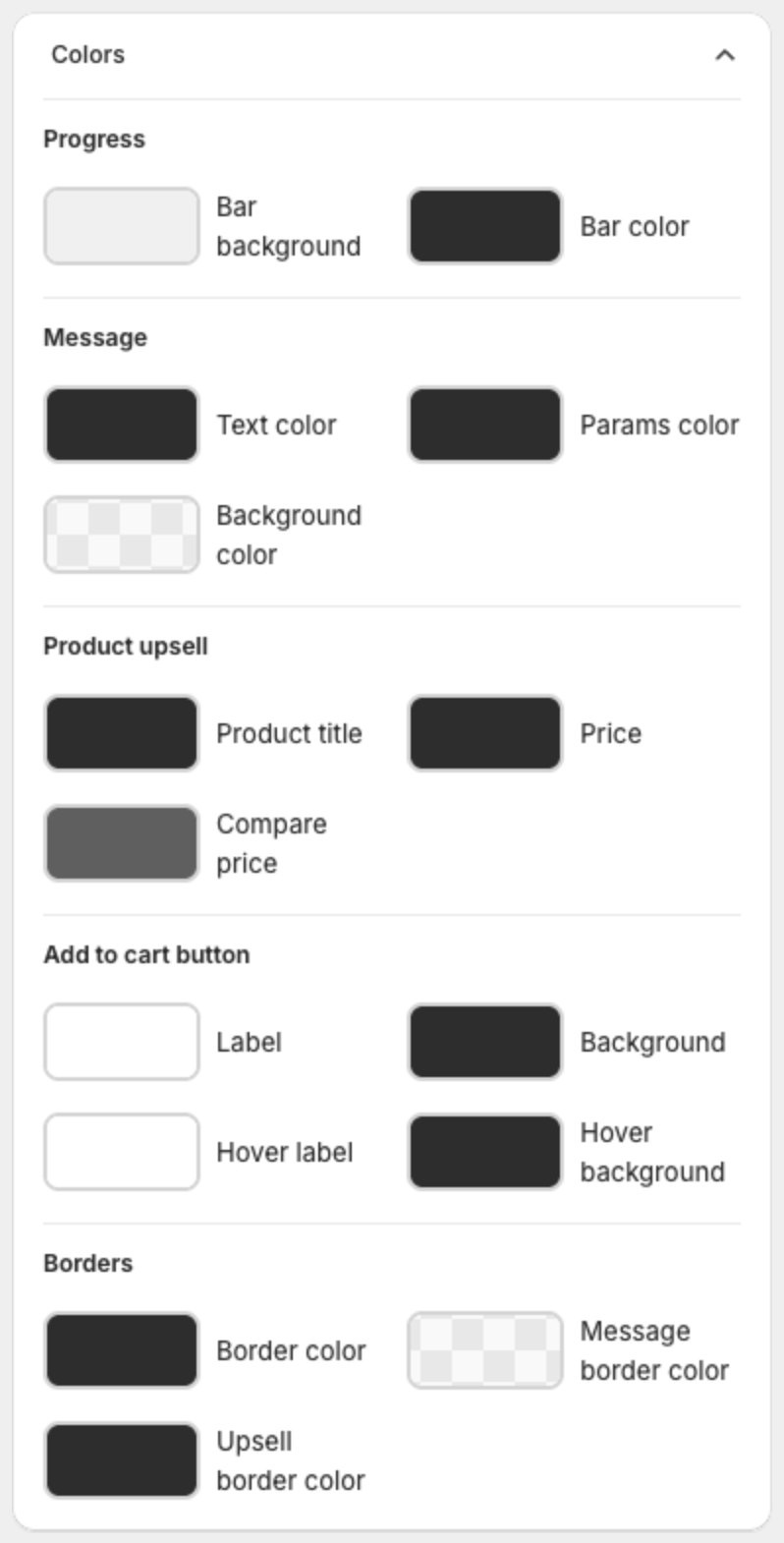
- Colors — Progress (Bar background, Bar color), Text color, Params color (the variable values), Background color, Product upsell colors, Add to cart button (Label, Background, Hover label, Hover background) and Borders.
7. Change the font or other styles with custom CSS (optional)
Under Advanced setting, add CSS in Custom CSS. It applies only to this bar. Type a dot (.) to see the available classes, or click Show list.
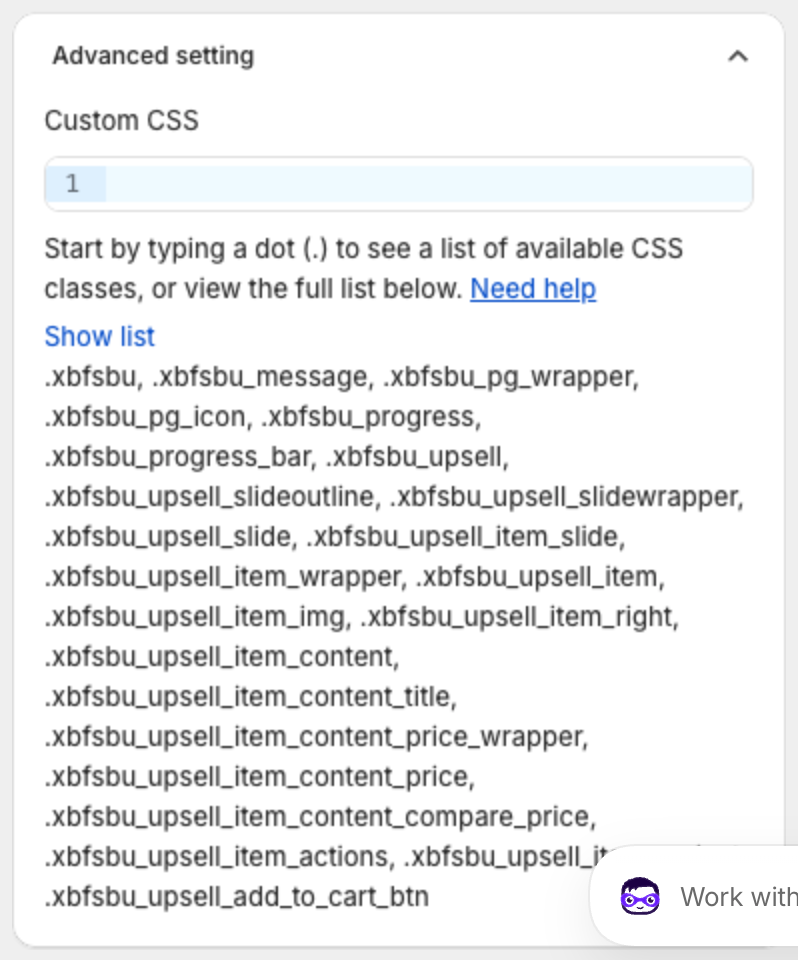
To use another font, paste this CSS and replace the font name. The font must already be available on your store.
.xbfsbu_message,
.xbfsbu_upsell_item_content_title,
.xbfsbu_upsell_item_content_price {
  font-family: Georgia, serif;
}
8. Save or publish
Click Save in the bar at the top of the page, or Publish if the bar is still a draft.