
How to set Customer Get Y and the gift
Overview
The Offer step sets product Y (what shoppers get), the discount, the texts of the offer and what happens after Add to cart.
Steps
1. Choose product Y
- Open Offers, click the offer name, then click Offer.
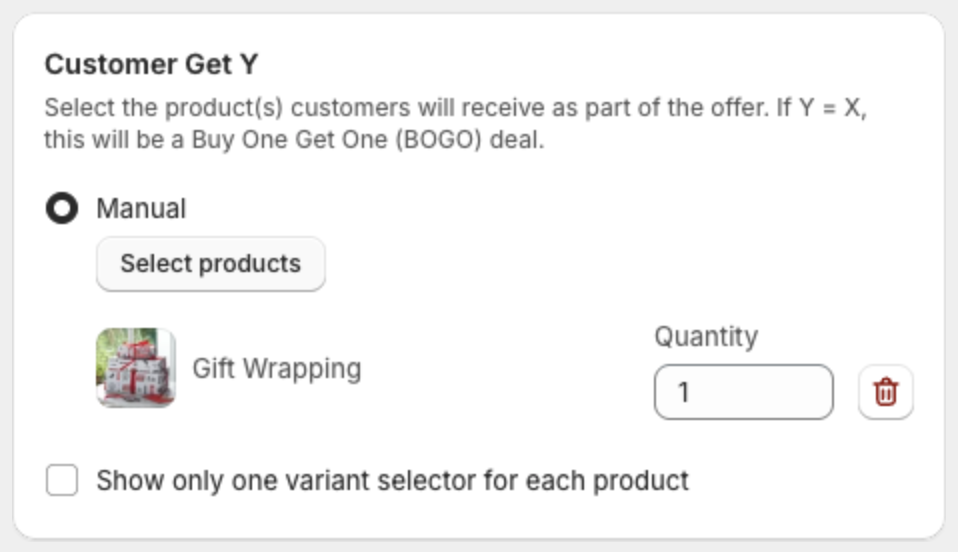
- Under Customer Get Y, click Select products, select up to 9 products, and click Select.
- Set the Quantity for each product.
To make a Buy One Get One (BOGO) deal, select the same product as X.
2. Choose the discount
Select Enable discount, then pick the Discount type for bundle Y:
| Discount type | What shoppers pay for Y |
|---|---|
| Default price | The normal price. |
| Bundle discount | The price minus a percentage (%) or an amount ($) that you enter in Amount. |
| Fixed price | A fixed price that you enter. |
| Free gift | Nothing: Y is free (100% off). |
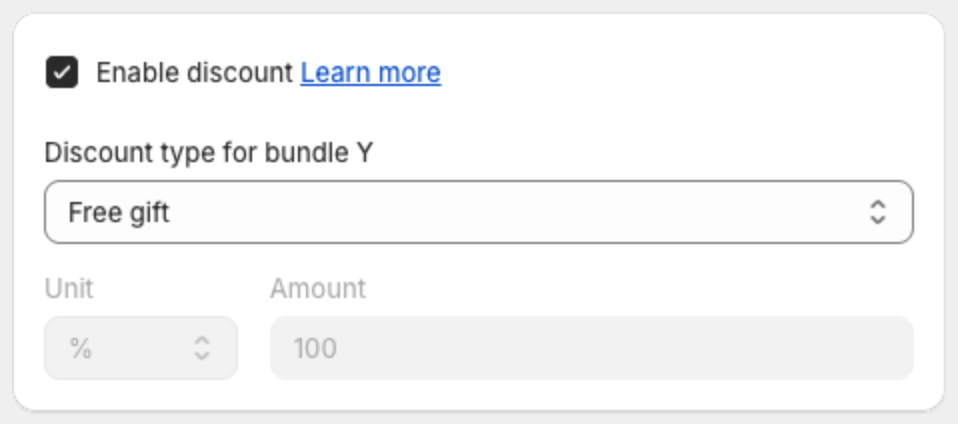
The discount is applied by an automatic discount that the app creates in Shopify, named Xboost Free Gift. Keep it Active in Discounts in your Shopify admin.
3. Edit the texts
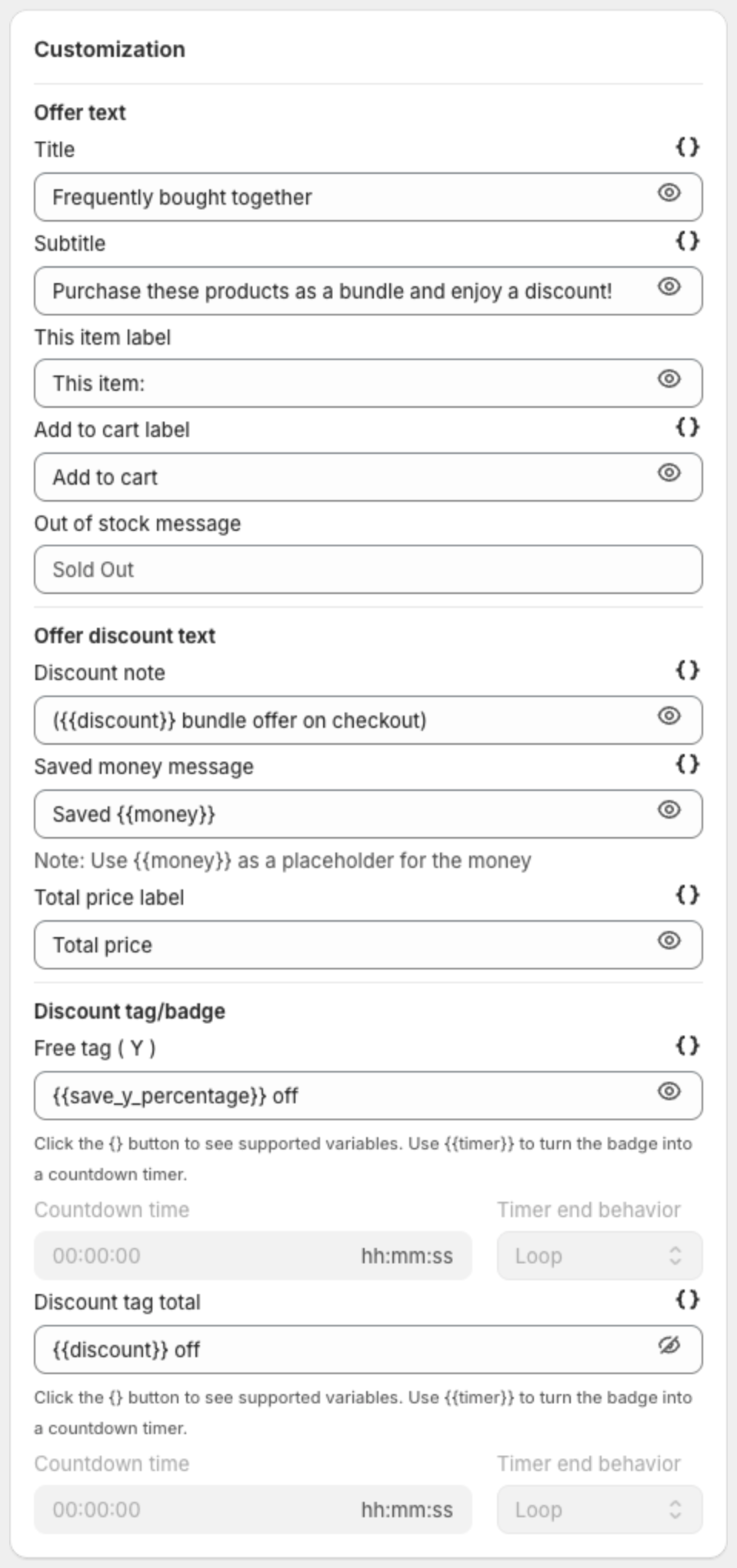
Under Customization, change the Offer text (title, subtitle, labels and out of stock message), the Offer discount text and the Discount tag/badge. Some texts use placeholders:
{{money}}— the amount saved, in Saved money message.{{discount}}— the discount, in the discount texts.{{timer}}— turns a badge into a countdown. Set the Countdown time and the Timer end behavior (Loop, Stop or Disappear).
Click the {} button next to a field to see the variables it supports.
4. Set pricing and behavior
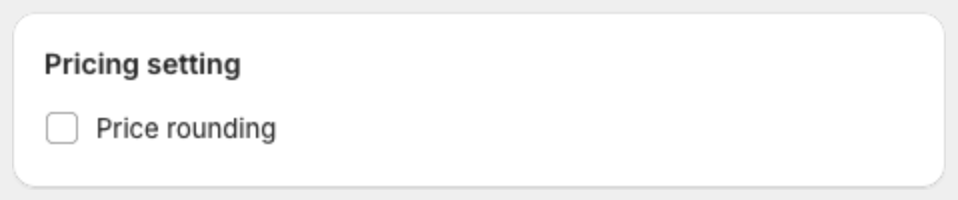
- Pricing setting > Price rounding — rounds the discounted prices.
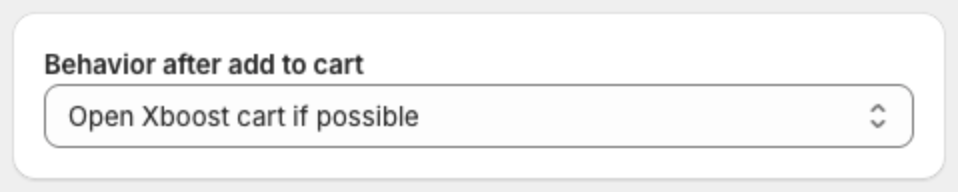
- Behavior after add to cart — Open Xboost cart if possible, Go to cart page, Go to check out or Refresh page.
5. Save
Click Next or Save in the bar at the top of the page.