How to create your first Buy X Get Y offer
Overview
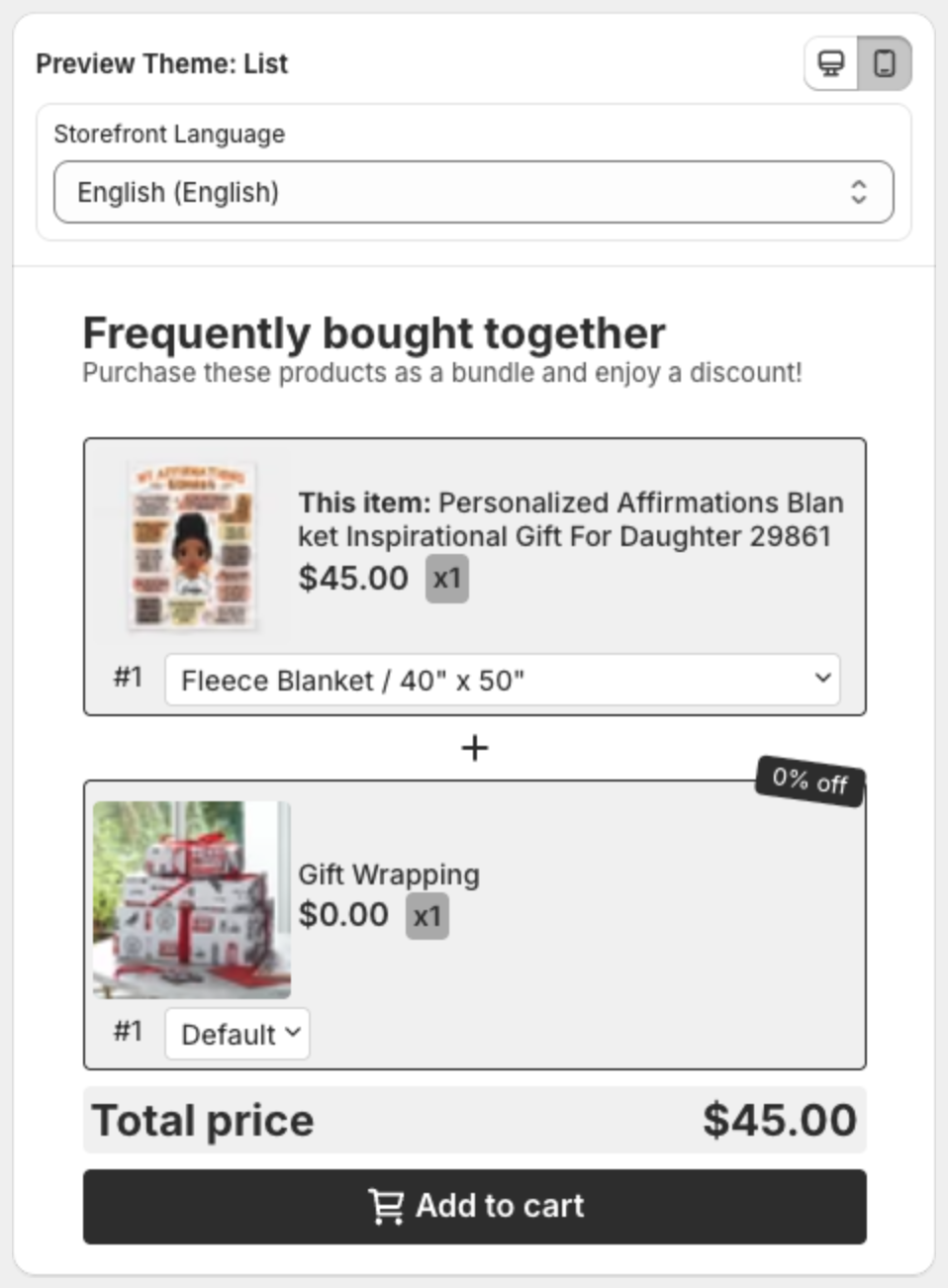
A Buy X Get Y offer shows on the product page of product X and lets shoppers add product Y together with it, at a discount or for free. For example: buy a blanket, get gift wrapping free. If Y is the same product as X, it is a Buy One Get One (BOGO) deal. This guide creates your first offer in three steps: Trigger, Offer and Appearance.
Before you start
- Turn on the app embed. See How to enable the app embed.
Steps
1. Start a new offer
- Open XB: Free Gifts & BXGY from Apps in your Shopify admin.
- Click Create offer on the dashboard or on the Offers page.
- On Select offer type, click Create an offer on the Buy X Get Y (BOGO) card.
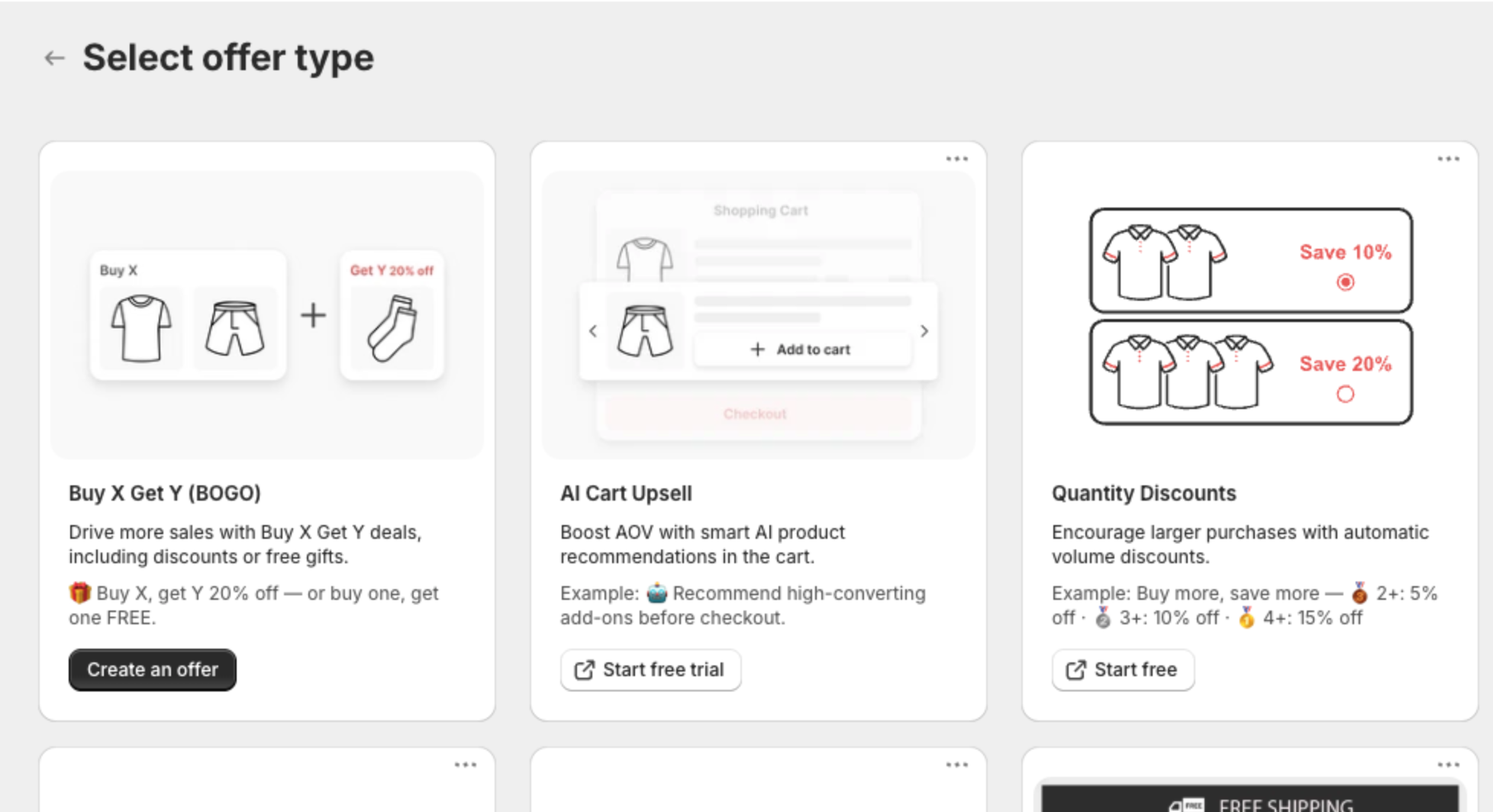
The other cards belong to other XBoost apps.
2. Pick a template
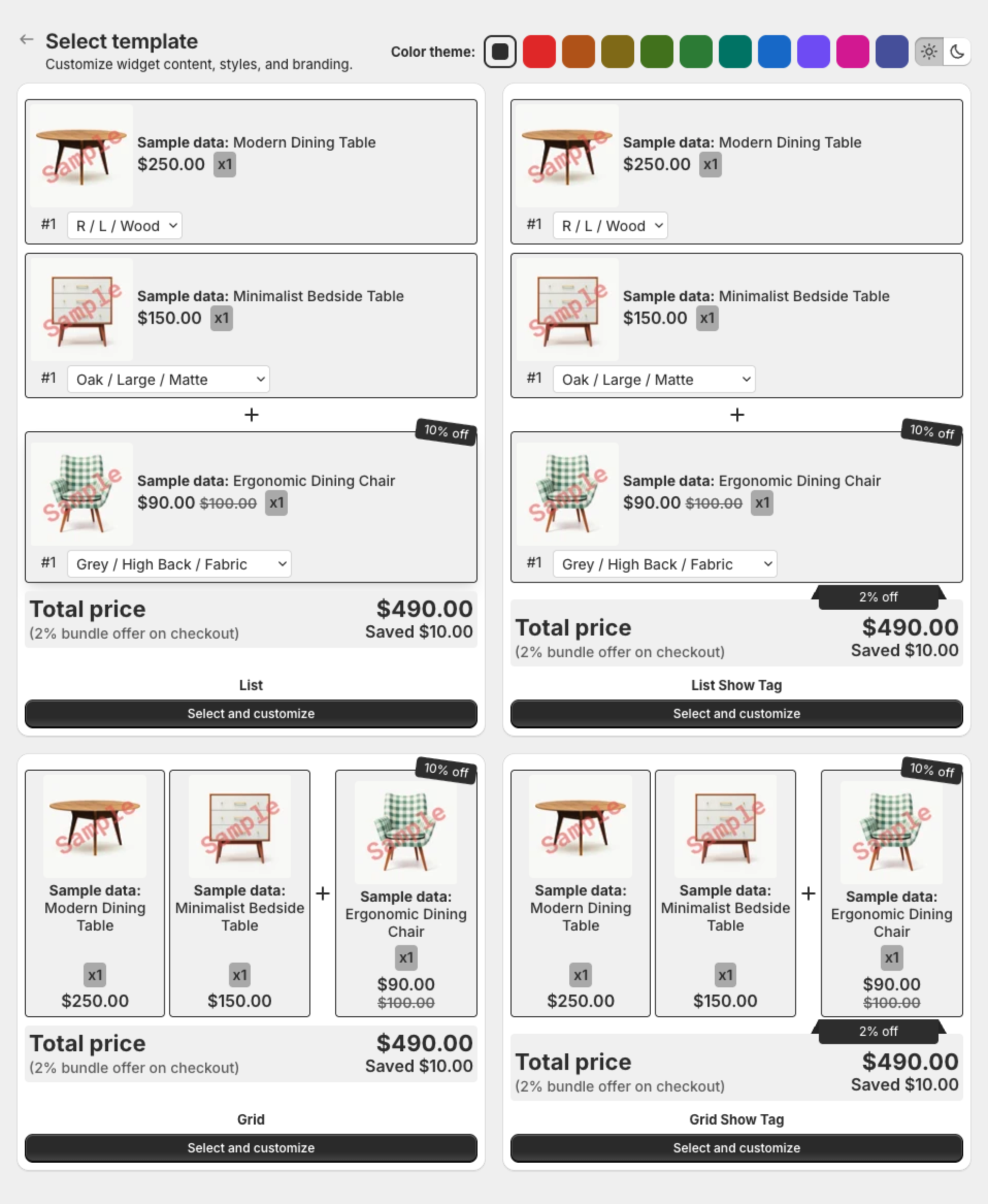
Click Select and customize under List, List Show Tag, Grid or Grid Show Tag. Optional: pick a Color theme first.
The offer opens as a Draft. Click Edit offer name to name it (up to 30 characters). Shoppers do not see this name.
3. Choose product X (Trigger)
Under Customer Buy X, click Select products, pick the product shoppers buy, and set its Quantity. The offer shows on this product's page. Click Next.
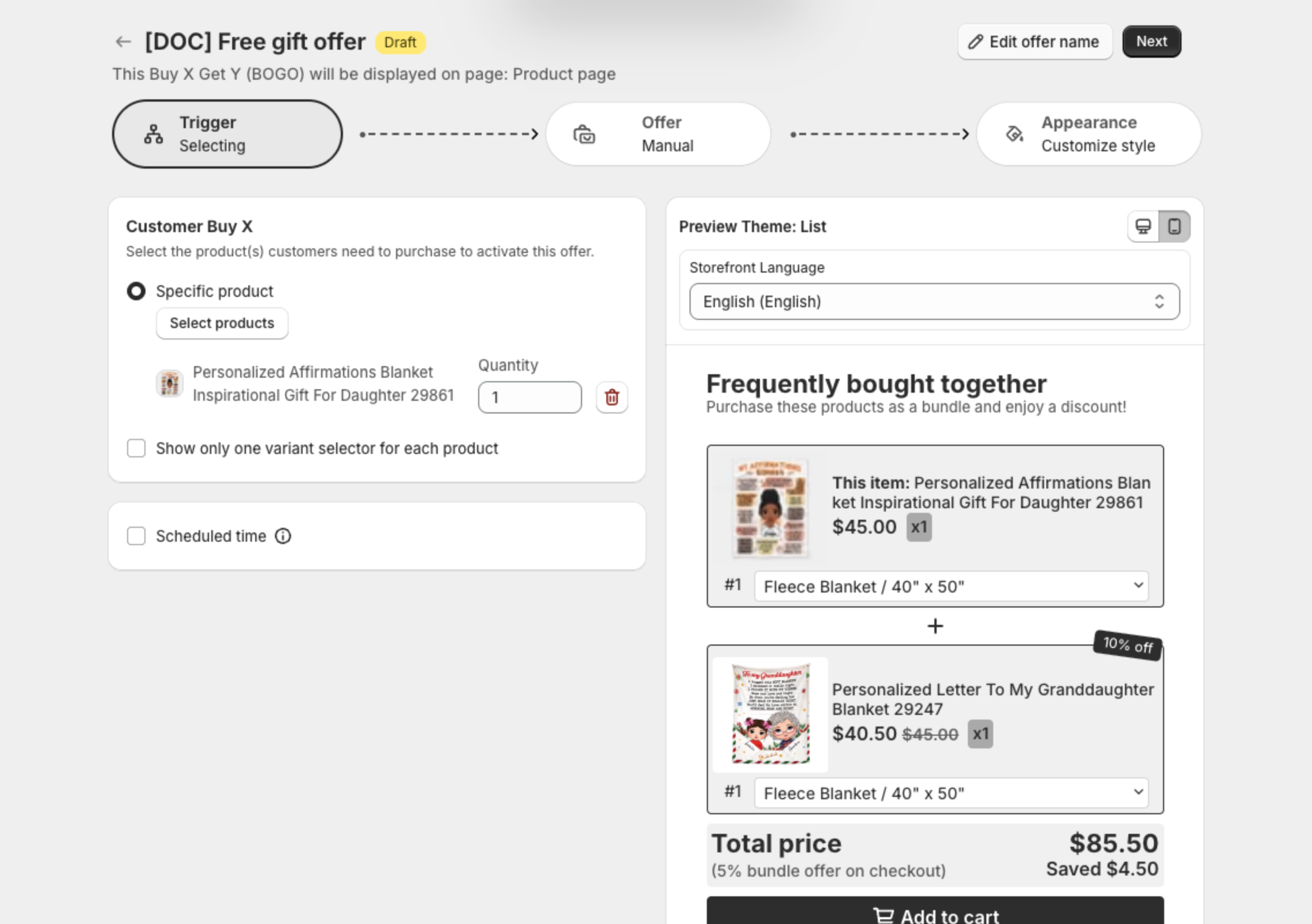
See How to set Customer Buy X.
4. Choose product Y and the discount (Offer)
- Under Customer Get Y, click Select products and pick the gift or the discounted product (up to 9).
- Select Enable discount and choose the Discount type for bundle Y, for example Free gift.
- Optional: change the texts under Customization.
- Click Next.
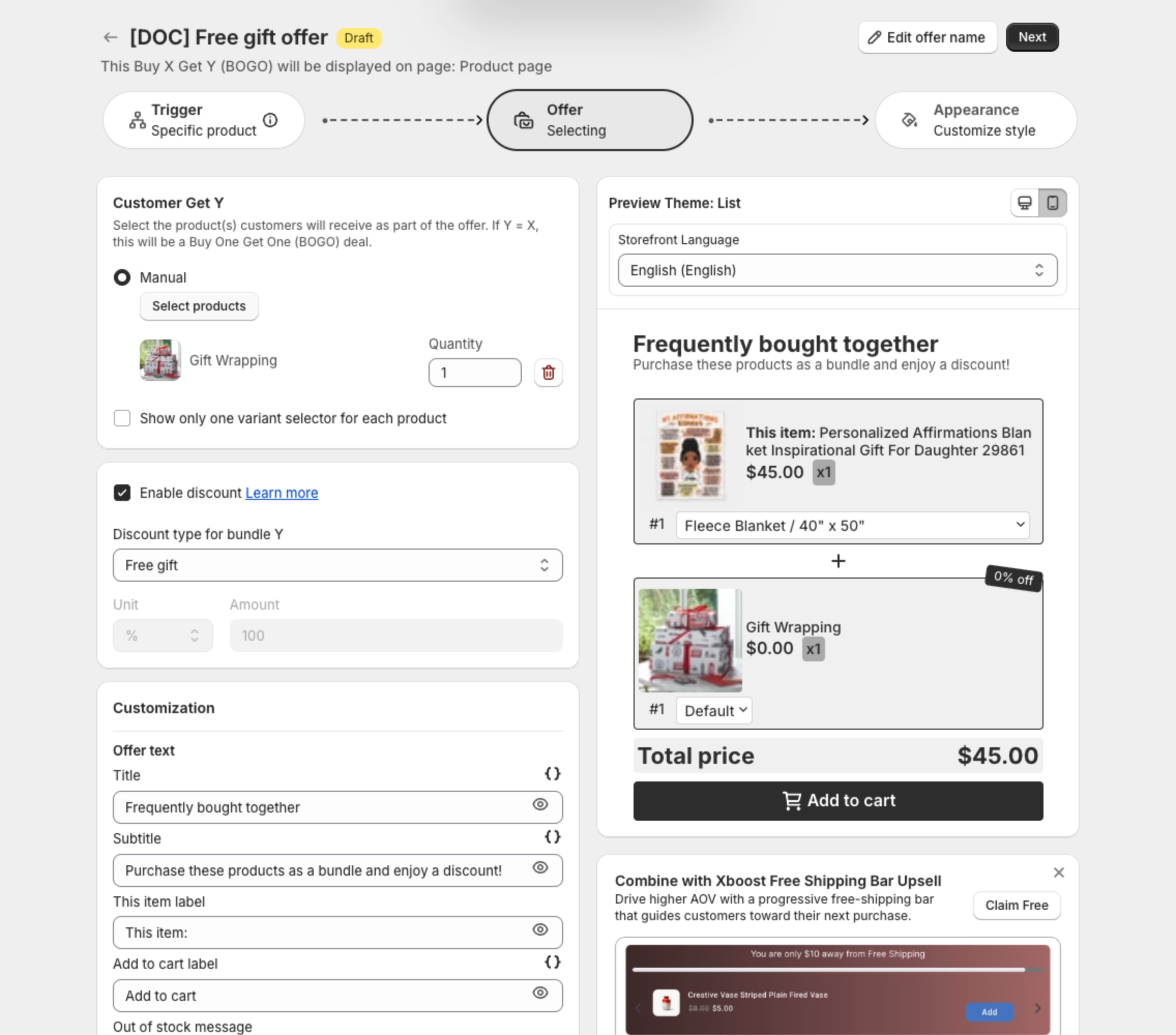
See How to set Customer Get Y and the gift.
5. Adjust the look (Appearance)
Change what the offer shows, the colors and text sizes. See How to customize the offer design.
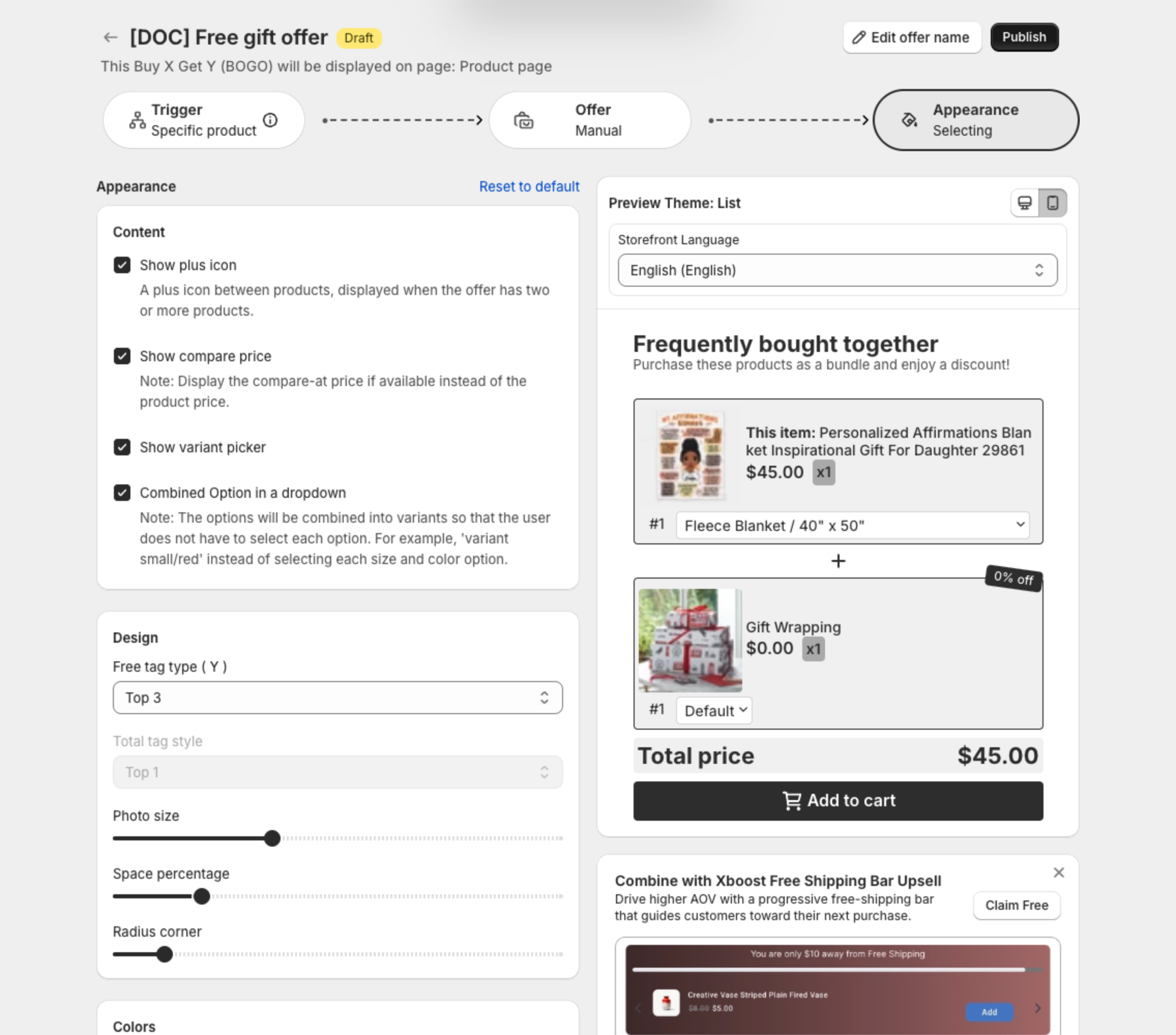
6. Publish and check
Click Publish. On the product page of X, shoppers see the offer with both products and an Add to cart button.