
Why is the timer in the wrong place on the product page?
Overview
With Above buy button or Below buy button, the app looks for your theme's add to cart button by itself. It checks the class names and attributes that common themes use and takes the first match on the page.
On some themes, for example a custom theme or one with edited code, the app can pick the wrong element or find no button at all. The timer then shows in the wrong place, for example under another section or far from the add to cart button, or does not show at all.
The quickest fix is Manual Position. You place the timer under your add to cart button yourself.
Steps
1. Switch the timer to Manual Position
- Open the timer, then click Placement.
- Under Page to display, select Manual Position.
- Click Save in the bar at the top of the page, then copy the ID with the copy icon.
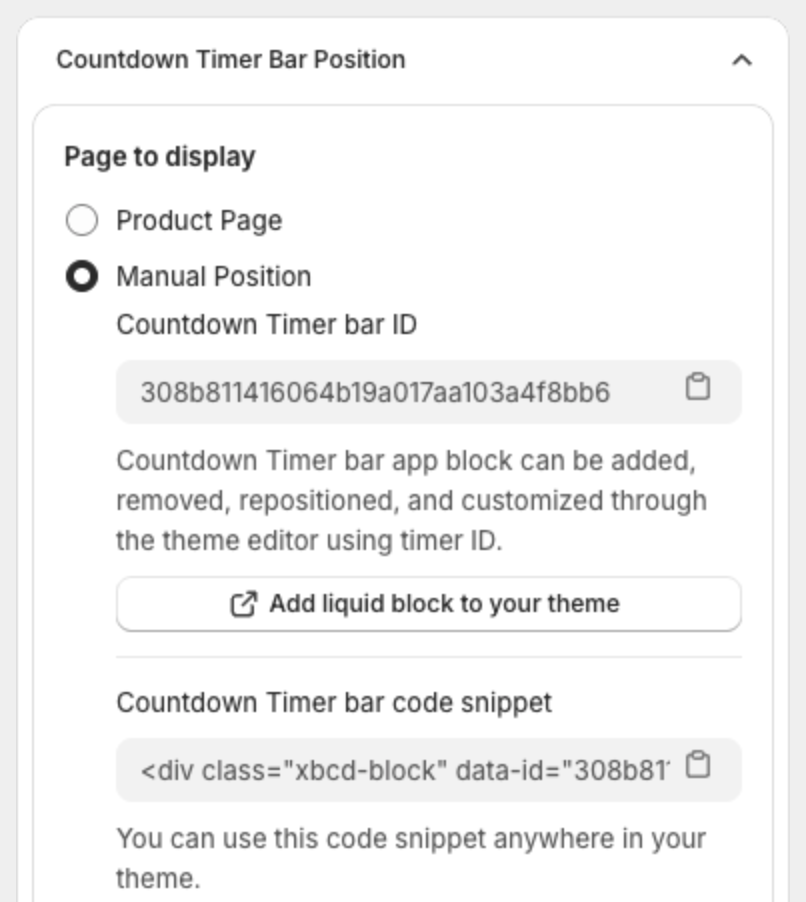
2. Add the block under your add to cart button
- Click Add liquid block to your theme, or go to Online Store > Themes > Customize, and open a product page.
- In the product information section, click Add block, open the Apps tab, then select Countdown Timer Block.
- Drag the block right under the block that holds your add to cart button. In the Dawn theme, this block is called Buy buttons.
- Paste the ID into Countdown Timer ID.
- Click Save in the theme editor.
The block shows on every product that uses this product template.
Use the code snippet instead
If your theme has no place for app blocks near the button, copy the code snippet from the Placement step. In your theme code, paste it right after the add to cart button.
For every step with screenshots, see How to show the countdown timer in a custom position.