
How to customize the countdown timer design
Overview
The Design step controls how the timer looks. The template you picked sets the starting values. The timer uses your theme's font; to use another font, add custom CSS (step 6).
Steps
1. Open the Design step
Open Countdown Timer bars, click the timer name, then click Design.
2. Set the layout
Under General Settings:
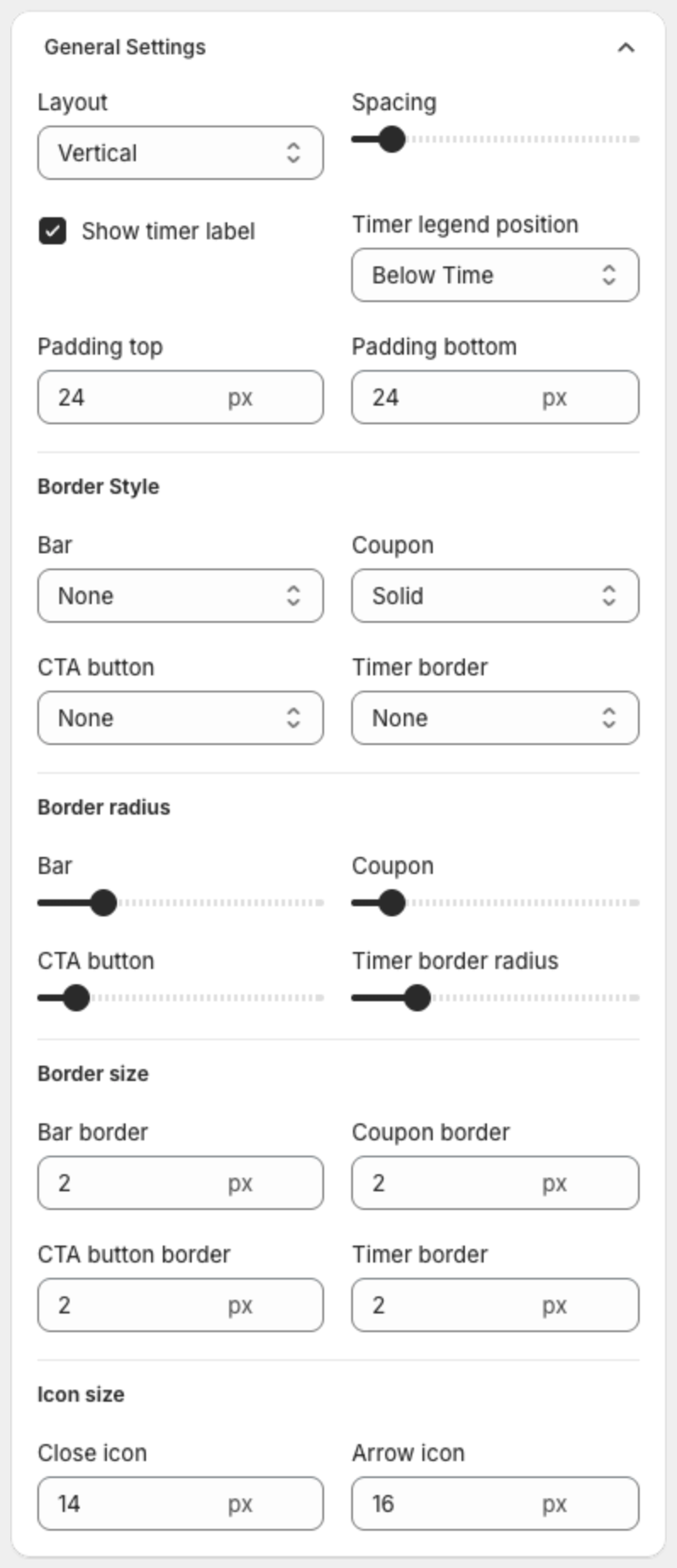
| Setting | What it does |
|---|---|
| Layout | Horizontal puts the text and the timer side by side. Vertical puts the timer under the text. |
| Spacing | Space between the items. |
| Show timer label / Timer legend position | Shows the Days, Hours, Mins, Secs labels Above Time or Below Time. |
| Padding top / Padding bottom | Space above and below the content, in pixels. |
| Border Style, Border radius, Border size | Borders of the bar, the coupon, the button and the timer boxes. |
| Icon size | Size of the close and arrow icons. |
3. Make the timer smaller
- Lower Padding top and Padding bottom.
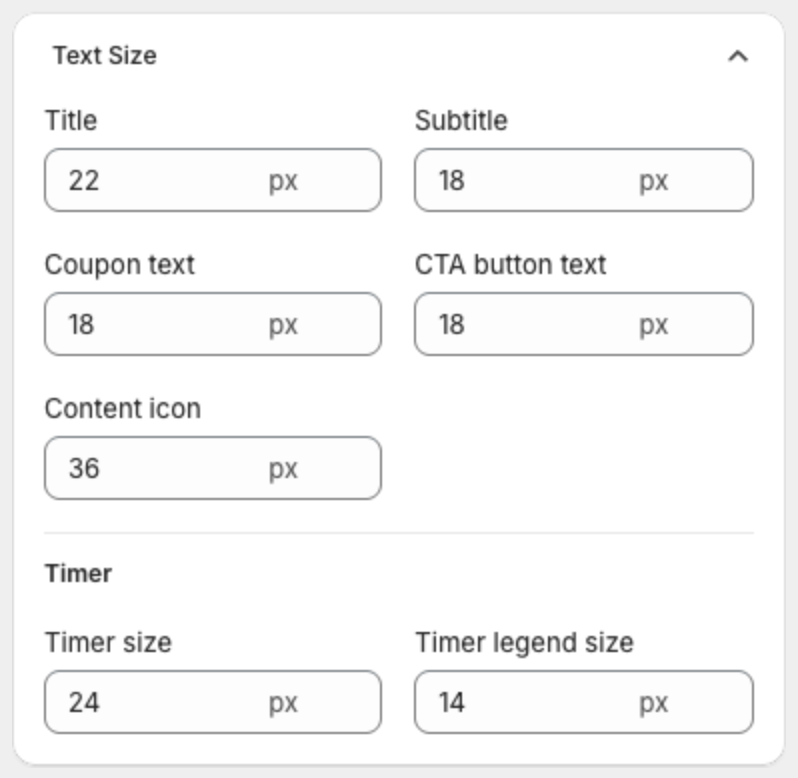
- Under Text Size, lower Timer size and Timer legend size, and the title and subtitle sizes.
- Choose Horizontal in Layout to put the text and the timer on one line, or clear Show timer label.
4. Set text sizes
Under Text Size, set the size of the title, Subtitle, Coupon text, CTA button text, Content icon, Timer size and Timer legend size.
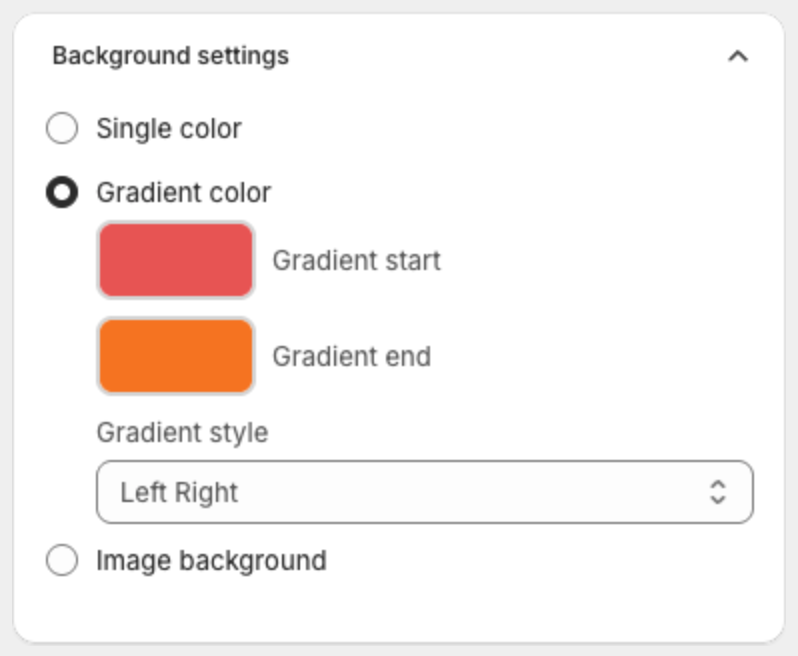
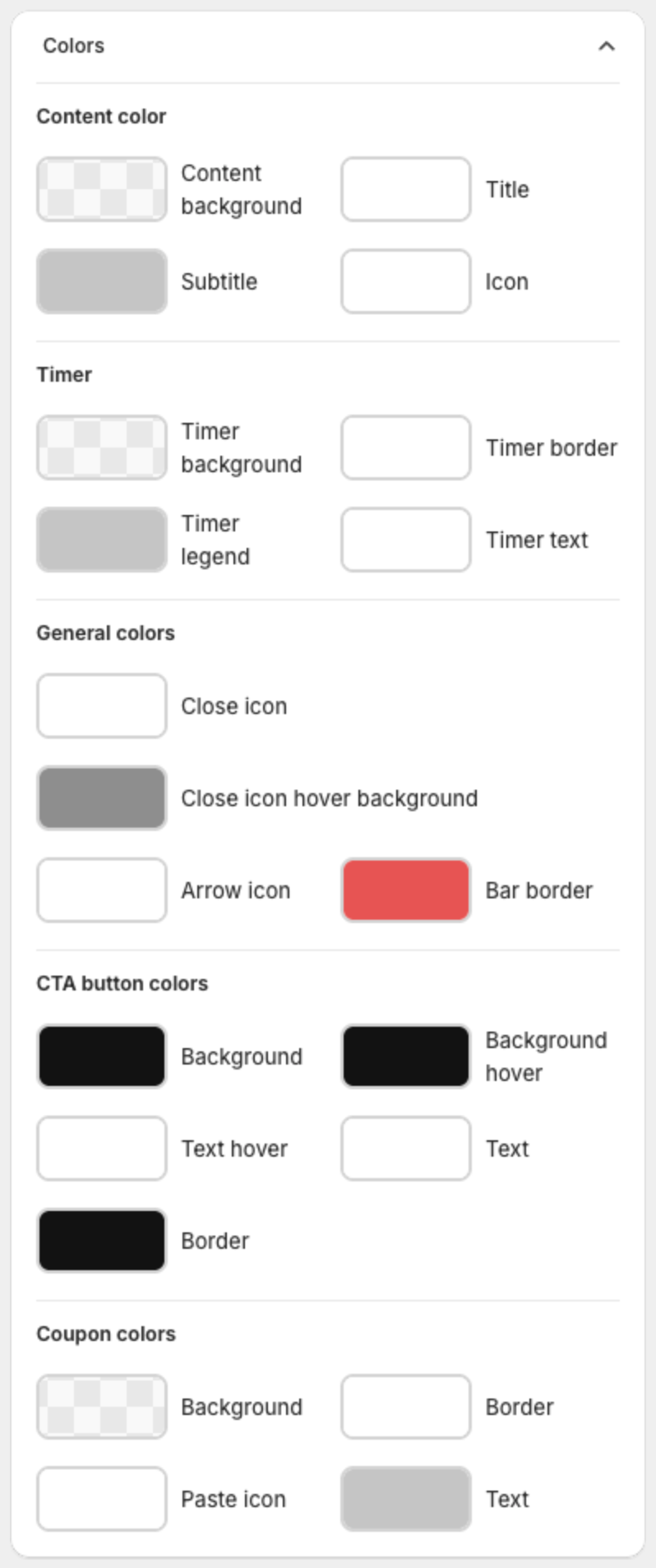
5. Set the background and colors
- Background settings — Single color, Gradient color (with Gradient start, Gradient end and Gradient style: Left Right, Top Bottom, Diagonal, Radial or Conic) or Image background.
- Colors — content, timer (Timer background, Timer legend, Timer text), close icon, button and coupon colors.
6. Change the font or other styles with custom CSS (optional)
Under Advanced setting, add CSS in Custom CSS. It applies only to this timer.
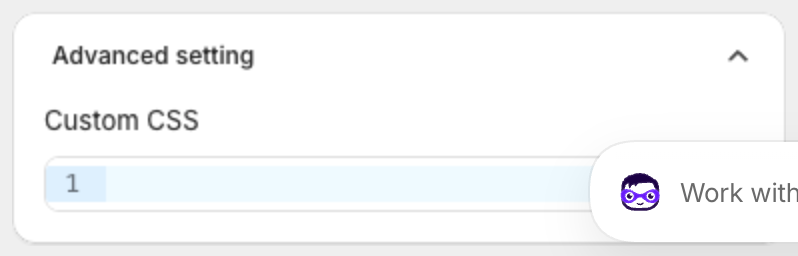
To use another font, paste this CSS and replace the font name. The font must already be available on your store.
.xbcd__content__title,
.xbcd__content__subtitle,
.xbcd__timer_time,
.xbcd__timer_legend {
  font-family: Georgia, serif;
}
7. Save
Click Save in the bar at the top of the page, or Publish if the timer is still a draft.