
Getting started with XB: Sticky Add To Cart Button
Overview
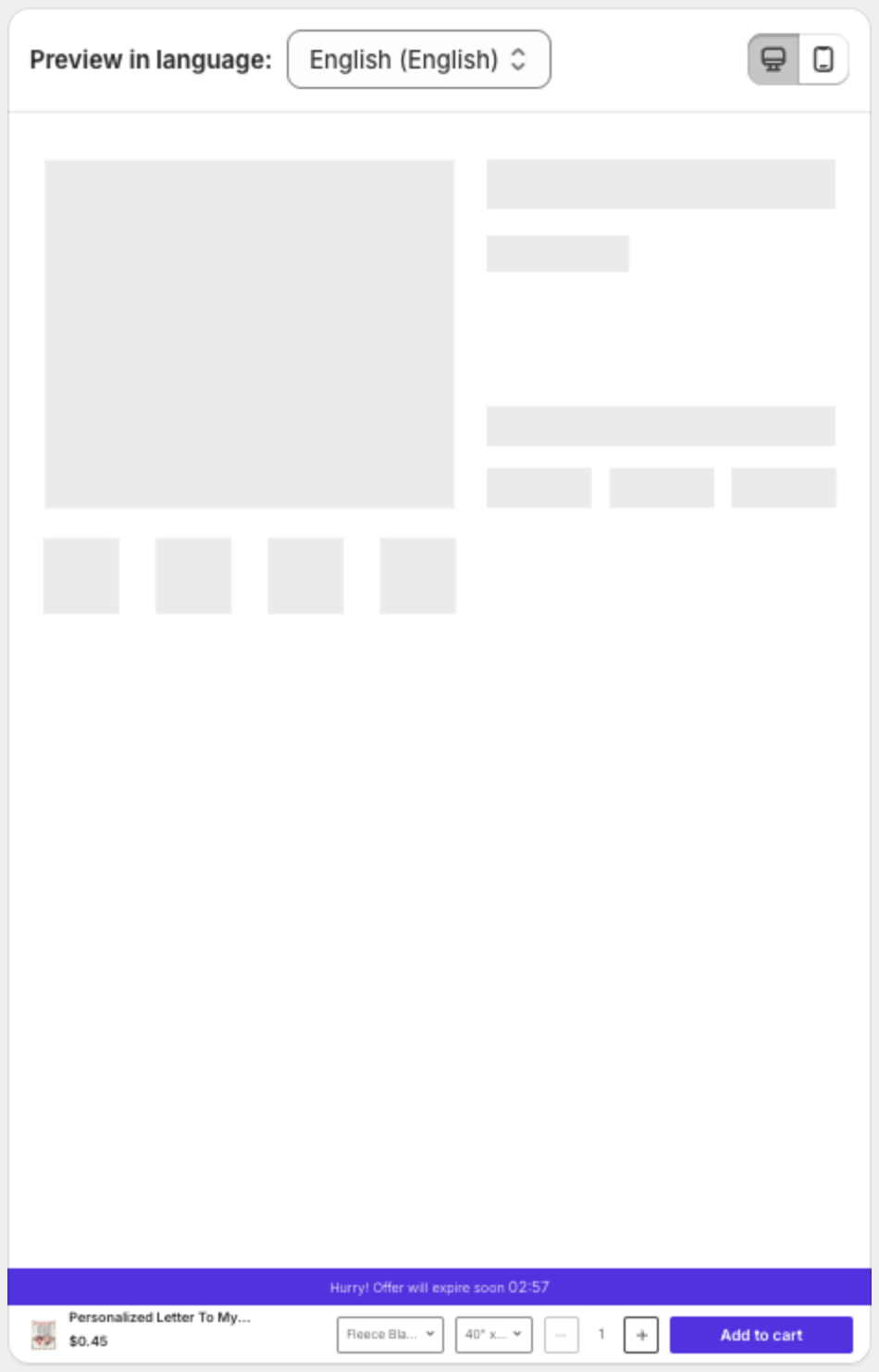
XB: Sticky Add To Cart Button adds a bar with the product, its variants and an Add to cart button that stays on screen while shoppers scroll a product page. This guide turns it on for your store.
Steps
1. Turn on the app embed
- In your Shopify admin, go to Apps and open XB: Sticky Add To Cart.
- On the dashboard, check the App Status card. Active with "Xboost app embedded successfully in the online store." means you are done with this step.
- If it shows Disabled, click Active Xboost script. In the theme editor, open App embeds, turn on Xboost Sticky Add to Cart, and click Save.

If you switch to a new theme later, turn on the app embed again in that theme.
2. Turn on the sticky bar
- In the app menu, click Sticky Add To Cart.
- At the top right, turn on the switch so it reads Sticky add to cart is active.

The Setup guide on the dashboard marks Activate Xboost Core Script and Enable sticky add to cart as done.
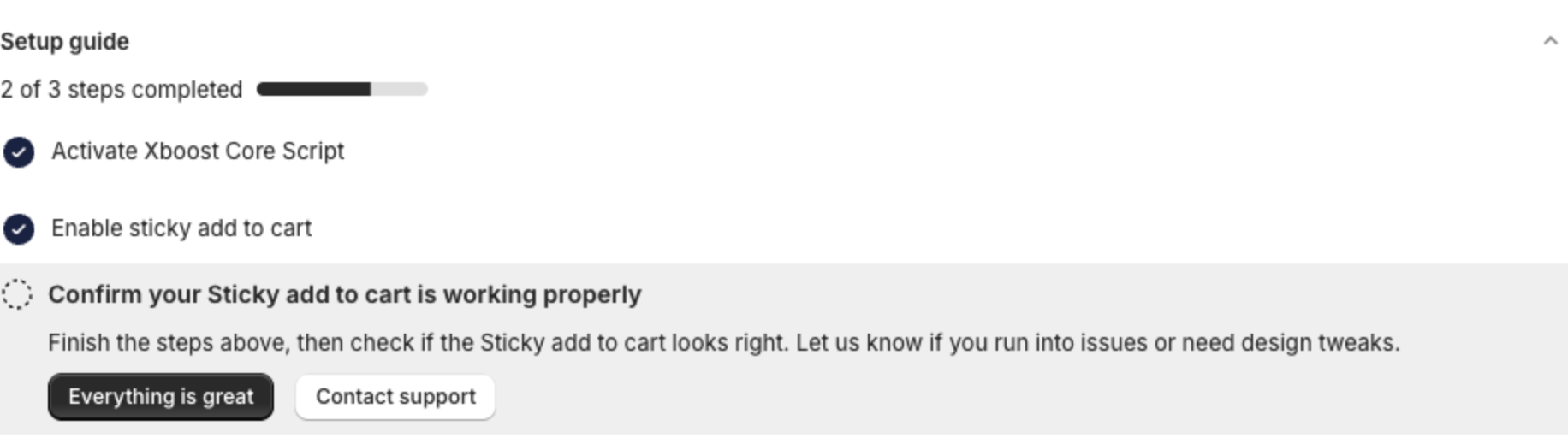
3. Check your store
Open a product page and scroll down. The bar appears at the bottom (or top) of the screen. When it appears depends on Display Setting in Settings of Sticky Add To Cart.
4. Check performance
The Analytics card on the dashboard shows Impressions, Total clicks and CTR for the selected period.
