
How do I show two bars in the same place?
Overview
When two or more active bars use the same built-in position on a page, for example Top of page, all of them show, one under the other, and the app decides their order. To choose the order yourself, set both bars to Manual Position and add one Announcement Block for each of them in the theme editor.
Steps
1. Set both bars to Manual Position
Do this for each of the two bars:
- Open Announcement bars, click the bar name, then click Placement.
- Under Page to display, select Manual Position.
- Click Save in the bar at the top of the page.
- Copy the Announcement bar ID with the copy icon. Keep both IDs at hand.
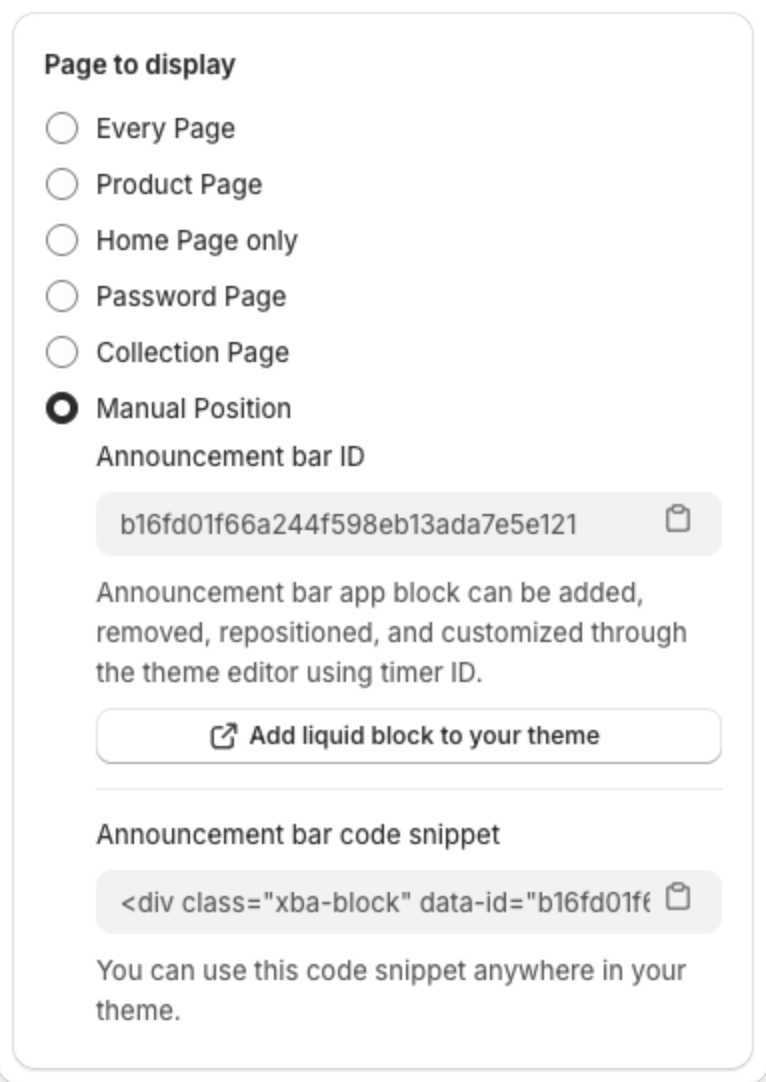
2. Add two Announcement Blocks in the theme editor
- Go to Online Store > Themes and click Customize.
- Open the page where you want the bars.
- Click Add section (or Add block inside a section), open the Apps tab, then select Announcement Block.
- Add a second Announcement Block the same way.
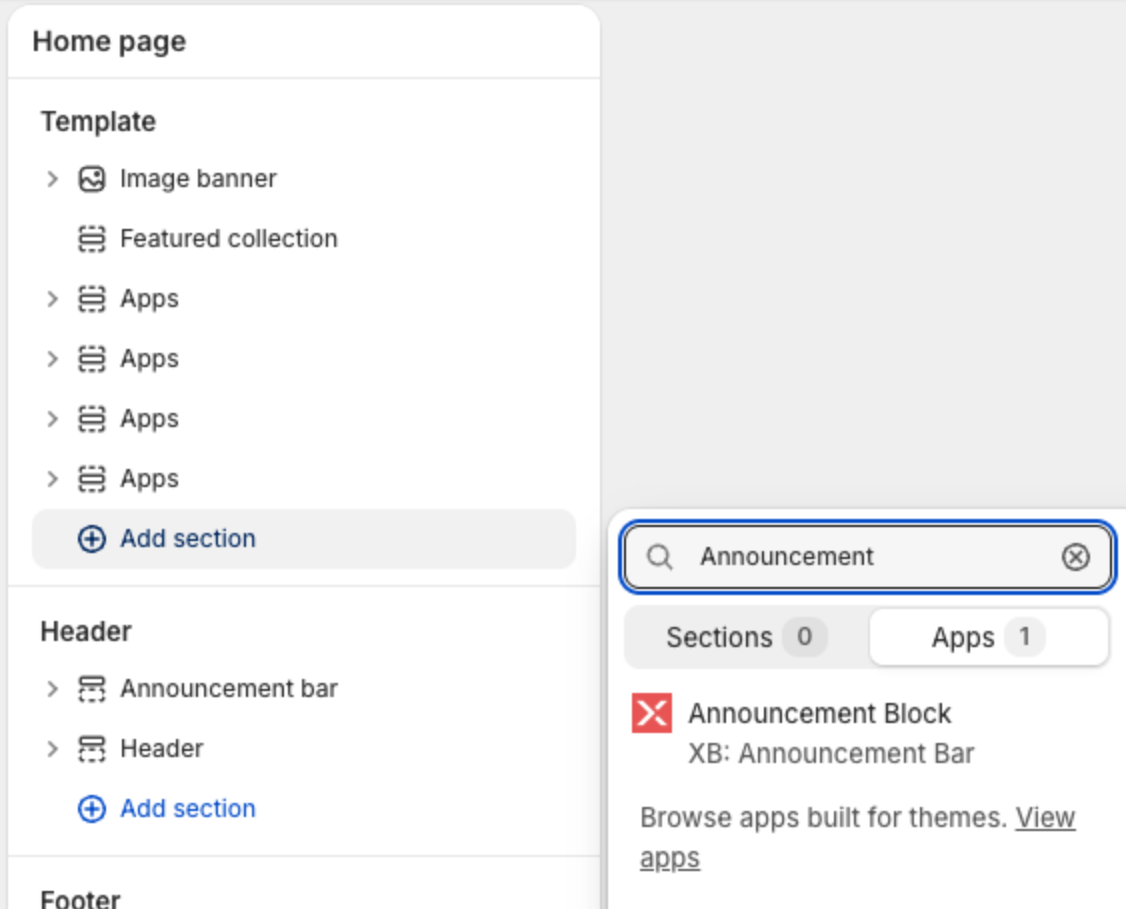
3. Connect each block to a bar
- Click the first block and paste the ID of the first bar into Announcement ID.
- Click the second block and paste the ID of the second bar.
- Drag the blocks into the place and order you want. The bars show in the same order as the blocks.
- Click Save in the theme editor.
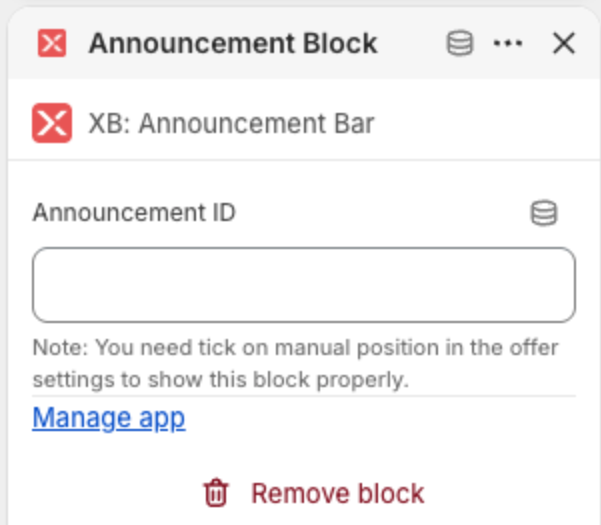
Both bars now show in the order of the blocks. A block shows its bar only when the bar uses Manual Position and is Active.
Which bar comes first in a built-in position
If you keep the bars in the same built-in position, the app orders them. It puts first the bar that targets the fewest products (Specific products, then Collections, then All products except, then the other targets, then Home Page only, then Every Page). Between bars at the same level, the higher Priority comes first, then the newest bar. See How to manage your announcement bars.
In most positions, the first bar shows on top. Below buy button is the exception: each bar is added right under the buy button, so the first bar ends up at the bottom of the group.