
How to translate an announcement bar
Overview
If your store sells in more than one language, you can write each message of a bar in every language. Shoppers see the text in the language they browse your store in. When a message has no text in that language, the bar shows the text of your default storefront language.
Before you start
- Add and publish the languages in Shopify: Settings > Languages. The editor lists the languages of your store.
- Write the bar in your default language first. See How to add messages, coupons and buttons.
Steps
1. Open the bar
Open Announcement bars, click the bar name, then click Content at the top of the editor.
2. Switch the language
Above the previews, open Storefront Language and select a language, for example Deutsch (German).
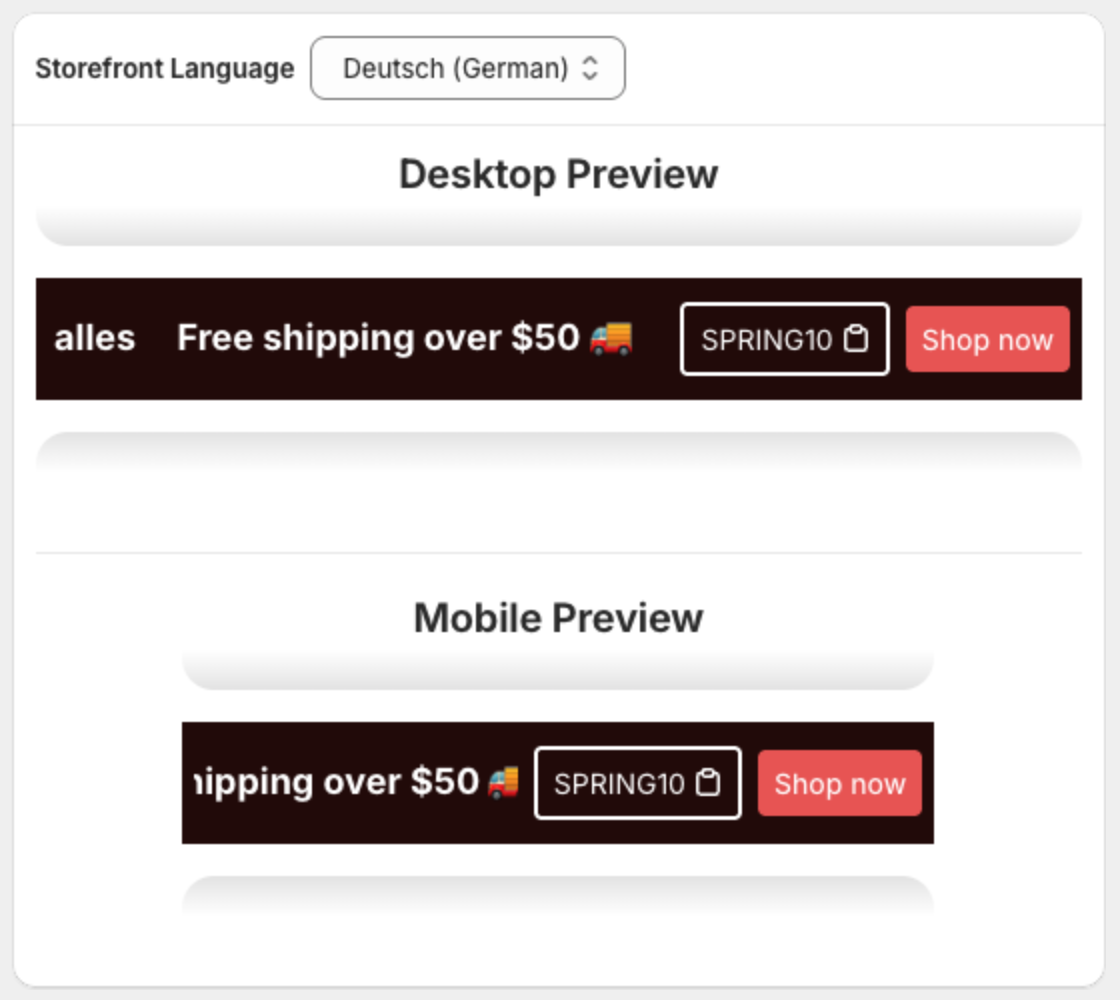
3. Translate the messages
Open each message under Announcement Bar Content Tier and replace the Title and other text with the translation.
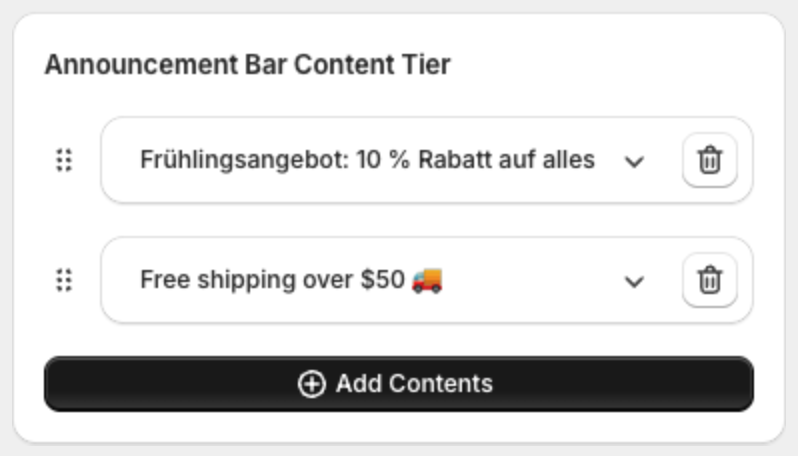
Messages you do not translate keep the text of your default language.
4. Save
Click Save in the bar at the top of the page. Repeat steps 2 to 4 for each language.
Switching Storefront Language back to your default language shows the original text. It is not changed by the translation.