
How to show a bar in a custom position
Overview
Use Manual Position when the built-in positions (top of page, bottom of page, near the buy button) do not fit. You place the bar yourself in the theme editor with the Announcement Block app block, or with a code snippet in your theme.
Before you start
- Turn on the app embed. See How to enable the app embed.
- Save the bar at least once. Its ID appears only after the first save.
Steps
1. Select Manual Position
- Open Announcement bars, click the bar name, then click Placement.
- Under Page to display, select Manual Position.
- Copy the Announcement bar ID with the copy icon.
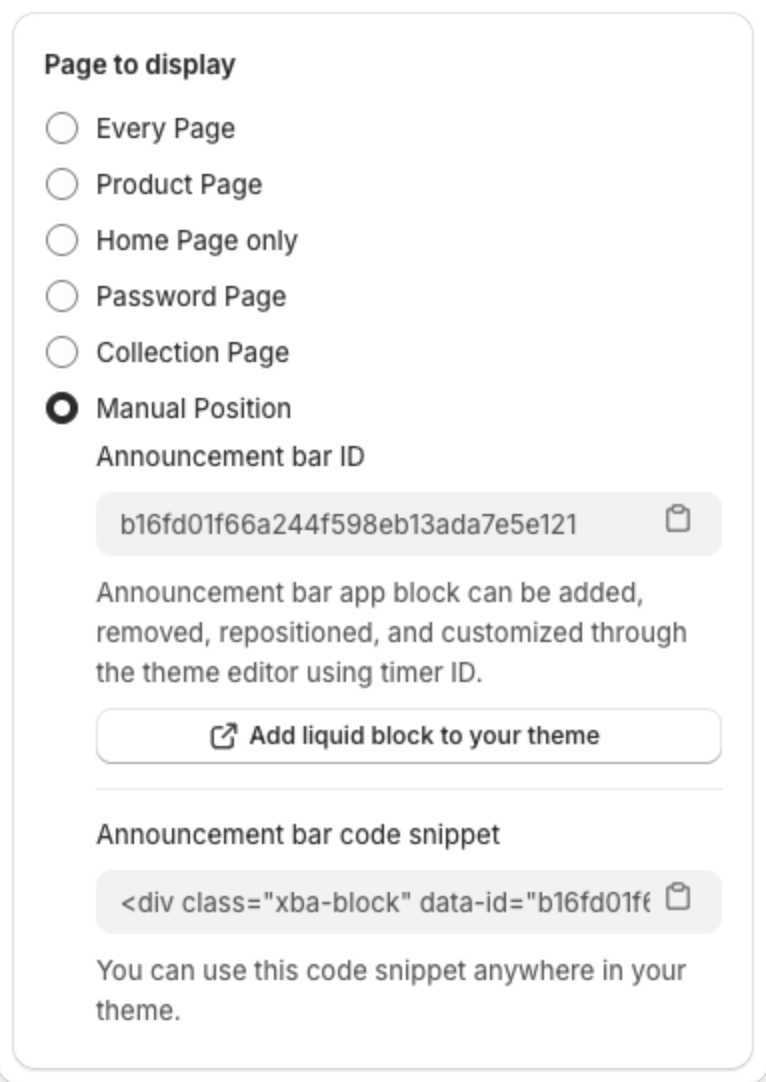
Before the first save, the ID field shows "Save or Publish to show ID". Click Save in the bar at the top of the page first.
2. Add the Announcement Block in the theme editor
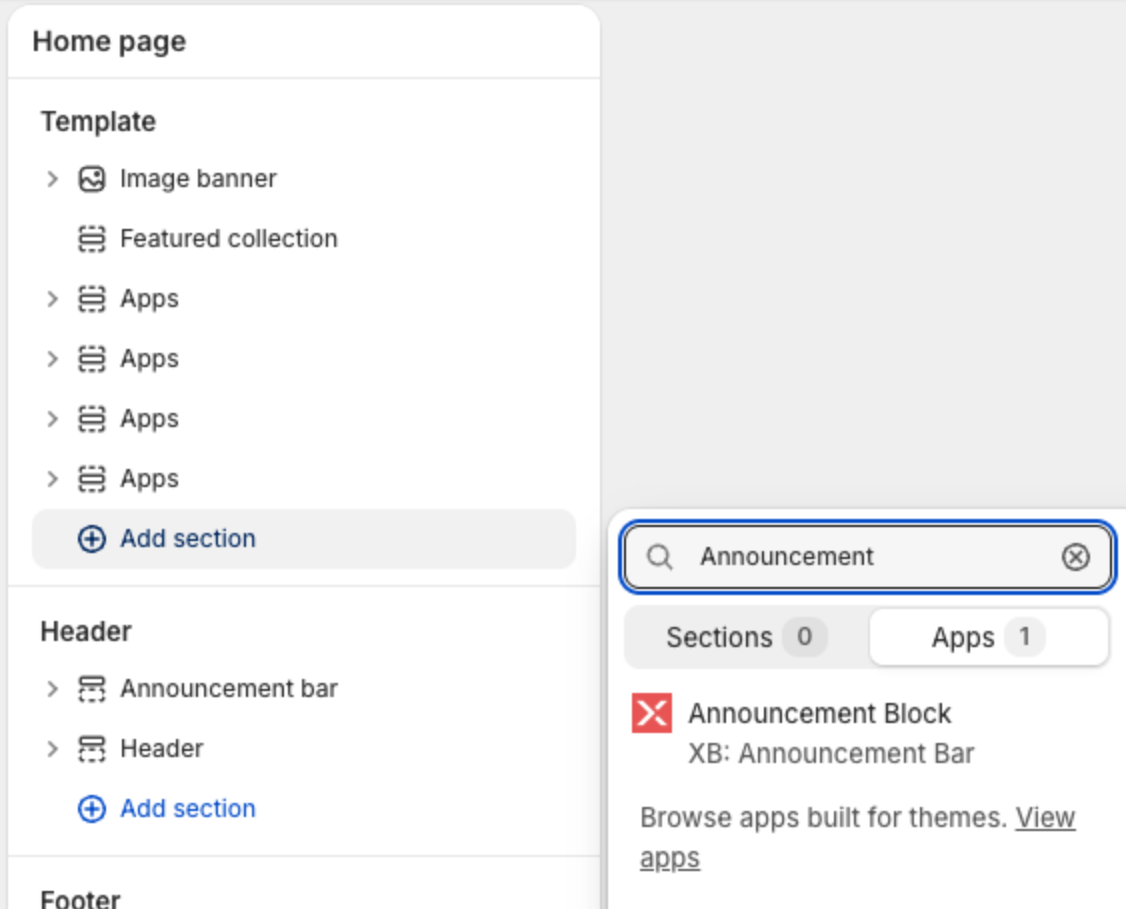
- Click Add liquid block to your theme. The theme editor opens. You can also open it from Online Store > Themes > Customize.
- Open the page where you want the bar, for example the home page.
- Click Add section (or Add block inside a section), open the Apps tab, then select Announcement Block.
3. Connect the block to your bar
- In the block settings, paste the ID into Announcement ID.
- Drag the block to the place you want.
- Click Save in the theme editor.
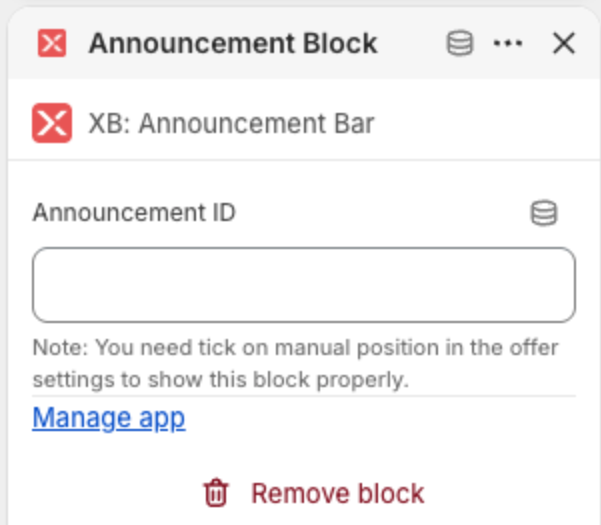
The block shows the bar only when the bar uses Manual Position and is Active.
Use the code snippet instead
If you or your developer edit theme code, copy the Announcement bar code snippet from the Placement step and paste it in any theme file where you want the bar. It looks like this, with your bar ID in data-id:
<div class="xba-block" data-id="YOUR-ANNOUNCEMENT-BAR-ID"></div>