
Importing Reviews to Xboost Reviews
Do you have a set of old reviews you want to showcase on your Xboost Reviews widgets?
Switching to a new reviews app doesn’t mean losing your valuable reviews. With Xboost, it’s incredibly simple to transfer your existing reviews and display them proudly in your store.
This article will guide you through importing reviews from any past source.
Importing reviews from AliExpress
From the Import reviews tab, choose Import from AliExpress:
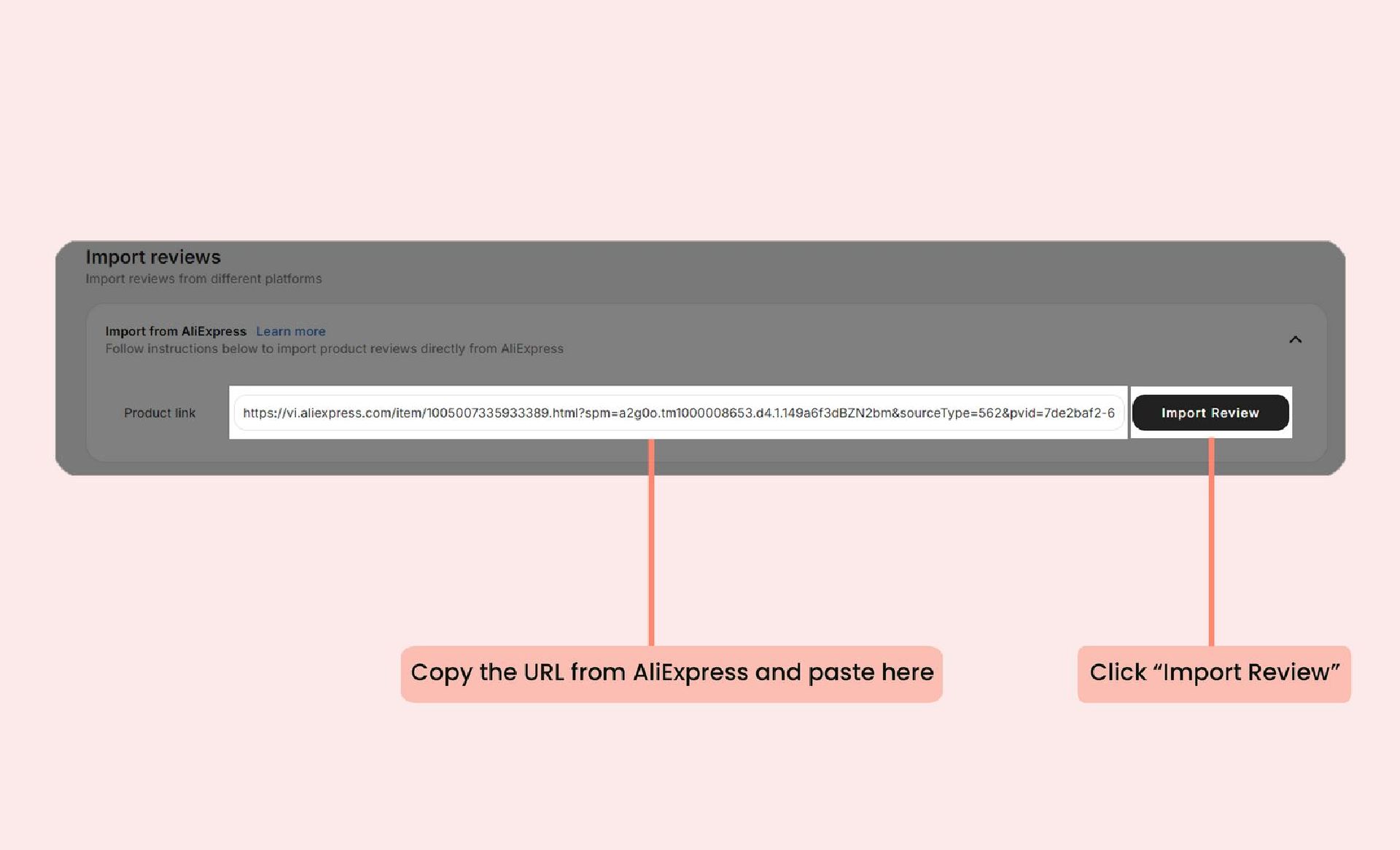
- Visit the AliExpress product page from which you’d like to import your reviews.
- Paste the product link from AliExpress into the box, then click Import Review:
- Select the product you’d like to import reviews to, and filter the reviews you want to import.
- Click Import Review > Import filter options:
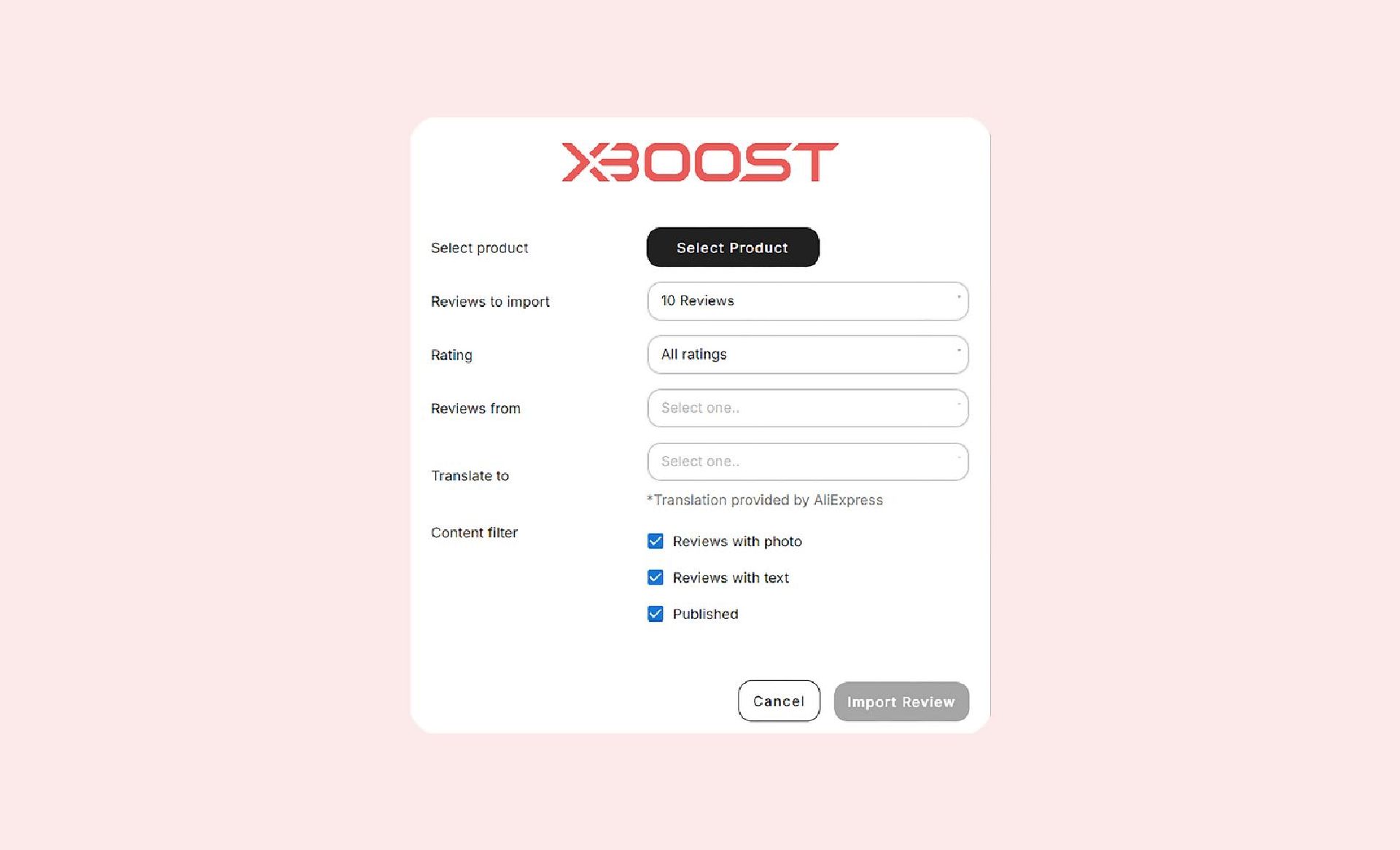
- Select product: Choose the product you want the reviews to be linked to.
- Reviews to import: The number of reviews you want to import per batch.
- Rating: Filter the reviews you import by their rating (e.g.,3 stars and up, 5 stars only).
- Reviews from: Import only reviews from the selected country.
- Translate to: Translate the imported reviews into your chosen language.
- Reviews with photo: When selected, only reviews with attached photos will be imported.
- Reviews with text: When selected, only reviews with text will be imported.
- Published: When selected, only published reviews will be imported.
Importing reviews from a spreadsheet
In this article, we’ll cover the steps for importing existing reviews from a CSV file and how to complete the review data in the Xboost Reviews template fields.
To import your reviews using the Xboost Review Import Template file:
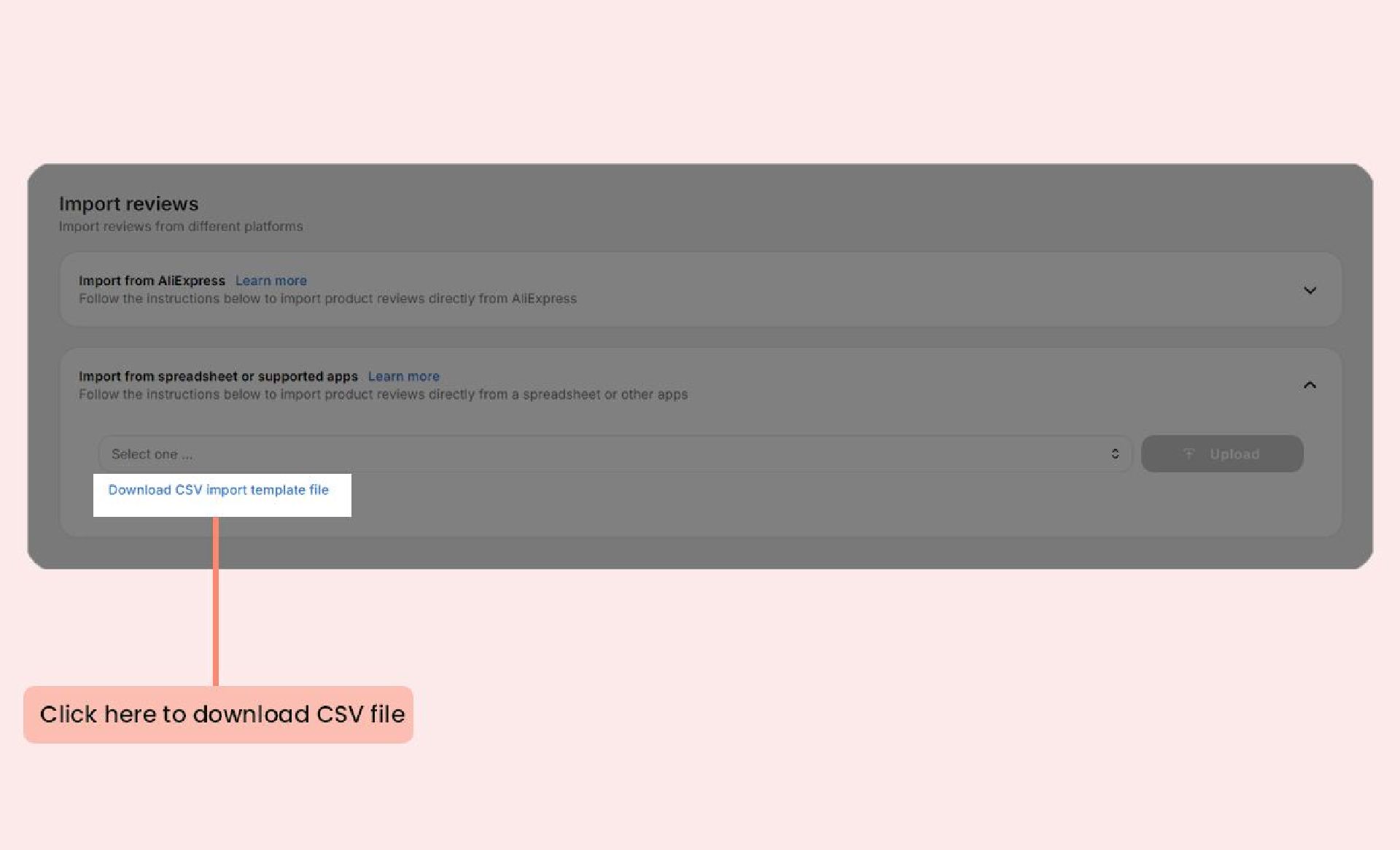
- On the Import Reviews page, go to Import from a spreadsheet or supported apps.
- Click Download CSV import template file.
- Enter your review information according to the template file format.
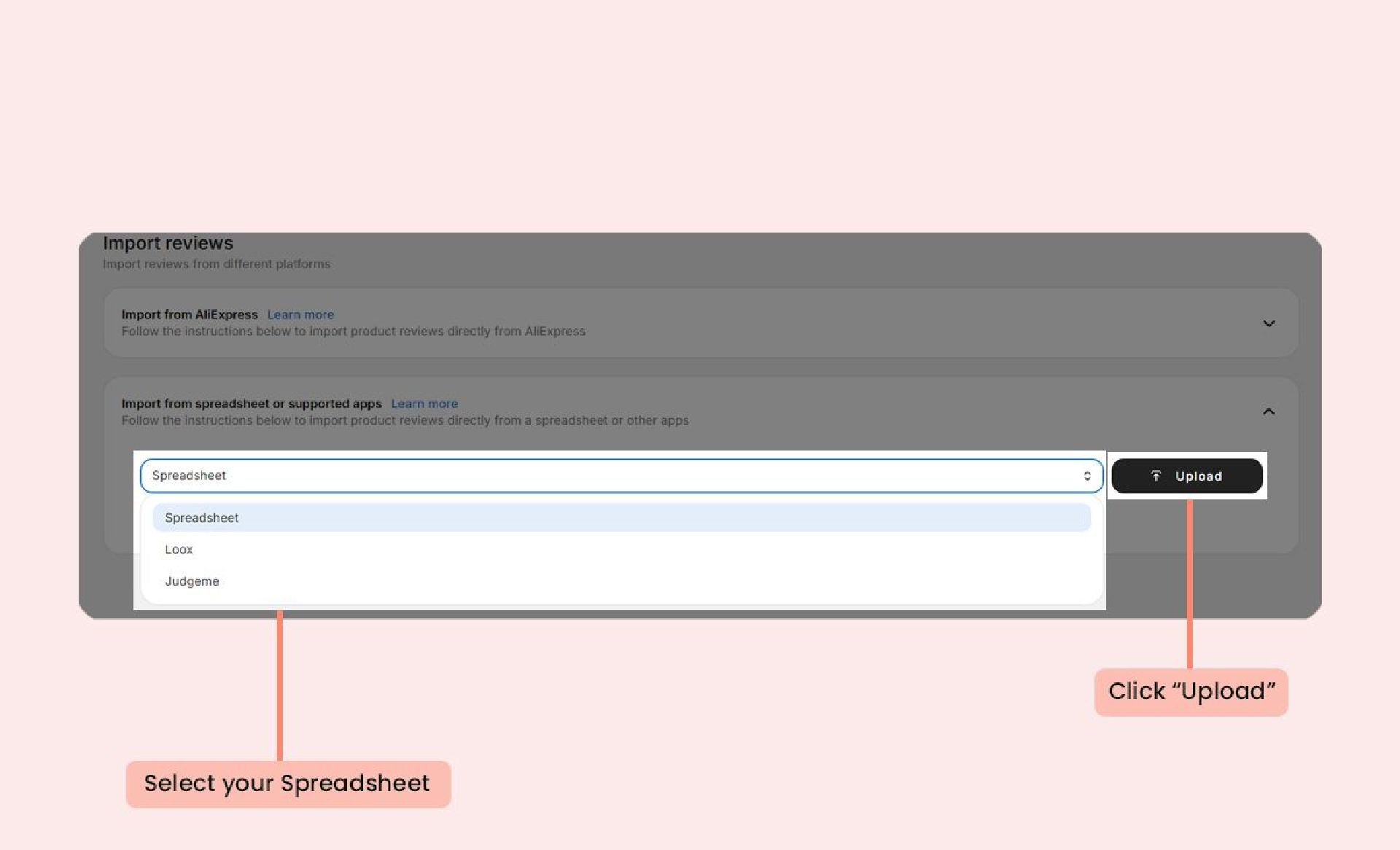
- Select your downloaded CSV file (or CSV file downloaded from other apps) then click Upload
- After the import process is complete, you’ll receive a confirmation, and your reviews will be displayed in the All Reviews section.
